
Round Robin Appointment Booking: Auto-Assign Staff in WordPress
 Ishrat Zahan
31 minutes read
Ishrat Zahan
31 minutes read 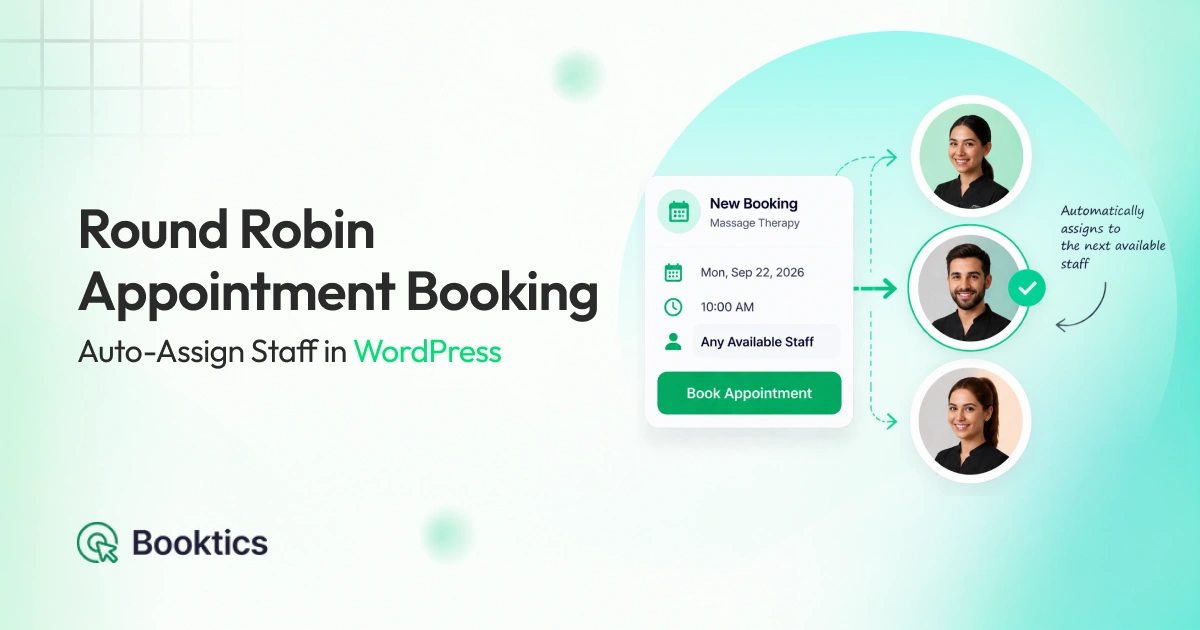
In a busy salon, one stylist’s calendar is full by Tuesday while two equally skilled colleagues still have open chairs. Customers see fewer open slots, some book elsewhere, and your receptionist ends up deciding who takes every new booking.
Round robin appointment booking helps solve this problem. It automatically assigns no-preference bookings to an eligible staff member who is available; so appointment is distribute evenly among staff.
Customers pick a time, and they’re done. Your front desk stops assigning bookings by hand. And every qualified team member gets a fair share of new clients. Clients can still choose their preferred provider when that option is available.
This guide explains how the round robin appointment booking system works, when to use it, and how to set it up in Booktics, a WordPress appointment booking plugin from Arraytics.
Key Takeaways
- Round robin appointment booking gives every new booking to the next available staff member. When a customer doesn’t pick a provider, the system chooses an eligible team member for them. No one gets overloaded while others wait for clients.
- Booktics has two ways to assign bookings. Strict rotation takes turns in a fixed order. Least booked sends the appointment to whoever has the fewest bookings in a set period.
- Customers can still pick their favorite provider. You can hide the staff step completely, or show your team with an “Any available” option. Loyal clients can choose by name, and everyone else is auto-assigned.
- Daily limits keep things fair. The Maximum bookings per day setting caps how many auto-assigned appointments one person gets. Round robin works best for services several people can do. Keep manual selection for specialists and ongoing treatments, and remember that equal booking counts don’t always mean equal hours or revenue.
- Setup takes about a minute per service. Open the service’s Team & Schedule tab, assign at least two team members, and turn on Auto-assign team member. This needs an active Booktics Pro license.
What Is Round Robin Appointment Booking?
Round robin appointment booking is a scheduling method that automatically assigns a no-preference booking to an eligible staff member who is available for the selected service and time. In appointment booking, it is useful when several team members can provide the same service and the client has no preferred provider.
Round robin appointment scheduling can work in different ways, like:
Strict rotation: In Strict rotation, team members take turns receiving bookings. For example, if Rima received the last “Any available” booking, the next eligible booking goes to the next available team member in the rotation.
Least booked: It works differently. It checks how many appointments each eligible staff member has in the selected comparison period. If Rima has 8 bookings and Sami has 3, the next “Any available” booking can go to Sami, if Sami is free at that time.
In Booktics, you can choose either Strict rotation or Least booked in the Auto-assign team member settings.
How Does Round Robin Booking Work?
You have a spa with several therapists offering the same massage. Now, if you let the customer leave provider selection to the system, automatic staff assignment follows four stages:
- The customer selects a service and time. This identifies the appointment they want to book.
- The system identifies eligible, available staff. It considers staff assigned to the service who are available at the requested time and have not reached an enabled daily auto-assignment limit.
- The selected assignment rule is applied. Booktics follows the rotation or compares appointment counts.
- A staff member is assigned. The completed booking has a provider without the customer having to select one.
You can control two parts of this experience:
Customer choice. For each service, you can let the system assign staff for every booking, or offer a team list with an “Any available” option. Clients can then choose a name or leave the decision to the system.
Assignment rule. For bookings the system assigns, you choose whether it follows a fixed rotation or compares appointment counts within a configured period.
Round robin can’t create open slots. If nobody is free at the chosen time, the customer picks another slot.
Is Round Robin Appointment Scheduling Fair to Staff?
Round robin scheduling distributes new bookings, not workload. Two staff members can end a week with the same appointment count and very different hours and revenue; four hair colour appointments take far longer than four trims.
It also cannot correct for availability: someone who works more days will receive more auto-assigned bookings under either rule. And clients who choose a provider by name bypass the rotation entirely, so a popular stylist can still run ahead.
Least booked balances appointment counts, not hours. If your services vary a lot in length, review the comparison period and daily limits to keep workload closer to even.
When Should You Use Round Robin Booking?
Round robin appointment scheduling works best when several qualified staff members can provide the same service and the client is comfortable booking with any of them. Assign suitable staff to each service before enabling it.
Round robin is a good fit when:
- Multiple qualified staff members provide the same service.
- Some clients have no preference for a particular provider.
- You want a consistent process for assigning new appointments instead of deciding case by case.
Automatic assignment is unnecessary or unsuitable when:
- Only one provider delivers the service, so there is no allocation decision to make.
- The appointment requires a specific specialist.
- Continuity with the same provider is essential, such as an ongoing treatment plan.
For example, a clinic might offer initial assessments with any of four physiotherapists. A follow-up that requires continuity with one therapist should remain a booking with that specific provider.
Practical Use Cases for Round Robin Appointment Booking
How does round robin scheduling work in a real salon, spa, or clinic? The examples below show how automatic staff assignment works when clients do not need a specific provider. The right setup depends on staff availability and the type of service you offer.
Let Clients Book Without Choosing a Staff Member
A dental clinic offers routine cleanings with four hygienists. A new patient may not know any of them or have a preference. Instead of choosing from unfamiliar names, they can select a suitable time. The system then assigns an available hygienist who provides that service.
Distribute New Appointments Across Available Staff
At a spa, five therapists offer the same 60-minute massage, but some already have more appointments than others. When a client chooses “Any available,” the Least booked rule checks the appointment counts of available therapists. It assigns the booking to the eligible therapist with the fewest appointments in the comparison window.
Reduce Manual Assignment at the Front Desk
A salon receptionist may need to assign every online booking when a client has no stylist preference. Automatic staff assignment follows the rule you set for those bookings. This removes repeated decisions from the front desk.
Accept New Bookings When One Staff Member Is Busy
A physiotherapy clinic has three therapists who provide the same initial assessment. If one therapist is busy at the requested time, a new patient can choose “Any available.” The booking plugin can then assign another suitable therapist who is free.
Keep One Staff Member From Being Overloaded
A grooming studio wants each groomer to take no more than six auto-assigned appointments a day. Once a groomer hits that number, new “Any available” bookings go to a groomer who is free and below the cap. Clients who pick a groomer by name are unaffected.
Two Ways to Offer Round Robin Booking to Customers
You have seen where automatic staff assignment can help. Now decide what customers should see when they book a service.
You can let the system assign a staff member for every booking. Or, you can let customers choose a provider and include an “Any available” option for clients with no preference.
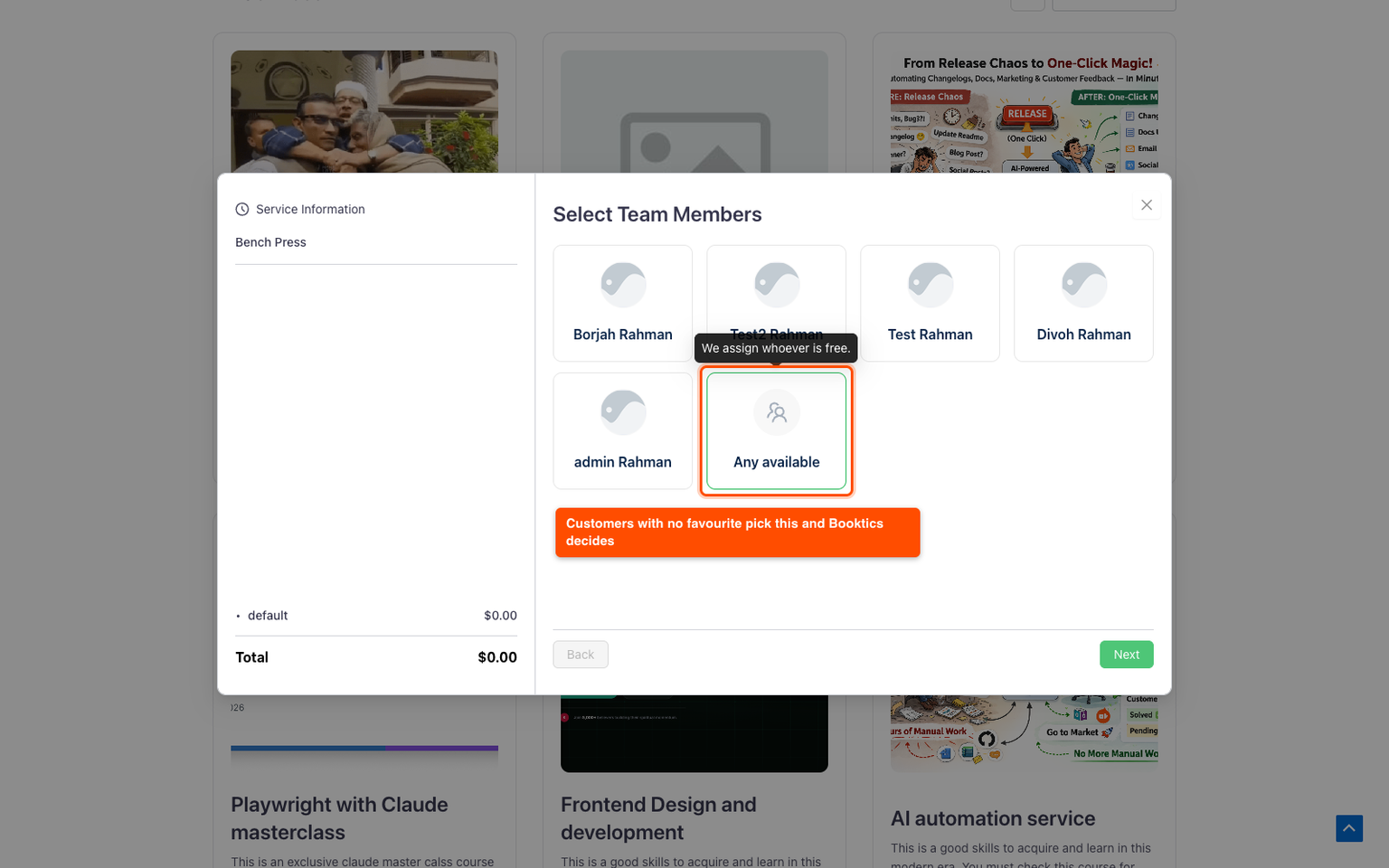
This customer choice is separate from the assignment rule. The rule only decides which eligible staff member receives an automatically assigned booking.
| Customer mode | What the customer sees | Best suited to |
|---|---|---|
| Skip the team step | The customer moves from service selection to the calendar, and the system assigns staff. | Services where customers do not need to choose a provider. |
| Show team members plus “Any available” | The customer selects a specific staff member or “Any available.” | Businesses that need both provider preference and automatic assignment. |
Round Robin Booking Rules: Strict Rotation vs. Least Booked
Choose Strict rotation when you want eligible staff members to receive auto-assigned bookings in a fixed turn order. Choose Least Booked when you want the system to consider appointment counts before assigning the next booking.
| Rule | How it assigns bookings | Best for |
|---|---|---|
| Strict rotation | Assigns the next eligible, available staff member in the set rotation order. It does not compare existing appointment counts. | Teams that want a simple, predictable turn-taking system. |
| Least booked | Assigns an eligible, available staff member with the fewest appointments in the selected comparison period. | Teams that want new auto-assigned bookings to favour staff with fewer appointments. |
In Booktics, with Least booked, it checks each eligible staff member’s appointment count around the selected booking date. The Compare workload over setting defines this period. For example, a 15-day setting includes the 15 days before and after that appointment date.
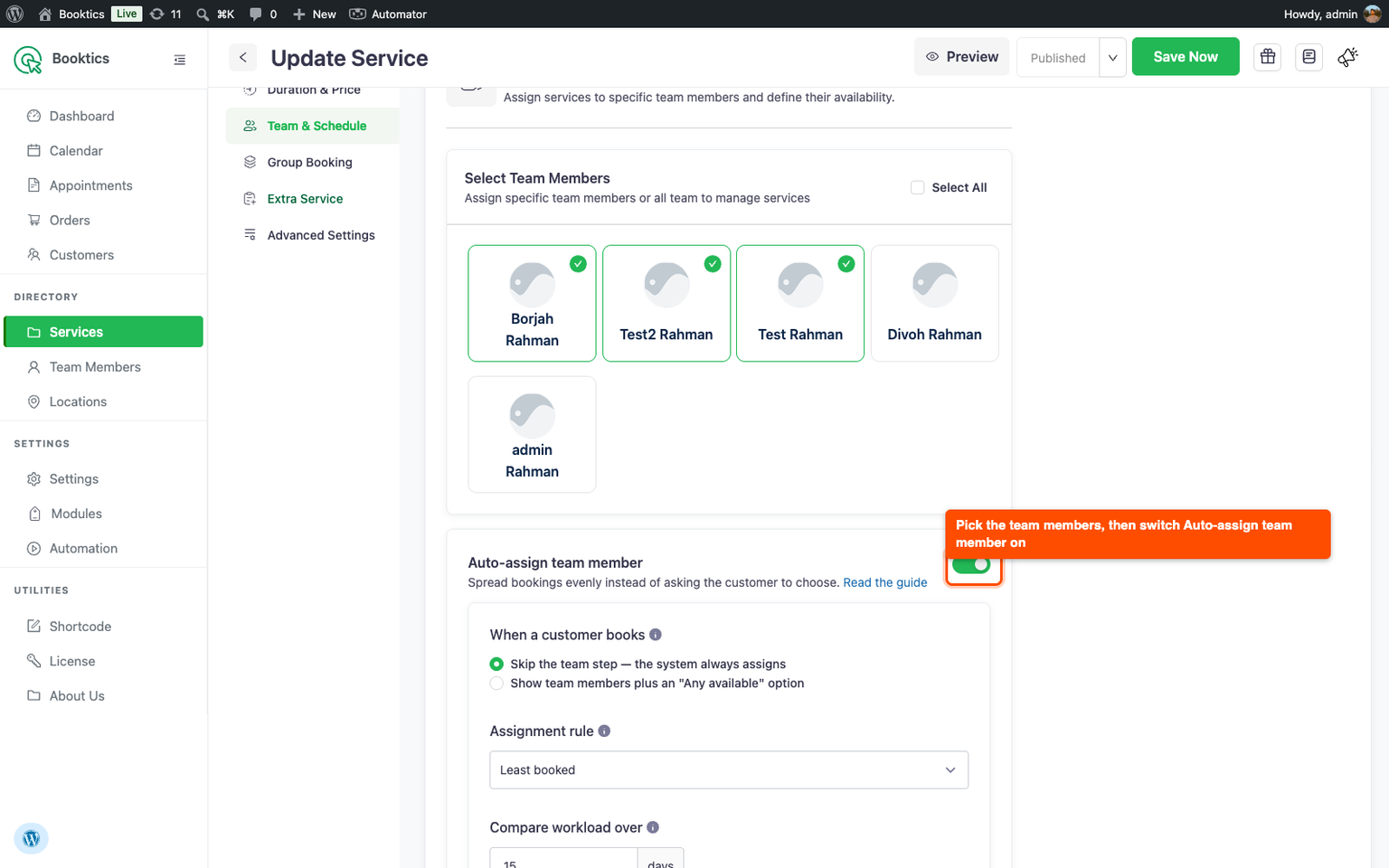
Strict rotation does not use the workload comparison setting because it follows the fixed turn order.
Set Daily Booking Limits for Auto-Assigned Appointments
During automatic assignment, Maximum bookings per day prevents a staff member who has reached the daily threshold from receiving another appointment for that date.
For example, if a staff member has reached a daily limit of five appointments, a new auto-assigned booking can go to another eligible staff member who is available and below the limit.
Three points to keep in mind:
- Setting the value to 0 means no daily limit.
- The limit applies only when the system does the assigning. It does not apply when a customer selects a staff member by name.
- A daily booking limit controls appointment volume; it is separate from checks for overlapping bookings.
How to Set Up Round Robin Booking in WordPress with Booktics
To configure round robin booking in WordPress, start with one Booktics service that several staff members provide. Set up automatic staff assignment, then test the customer experience before enabling it for other services.
Requirements:
- Booktics with an active Booktics Pro license.
- At least two team members assigned to the same service.
- Correct service assignments and staff availability, since the system can only choose among available team members.
The next steps are:
- Open the service. Go to Booktics → Services, open the service, and switch to the Team & Schedule tab.
- Enable auto-assignment. Select at least two staff under Select Team Members, then turn on Auto-assign team member to reveal its settings.
- Choose the customer experience and assignment rule. Skip the team step or show the team with “Any available,” then select Strict rotation or Least booked. For Least booked, configure Compare workload over.
- Set an optional daily limit, then save the service.
- Run test bookings to check that:
- A booking without a provider preference receives an available staff member.
- A named selection stays with the chosen provider, if that option is enabled.
- A staff member who is unavailable does not receive the booking.
- A staff member at the daily cap does not receive another auto-assigned booking for that date.
For the full walkthrough, follow the Booktics Round Robin setup guide.
Common Questions About Round Robin Appointment Booking
Have questions about round robin appointment booking? Below, we explain how it differs from round robin scheduling, how automatic staff assignment works, and what to consider when setting up a fair booking rotation in WordPress.
Is round robin scheduling the same as round robin appointment booking?
In appointment booking, yes. Both mean automatically assigning no-preference bookings to an eligible, available staff member, either in turn (Strict rotation) or by fewest appointments (Least booked). The term is also used for sales meeting distribution and CPU scheduling, which this guide does not cover.
Can clients still choose a specific staff member?
Yes. Enable the team list with “Any available” so clients can choose a provider or let Booktics assign one.
Why does one staff member receive more bookings than others?
Round robin appointment scheduling does not guarantee identical totals. First, check whether clients are selecting that staff member by name. Next, compare staff availability: someone who is available more often may receive more bookings. Finally, check the assignment rule and, for Least booked, its comparison window.
Also separate existing totals from new assignments. A staff member who began with more appointments can still have a higher total while new bookings go to eligible, available colleagues with fewer appointments.
What happens when no team member is available?
The booking cannot proceed, and Booktics asks the customer to choose another slot. Staff may be outside working hours, already booked, or at their daily limit.
Does the daily limit apply when clients choose staff by name?
No. Booktics applies it only during automatic assignment. Skip the team step if you want bookings through this service’s booking form to use that assignment flow.
Is Round Robin available in the free version of Booktics?
No. Round Robin requires an active Booktics Pro license, plus at least two team members assigned to the service you want to configure.
Can I enable round robin booking in WordPress for just one service?
Yes. Booktics configures the feature within each service. Open that service’s Team & Schedule tab, assign at least two team members, and enable Auto-assign team member. You can start with one service before configuring others.
What happens to the assignment if a client reschedules or cancels?
Booktics automatically handles booking updates when a client reschedules or cancels. When a client reschedules, the assigned booking time is updated across the calendar and dashboard based on your settings. When a client cancels, the assigned time slot is released and becomes available for other bookings.
Does the assigned staff member get a notification?
Yes. Booktics can send automated email notifications and updates to staff and customers when appointments are created, changed, or cancelled. This keeps the assigned team member informed without requiring manual follow-up.
Does round robin work with Google Calendar sync?
Yes. Booktics supports two-way Google Calendar sync, so assigned bookings can appear on the connected staff member’s calendar, and calendar availability can affect future booking slotsassigned bookings can appear on the connected staff member’s calendar and calendar availability can affect future booking slots
Start Round Robin Booking With One Service
Start with one service that multiple team members can provide. Decide whether clients can choose their provider, select an assignment rule, and test the booking flow before adding more services.
Less manual assigning. More effortless booking.
Start round robin booking with one service. Explore Booktics Pro, or follow the setup guide if you already have a license.