How to Manage Appointment Booking in WordPress (Time Slots, Availability & Duration Made Easy)
 Shifat Jaman
28 minutes read
Shifat Jaman
28 minutes read 
Managing appointments efficiently is essential for any service-based website.
Whether you run a salon or service business, knowing how to manage appointment booking can help you avoid double bookings, reduce no-shows, and deliver a smoother experience.
Without proper time slots, availability settings, and service duration, even a small scheduling mistake can lead to lost time and unhappy clients.
In this guide, we’ll explain how to manage appointment booking in WordPress, including how to set up time slots, manage availability, define service duration, and handle custom schedules.
Let’s get started.
Understanding time slots, availability, and service duration
When setting up a WordPress booking plugin, it’s important to understand a few terms that affect how your schedule works. These include appointment time slots, availability, and service duration.
Appointment time slots
Time slots are the blocks of time a customer can choose from when booking. For example, if your business opens at 9:00 AM and closes at 5:00 PM, you can divide that into 30-minute or 1-hour slots. These are the options your customers will see when they try to book an appointment or schedule a meeting.
Using clear booking time intervals helps avoid overlaps and gives you better control over how your day is planned.
Availability
Availability means when you are open for bookings. It includes your business hours, working days, and any breaks or days off. If you don’t manage this properly, customers might try to book at times when you’re not available.
With a good WordPress scheduling plugin, you can define your availability and update it anytime. You can also block off holidays or breaks, so you don’t get booked when you’re not working.
Service Duration
Service duration in a booking system is the amount of time needed for each appointment. For example, a haircut might take 45 minutes, while a consultation may last 1 hour.
How to set up and manage appointment schedules in Booktics (Step-by-Step)
Booktics is a simple and flexible WordPress appointment booking plugin. It helps you set up your schedule by managing appointment time slots, availability, and service duration. In this section, we’ll go through the steps to keep your schedule consistent and clear.
Install and activate Booktics
Once you choose Booktics as your WordPress booking plugin, follow these steps:
- Log in to your WordPress admin dashboard.
- Go to Plugins > Add New.
- In the search bar, type Booktics.
- Click Install Now, then select Activate.
📦 Download Booktics for Free
If you’re running a service-based business and want a smooth, no-code way to manage appointments, this is your chance to get started. It’s free, flexible, and made to grow with your business.
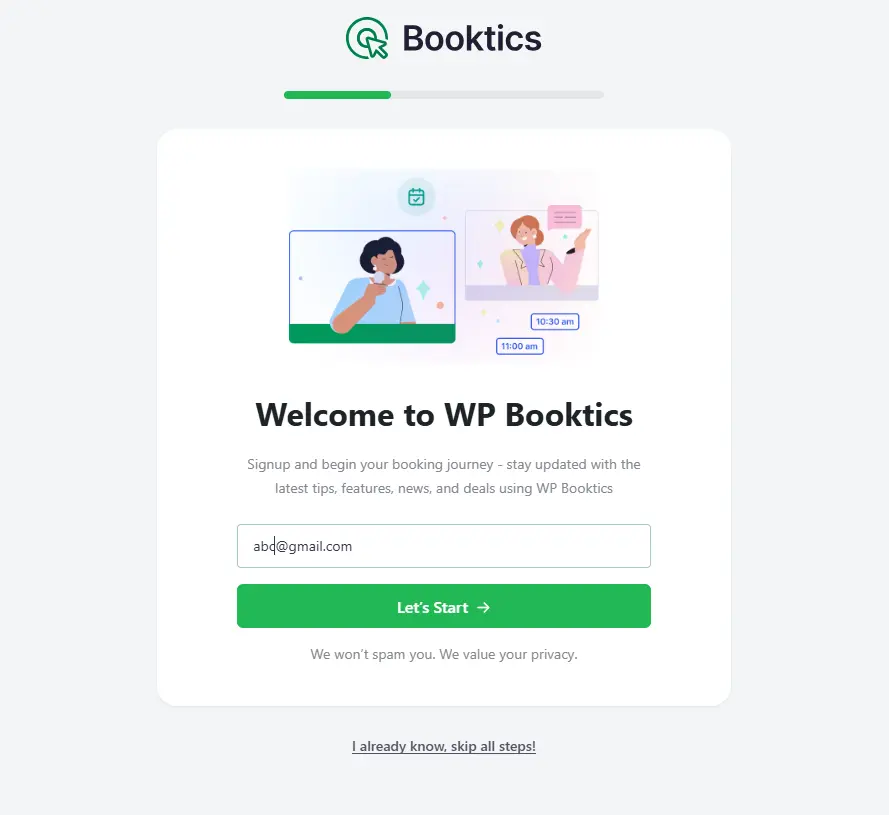
Download from WordPress.orgAfter activation, Booktics will launch a quick setup guide to help you get started. You’ll also see a new Booktics menu in your WordPress dashboard. From here, you can manage services, appointment time slots, schedules, and form fields.
This setup process is important. Your WordPress booking system depends on this information to work correctly. Here you will need to give your email, then set up your Booktics profile, and finally set your availability.
Set up your service
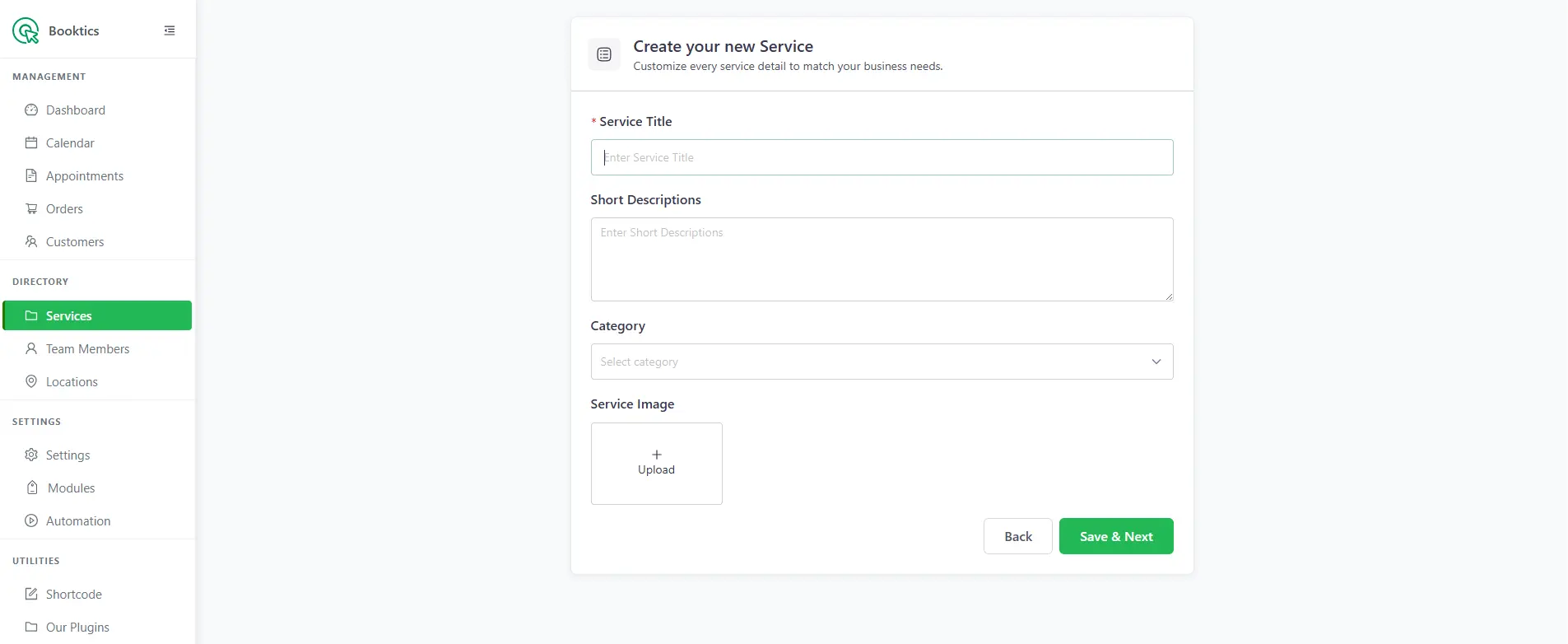
After the onboarding is finished, your first task is to create your new service. This usually includes service tile, short description, category, and image.
Set up a business profile
Now, set up a basic business profile. This information appears on your WordPress booking form, confirmation emails, and invoices.
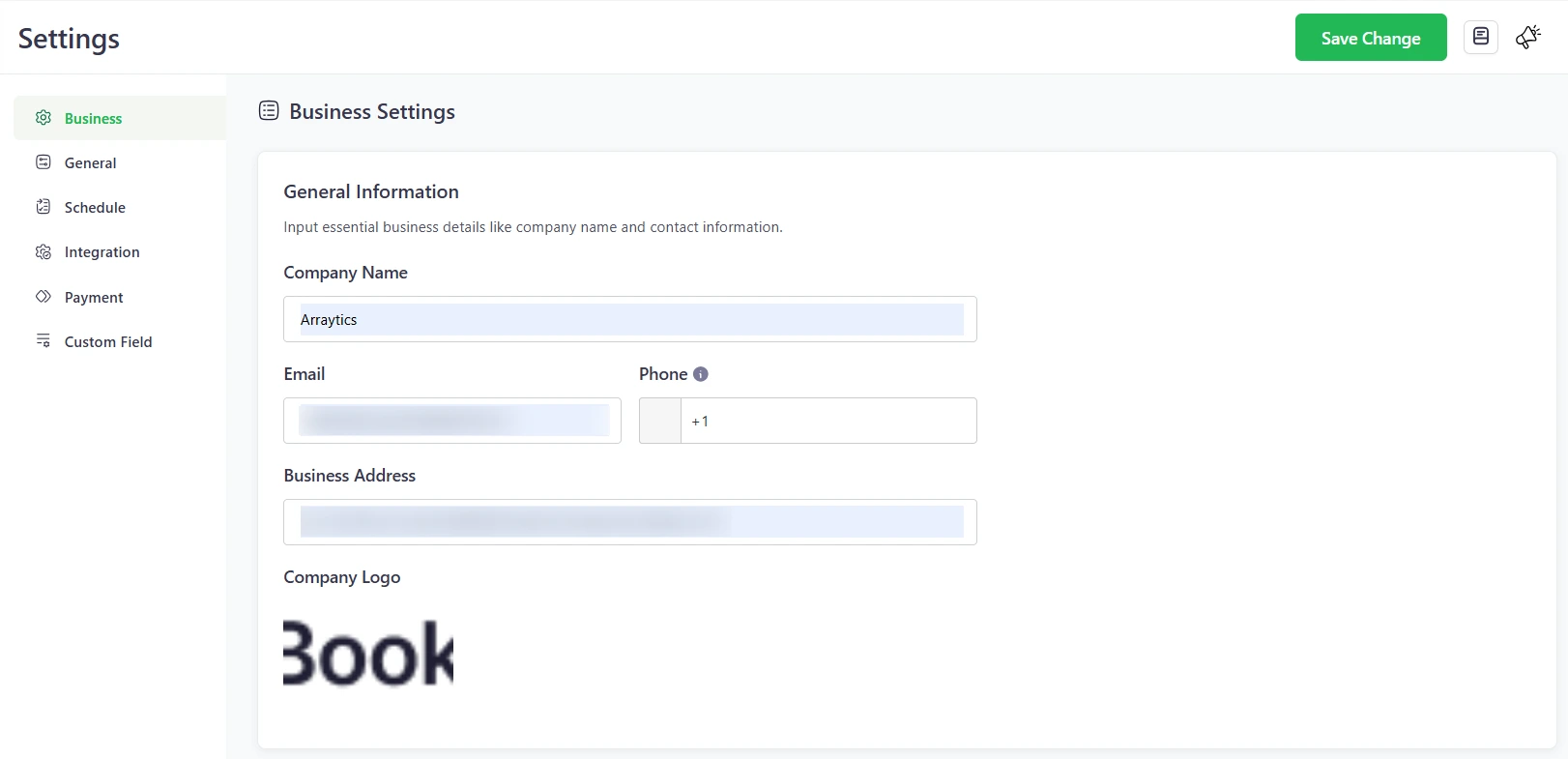
To complete your profile:
- Go to Booktics > Settings > Business.
- Enter your business name (this will be visible to customers).
- Add your email address for notifications.
- Enter your phone number with the correct country code.
- If needed, add your business address.
- Upload your company logo to personalize your booking form.
Once you’ve filled in the details, click Save Changes.
Set default appointment duration
To start, you’ll need to choose how long each appointment lasts. This is your service duration.
In Booktics:
- Go to the Settings > Schedule.
- Set a Default Appointment Duration (e.g., 30 minutes, 1 hour).
- This duration will be used for all services unless you assign a custom time for a specific one.
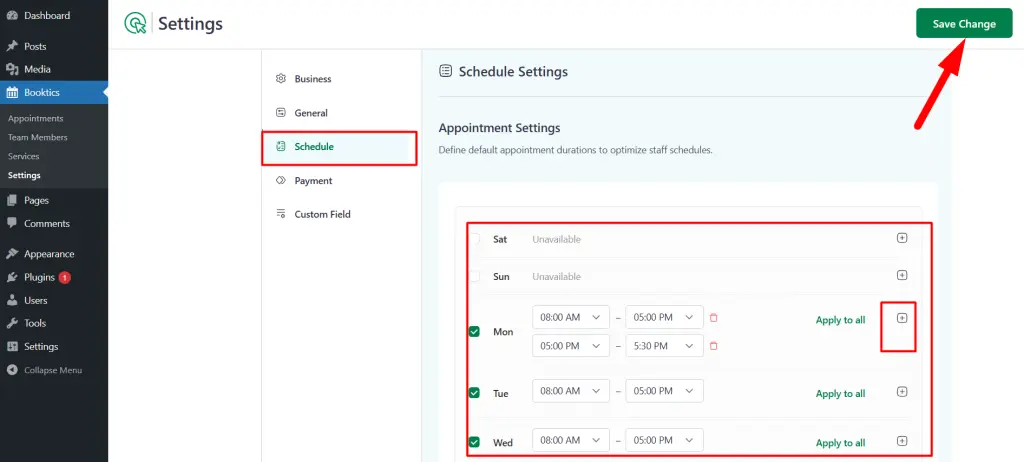
This setting helps you avoid gaps or overlaps between appointments. It also makes the booking process smoother for your clients.
Define time slot intervals
Next, set the time gap between consecutive appointments.
For example, if your appointment duration is 60 minutes, you can offer 15-minute booking time intervals. This helps in managing buffer time between bookings.
Booktics lets you:
- Select from predefined intervals (5, 10, 15, 30, 60 minutes).
- Apply these intervals across your working hours.
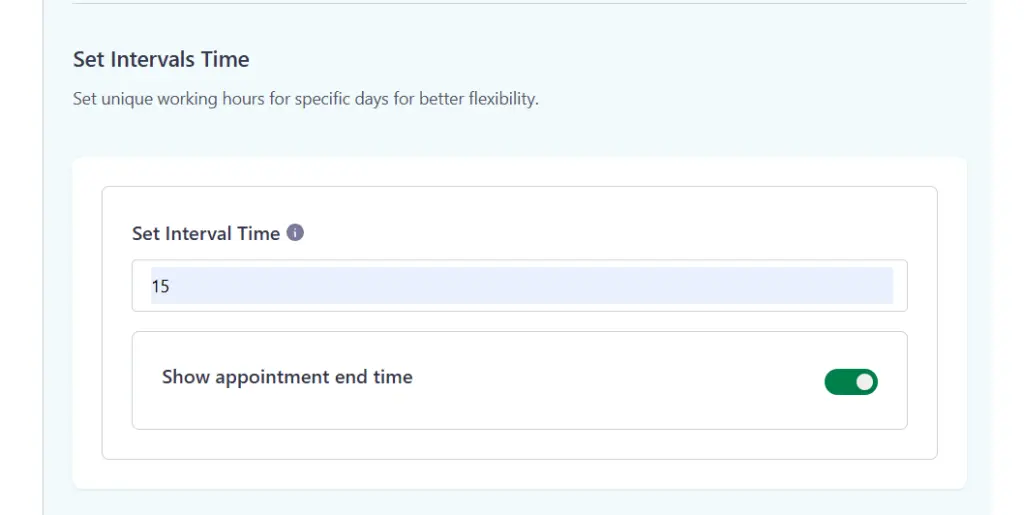
This gives your clients more flexibility and helps you fill your day more efficiently.
Manage availability with holidays and days off
No one wants to be booked on their day off. Booktics lets you easily set availability in the booking system.
To block time off:
- Go to the Holidays and Days Off section.
- Add specific dates (e.g., national holidays or personal leave).
- These will be marked as unavailable on your booking calendar.
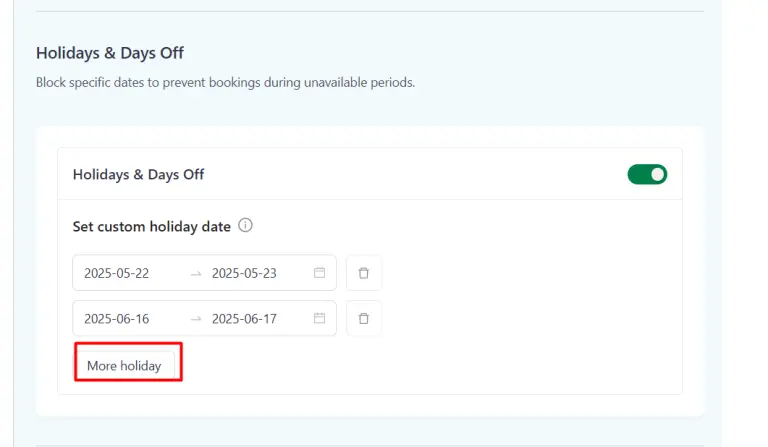
Keeping this up to date helps avoid confusion and missed appointments.
Add a custom schedule for special days
Some days may have special hours. For example, you might open later on Mondays or close early on Fridays.
In Booktics:
- Navigate to the Custom Schedule tab.
- Choose a date and set a unique start and end time.
- You can also block the whole day if needed.
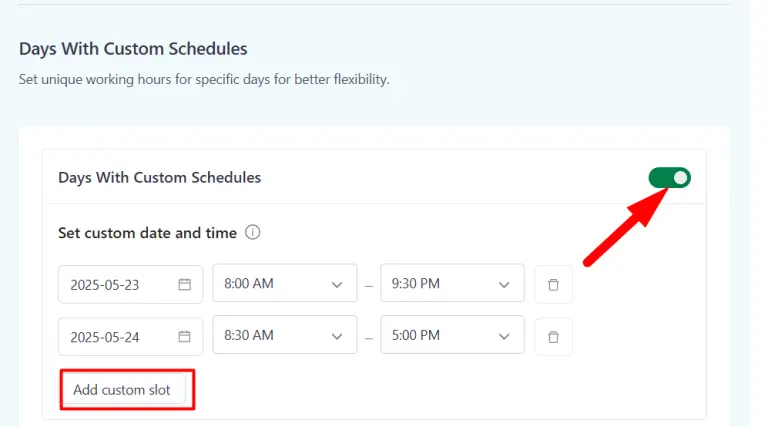
This gives you control over one-time changes without affecting your main schedule.
Best practices for appointment scheduling in WordPress
Setting up your schedule is just the beginning. To make sure your system stays reliable and easy to use, follow these best practices. They’ll help you get the most from your WordPress appointment scheduling setup.
Keep appointment durations realistic
Make sure each service duration reflects the time you actually need. If a service takes 45 minutes, avoid rounding it down to 30 minutes. This can lead to back-to-back bookings without enough time in between.
Use accurate durations to prevent delays and keep your day running smoothly.
Use interval times wisely
Offering shorter booking time intervals can give customers more options. But it can also create too many openings that are hard to manage.
For example, offering 10-minute intervals for 1-hour services may make your calendar look busy without adding real value. Test different settings to find a balance between flexibility and control.
Always update holidays in advance
If you plan to take time off, add it to your WordPress scheduling plugin as early as possible. This avoids confusion and missed bookings. In Booktics, you can add holidays in the Days Off section. Update it each month or season to keep your calendar accurate.
Use custom schedules for special days
If you know you’ll work different hours on a particular day, use the custom schedule feature in Booktics. This is helpful for one-off events, short days, or busy seasons.
It also allows you to open up extra time during high-demand periods without changing your default settings.
What are the common mistakes and how to avoid them
Even with a good WordPress booking system, mistakes can happen. Some are small but still affect how your schedule works. Others can lead to double bookings or lost appointments.
Below are the most common appointment scheduling mistakes to watch out for when you manage appointment schedules in WordPress.
Not setting appointment duration correctly
If you forget to set a service duration or choose one that’s too short or too long, it can throw off your entire schedule. This may lead to overlapping appointments or large gaps in your day.
Make sure each service has the correct duration. If services vary, update their timing individually.
Forgetting to block holidays or breaks
One of the most common problems is leaving your calendar open on days you’re unavailable. Without setting holidays in your WordPress scheduling plugin, clients may book appointments when your business is closed.
Always review your calendar in advance and block any days off in the Holidays and Days Off section.
Overlapping services or double-booking
Offering too many small appointment time slots may seem helpful to clients, but it can make your schedule harder to manage. For example, if your services last 45 minutes, offering 5-minute intervals doesn’t add real value and clutters your calendar.
Stick to clear, proper booking time intervals that match your business flow.
Not testing the booking process
Before going live, test the system from the customer’s view. Go through the booking steps to make sure your availability, time slots, and service durations work as expected.
This helps you spot problems early and avoid confusion later.
Not adjusting for time zones
If your clients are in different time zones, your schedule might show the wrong availability. This can cause confusion and missed appointments. Booktics supports time zone settings, so make sure yours is correctly set and clearly displayed for customers booking from other regions.
Ignoring last-minute changes
If your schedule changes, update it right away. Delays in updating custom schedules or holidays can lead to incorrect bookings. Always check your calendar if you have a change in your working hours.
Conclusion
Learning how to manage appointment booking in WordPress is important for keeping your booking system organized and easy to use.
By setting clear appointment time slots, defining accurate service durations, managing availability, and planning for holidays or custom hours, you reduce the chances of conflicts and missed bookings.
A reliable WordPress booking plugin like Booktics makes this process simpler. It allows you to control your schedule in one place, setting working hours, adjusting intervals, and blocking time off as needed.
When your schedule is structured and up to date, appointments run on time, and customers can book with confidence.
FAQs
How do I set appointment durations in WordPress?
To manage appointment schedules in WordPress, you need a reliable plugin like Booktics. It allows you to set your availability, define time slots, and choose service durations. You can also block holidays and add custom schedules when needed.
What is service duration in a booking system?
Service duration is the amount of time it takes to complete one appointment. For example, a haircut might take 45 minutes, while a consultation could last 30 minutes. Setting the right duration helps avoid scheduling conflicts.
Can I block holidays or time off in Booktics?
Yes. Booktics lets you block specific dates using the Holidays and Days Off feature. This keeps your calendar accurate and prevents bookings when you’re not available.
What’s the difference between a time slot and a duration?
A time slot is the window of time that’s available for booking (e.g., 10:00–10:30). Service duration is how long the actual service takes. Time slots help divide your day, while service duration helps fit services into those slots.
Does Booktics support buffer time to prevent double bookings?
Yes. Booktics supports buffer times between appointments. This allows you to prevent overlapping bookings and gives you time to reset or prepare between services. You can set buffer times in your scheduling settings to keep your calendar running smoothly.
Which WordPress booking plugin is best for small businesses?
If you’re looking for a simple and flexible option, Booktics is a strong choice. It’s designed to help small businesses handle WordPress appointment scheduling without complexity.