
How to Manage Multiple Staff Calendars in WordPress (Complete Guide)
 Ishrat Zahan
45 minutes read
Ishrat Zahan
45 minutes read 
If you run a business with more than one employee taking appointments, you already know the headache: double bookings, staff working different shifts, vacation requests that never make it onto the calendar, and hours lost switching between spreadsheets and shared calendars just to see who’s free.
It works fine when you have one or two staff members. But the moment you add a third stylist, a second clinician, or a new location, manual scheduling starts to break, and customers are the ones who notice first.
If you’ve been searching for how to manage multiple employee calendars in WordPress, this guide walks through the whole process: giving each employee their own availability, preventing booking conflicts automatically, syncing calendars in real time, and choosing a plugin that scales with your team.
Managing multiple staff calendars in WordPress becomes much easier when every employee has their own availability, assigned services, and booking schedule. With the right booking plugin, you can prevent double bookings, sync calendars with Google Calendar or Outlook, automate scheduling, and manage appointments from a centralized dashboard as your business grows.
What Does It Mean to Manage Multiple Staff Calendars in WordPress?
Managing multiple staff calendars means giving each employee their own bookable schedule inside your WordPress site, instead of forcing every appointment through one shared calendar.
Each staff member has their own working hours, services, and availability, while customers can book a specific person, and the system checks availability before confirming a time slot, helping prevent overlapping appointments. This is the foundation that any proper WordPress staff scheduling plugin needs to get right before anything else works.
Staff Appointment Calendar vs. Employee Shift Calendar
A staff appointment calendar manages when customers can book a team member for a service. It controls service assignments, appointment availability, booking times, and customer reservations. It suits salons, clinics, tutors, coaches, and other service businesses.
An employee shift calendar manages internal work schedules. It covers assigned shifts, working hours, time off, staff coverage, and shift changes. Choose a staff appointment calendar for customer bookings. Choose an employee shift calendar for attendance, rotas, and workforce scheduling.
Individual Staff Calendars vs. Shared Team Calendars
A shared calendar lumps every appointment into one view, which may become difficult to manage as the team grows. Individual staff calendars separate availability per person, so Stylist A’s schedule doesn’t block Stylist B’s, and each staff member only sees and manages their own bookings.
Benefits of Individual Staff Calendars
- Better organization, with no more cross-checking who’s actually free
- Accurate availability, since each person’s hours and time off are tracked separately
- Fewer scheduling conflicts and double bookings
- A smoother booking experience for customers who want a specific staff member
Why Managing Multiple Staff Calendars Becomes Difficult
Managing multiple staff calendars becomes challenging as your team grows because each employee has different working hours, services, locations, and time-off schedules.
Without a proper WordPress employee scheduling system in place, businesses often face scheduling conflicts, double bookings, and time-consuming manual coordination that can negatively impact both staff productivity and the customer experience.
- Double bookings: Internal conflicts can happen when the booking system does not update a staff member’s availability after confirming an appointment. External conflicts can occur when events added to Google Calendar or Outlook are not reflected in the WordPress booking system.
- Different Staff Working Hours: Full-time, part-time, and shift-based employees rarely share the same schedule. A single shared calendar often fails to reflect each person’s actual availability.
- Vacation and Time-Off Management: If employee vacations and leave aren’t blocked in the booking system, customers may still book appointments during unavailable periods.
- Multiple Services and Staff Assignments: Not every staff member offers every service. Manually matching services with qualified employees becomes increasingly difficult as your business expands.
- Managing Multiple Locations: Businesses operating across multiple branches need to assign staff to the correct location, not just the correct appointment time.
- Manual Scheduling Wastes Time: Managing appointments with spreadsheets or shared calendars requires constant updates, increases administrative work, and raises the risk of human error.
Who Needs Multi-Staff Calendar Management?
Any business where customers book appointments with a specific person benefits from an organized, per-staff scheduling system:
- Salons and spas
- Medical and dental clinics
- Fitness centers
- Coaching businesses
- Tutors
- Cleaning companies
- Repair and maintenance services
- Marketing and creative agencies
- Professional service providers
- Multi-location businesses
If your business relies on more than one person handling appointments, a WordPress appointment booking system for teams quickly stops being optional and starts being the thing that keeps everyone organized.
Manual vs. Automated Staff Scheduling: Which Works Better?
As your team grows, the way you manage appointments has a direct impact on efficiency and customer experience. The comparison below highlights how manual scheduling differs from using a WordPress booking plugin, making it easier to see which approach is better suited for managing multiple staff calendars.
| Feature | Manual Scheduling | WordPress Booking Plugin |
|---|---|---|
| Individual staff calendars | Possible, but maintained manually | Managed from one system |
| Double-booking prevention | Requires repeated manual checks | Checks availability before confirming bookings |
| Staff availability tracking | Updated manually | Updates through booking and availability settings |
| Calendar synchronization | Managed separately across calendars | Connects with supported external calendars |
| Automated notifications | Sent manually | Sends confirmations and reminders automatically |
| Vacation and days-off management | Added manually to each schedule | Controlled through holidays and schedule settings |
| Centralized dashboard | Limited when using separate tools | Manages appointments and staff schedules from one dashboard |
Automation doesn’t just save admin time. It removes the human error that causes double bookings and missed time-off requests in the first place, which directly improves the customer experience. A proper appointment booking system WordPress users can rely on turns this whole table into something that requires less manual management.
Essential Features Every Multi-Staff Booking Plugin Should Have
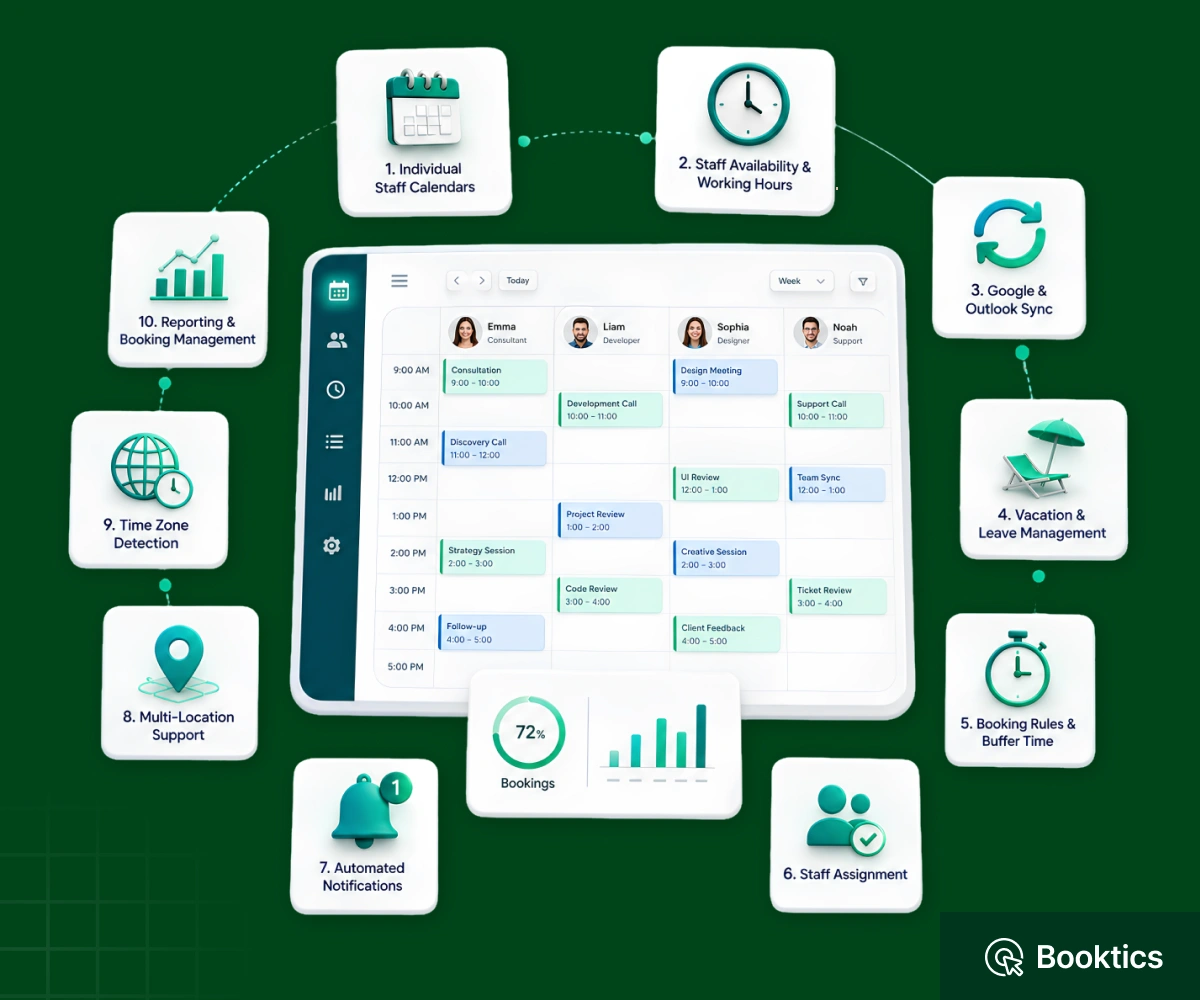
Not every WordPress booking plugin is designed to handle multiple employees efficiently. As your business grows, managing different schedules, services, and locations becomes more complex. Before choosing a solution, make sure it includes the multi-staff booking features below to keep appointments organized and your booking workflow running smoothly.
Individual Staff Calendars
Each employee should have their own calendar with separate bookings, availability, and working hours. This prevents scheduling conflicts and makes it easier for staff members to manage their appointments independently.
Staff Availability & Working Hours
A good plugin should let you set different working hours for each employee instead of relying on one shared schedule. This is especially important for businesses with part-time staff, rotating shifts, or flexible working hours.
Google Calendar & Outlook Synchronization
Calendar synchronization helps keep appointments up to date across platforms. Ideally, the plugin should support two-way sync with Google Calendar or Outlook so changes made in either calendar are reflected automatically.
Vacation & Leave Management
Employees should be able to block vacation days, holidays, or other unavailable periods. This prevents customers from booking appointments when a staff member is not available.
Booking Rules & Buffer Time
Look for options to add buffer time before or after appointments, limit bookings per day, or define booking windows. These rules help avoid scheduling overlaps and give staff enough time between appointments.
Staff Assignment
The plugin should allow you to assign specific services to qualified staff members. This ensures customers can only book employees who actually provide the selected service.
Automated Notifications & Reminders
Automatic confirmation emails, reminders, and cancellation notifications help keep both customers and staff informed. They also reduce missed appointments and minimize manual follow-up.
Multi-Location Support
If your business operates from more than one location, the plugin should let you assign staff, services, and availability to individual branches. This keeps bookings organized across different locations.
Time Zone Detection
For businesses serving clients in different regions, automatic time zone detection helps display appointment times correctly for both customers and staff, reducing confusion and missed bookings.
Reporting & Booking Management
Built-in reporting and booking management tools make it easier to monitor appointments, staff workloads, and scheduling trends. These insights can help improve operations as your business grows.
Choosing a plugin with these capabilities makes it much easier to manage multiple staff calendars in WordPress without relying on spreadsheets or manual scheduling. In the next section, we’ll compare some of the most popular WordPress plugins based on these features.
How to Choose the Right WordPress Plugin for Multi-Staff Scheduling
Once you know which features matter, the next step is evaluating how well a plugin delivers them in real-world use. Consider the following criteria to choose a solution that fits your business size, scheduling workflow, and future growth.
- Easy setup and user experience, so you shouldn’t need a developer to configure it
- Flexible staff management, where adding, removing, or reassigning staff should be simple
- Calendar integrations, with Google, Outlook, and iCal support at minimum
- Automation features, with reminders, confirmations, and conflict prevention built in
- Scalability, so the plugin should still work well with 10+ staff, not just 2
- Performance, reliability, and support, especially important once bookings are revenue-critical
This is really where a genuine multi-staff booking system WordPress plugin separates itself from a basic booking form with a calendar attached. With these criteria in mind, let’s compare some of the most popular options and figure out the best WordPress plugin for multiple staff scheduling for your specific business.
Best WordPress Plugins to Manage Multiple Staff Calendars (2026 Comparison)
Several WordPress booking plugins support multi-staff scheduling, but they differ in terms of features, business focus, scalability, and pricing model. Some are built specifically for customer appointment booking, while others focus on internal workforce scheduling. The comparison below provides a quick overview to help you identify the solution that best matches your business needs.
| Plugin | Best For | Individual Staff Calendars | Google & Outlook Sync | Multi-Location Support | Pricing Model |
|---|---|---|---|---|---|
| Booktics | Salons, clinics, cleaning, repair, and other service businesses | ✅ | ✅ | ✅ | Free + Premium |
| WP Timetics | Coaches, consultants, educators, agencies, and meeting-based businesses | ✅ | ✅ | ✅ | Free + Premium |
| BookingPress | Small and medium-sized service businesses | ✅ (Premium staff features) | ✅ | ✅ (Premium) | Free + Premium |
| ShiftController | Internal employee shift scheduling and workforce management | ✅ | Limited | Limited | Free + Pro Upgrade |
| Amelia | Salons, wellness centers, healthcare providers, fitness studios, and multi-location businesses | ✅ | ✅ | ✅ | Free + Premium |
*Note: Features and pricing may change over time. Always refer to the plugin’s official website for the latest plans and feature availability.
While the table provides a quick comparison, each plugin is designed for a slightly different type of business. Here’s a closer look at where each solution performs best.
Booktics
Booktics is a WordPress booking plugin built for service-based businesses, including salons, clinics, cleaning companies, repair services, beauty studios, and wellness businesses.
Booktics supports team-member management, service-to-staff assignment, location-wise booking, an Admin Team Panel, external calendar integrations, and visual email automation for managing appointments.
Its combination of automation and multi-staff scheduling makes it a practical choice for businesses managing appointments, employee availability, and multiple locations from a centralized dashboard.
WP Timetics
WP Timetics is designed for businesses that rely on appointments and meetings, such as coaches, consultants, educators, agencies, recruiters, and professional service providers.
Besides multi-staff scheduling, it includes AI-powered scheduling features, host management, recurring bookings, Google and Outlook calendar synchronization, workflow automation, online meeting integrations, and payment collection.
Although it can support multi-location operations, its primary focus is streamlining consultation and meeting scheduling rather than traditional walk-in service businesses.
BookingPress
BookingPress is a flexible appointment booking plugin suitable for a wide range of service businesses.
Its Lite version provides core booking functionality, while premium plans unlock advanced staff management, payment gateways, calendar synchronization, and additional booking features through official add-ons. Businesses looking for extensive customization options may find it a strong choice.
ShiftController
ShiftController differs from the other plugins in this comparison because it focuses on employee scheduling rather than customer appointment booking.
It is designed for businesses that need to organize employee shifts, work schedules, time off, and scheduling conflicts. If your goal is managing staff rotas instead of allowing customers to book appointments online, ShiftController is a better fit.
Amelia
Amelia is a well-known WordPress appointment booking plugin for salons, healthcare providers, wellness centers, fitness studios, and other service businesses.
It includes individual staff calendars, multi-location management, online payments, automated notifications, and calendar synchronization with Google Calendar and Outlook. Its polished booking interface and broad feature set make it a popular option for growing businesses managing multiple employees.
How to Manage Multiple Staff Calendars in WordPress With Booktics (Step-by-Step)
Here’s the process using Booktics, walked through with a salon running three stylists on different shifts.
Step 1: Install and Set Up Booktics
Install Booktics from the WordPress plugin directory and activate it. The setup wizard walks you through the basics in a few minutes.
Step 2: Add Your Staff Members
In the Admin Team Panel, add each stylist as a team member with their own login access, so, for example, your colorist and your two hairstylists each get a separate profile.
Step 3: Create Services and Assign Staff
Create your services (color, cut, spa treatment) and assign them to the staff members who actually perform them, so customers only see the right person for each service. This step is really the practical answer to how to assign appointments to staff in WordPress: match the service to the qualified person first, then let the calendar handle the rest.
Step 4: Configure Staff Availability
Set each stylist’s working hours individually. One might work mornings, another evenings, so the calendar reflects real shifts instead of one blanket schedule.
Step 5: Set Booking Rules, Buffer Time, and Time Off
Add buffer time before or after services, then configure holidays, days off, and custom schedules to prevent bookings during unavailable periods. These settings help prevent double bookings by keeping service duration, preparation time, and unavailable dates inside the booking schedule.
Step 6: Sync Google Calendar or Outlook and Enable Notifications
Connect each staff member’s supported external calendar, then enable automated booking confirmations and reminders.
Step 7: Test the Complete Booking Experience
Book a test appointment as a customer, choosing a specific stylist, to confirm availability, buffer time, and confirmation emails all work as expected.
Once set up, the salon can manage appointments from one dashboard. This reduces spreadsheet use, repeated availability checks, and the risk of overlapping appointments.
Need more configuration details? See the Booktics documentation.
Why Booktics Is a Practical Choice for Multi-Staff Scheduling
Booktics brings together the pieces this guide has covered: individual staff profiles with their own calendars, flexible per-employee availability, service-to-staff assignment, Google Calendar and Outlook Calendar integrations, automated email notifications, built-in double-booking prevention, location-wise booking for multi-branch businesses, and a centralized dashboard with analytics and reporting.
For service-based businesses, including salons, clinics, cleaning services, and repair shops, that’s the specific combination that turns manual scheduling into a system that runs itself.
If your business is built more around one-to-one meetings, consultations, or coaching sessions rather than walk-in services, it’s worth also looking at WP Timetics, which is designed specifically for that kind of scheduling.
Best Practices to Avoid Scheduling Conflicts
Here are some best practices to avoid scheduling conflicts:
- Keep staff availability updated as shifts change
- Add buffer time between appointments
- Block vacations and time off in advance, not after the fact
- Sync external calendars regularly, not just once at setup
- Review recurring schedules periodically for accuracy
- Limit daily bookings per staff member when needed
- Assign backup staff for high-demand time slots
- Test your booking workflow regularly, not just once
- Monitor scheduling reports to catch patterns early
- Enable automated reminders to reduce no-shows.
Common Mistakes When Managing Multiple Staff Calendars
Even with the right booking plugin, a few common mistakes in appointment scheduling can still lead to scheduling conflicts, missed appointments, and poor customer experiences. Avoid these pitfalls to keep your staff calendars accurate and your booking workflow running smoothly.
- Using one shared calendar for everyone: Give each employee their own calendar to manage availability independently.
- Skipping buffer time: Leave enough time between appointments to avoid delays and scheduling overlaps.
- Not syncing external calendars: Connect Google Calendar or Outlook to keep staff availability up to date.
- Ignoring vacations and time off: Block unavailable dates in advance to prevent accidental bookings.
- Assigning every service to every staff member: Match services only with qualified employees to improve scheduling accuracy.
Frequently Asked Questions
Can Booktics manage multiple staff calendars?
Yes. Booktics lets you add team members, assign services, set appointment availability, and manage team bookings from one WordPress dashboard. This helps service businesses coordinate multiple employees without separate spreadsheets or calendars.
Can multiple staff members offer the same service?
Yes. You can assign the same service to several eligible team members. Customers can then select a team member and choose an available time based on that person’s booking schedule.
Can one staff member offer multiple services?
Yes. You can assign several services to one team member. For example, a salon employee may provide haircuts, coloring, and styling while maintaining one appointment schedule.
How does Booktics help prevent double bookings?
Booktics displays time slots based on service and team-member availability. Service duration, buffer time, holidays, custom schedules, and supported calendar integrations can also help reduce overlapping appointments.
Can customers choose a specific staff member?
Yes. Customers can select a team member while booking a service. Booktics then displays the available appointment dates and times for that team member.
Can I set different working hours for each team member?
Booktics provides team scheduling and availability controls for managing when appointments can be booked. Check your Booktics version and current documentation to confirm which working-hour controls are available for individual team members.
Does Booktics connect with Google Calendar and Outlook?
Yes. Booktics provides integrations with Google Calendar and Outlook Calendar. The synchronization options may differ between integrations and plans, so check the current documentation before setup.
Can I add buffer time between staff appointments?
Yes. Booktics lets you add buffer time before and after a service. This gives staff time to prepare, clean up, travel, or complete administrative tasks between appointments.
How can I block holidays and unavailable dates?
You can configure holidays, days off, and custom schedules in the Booktics schedule settings. This prevents customers from selecting dates that are unavailable for booking.
Is Booktics an employee shift-management plugin?
No. Booktics primarily manages customer appointments, services, team-member availability, and booking schedules. If you need payroll, attendance tracking, shift swaps, or detailed staff rotas, you may need a separate workforce scheduling plugin.
Conclusion
Manual scheduling works fine until it doesn’t, usually right around the time you add a second or third staff member. Individual staff calendars, automated conflict prevention, and real-time calendar sync are what actually make multi-staff scheduling manageable as a business grows.
Choosing the right WordPress plugin for your specific business type, whether that’s a walk-in service business or a meeting-based practice, makes the difference between a system that runs itself and one that still needs constant manual attention.
If you’re ready to stop juggling calendars manually, Booktics gives you the tools to manage multiple staff calendars, prevent conflicts, and automate the entire booking workflow from one dashboard. Let’s get Booktics today.