2 Simple Ways on How to Reschedule an Appointment in WordPress
 sumaiya Begum
23 minutes read
sumaiya Begum
23 minutes read 
Appointments don’t always go as planned. A client may cancel, schedules change, or something unexpected comes up. In such situations, knowing how to reschedule an appointment politely helps you avoid confusion and maintain a professional demeanor.
The key is to inform the person early, suggest a new time, and keep the message clear and respectful.
In this guide, you’ll learn how to reschedule an appointment in WordPress professionally. We’ll also demonstrate how businesses can easily manage appointment changes using a WordPress booking system like WPTimetics.
What does rescheduling an appointment mean?
Rescheduling an appointment means changing the original date or time of a meeting, service, or session. Instead of canceling it completely, you pick a new slot that works for both sides. In short, you are not stopping the booking; you’re just moving it.
People reschedule for many reasons. Plans shift, emergencies come up, or sometimes a better time is needed. Businesses often change a booking to manage time, avoid overlaps, or adjust staff availability.
The goal of rescheduling is simple: keep the appointment active while making sure everyone stays informed and comfortable with the new time.
Read also: Common Appointment Scheduling Mistakes & How to Avoid Them
How to reschedule a meeting (Step-by-step guide)
We all know rescheduling appointments takes a lot of work. It´s boring, repetitive, and can be complex sometimes. But with WP Timetics appointment reschedule system, you can reschedule your appointments without the usual aura of tiredness around you.
Here’s how you can reschedule an appointment in a few steps by using the WP Timetics appointment booking plugin for WordPress–
Method 1: Reschedule an appointment as a service provider
To reschedule appointments as a service business owner, log in to your WP Timetics Dashboard and head over to all of your ‘Meetings.’
Find the specific appointment that needs to be rescheduled. You can use filters like date, staff, or customer name to narrow your search.
Now click on ‘edit’ to change the appointment details.
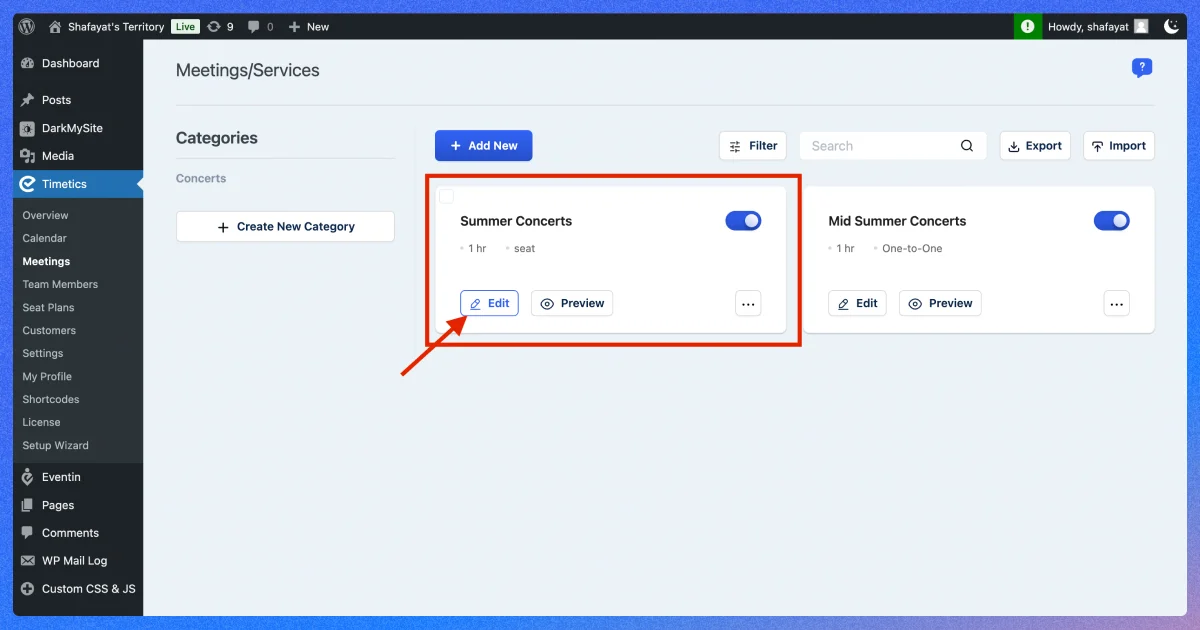
You’ll see an option to change the date, time, or assigned staff for the booking on ‘Time & Availability.’
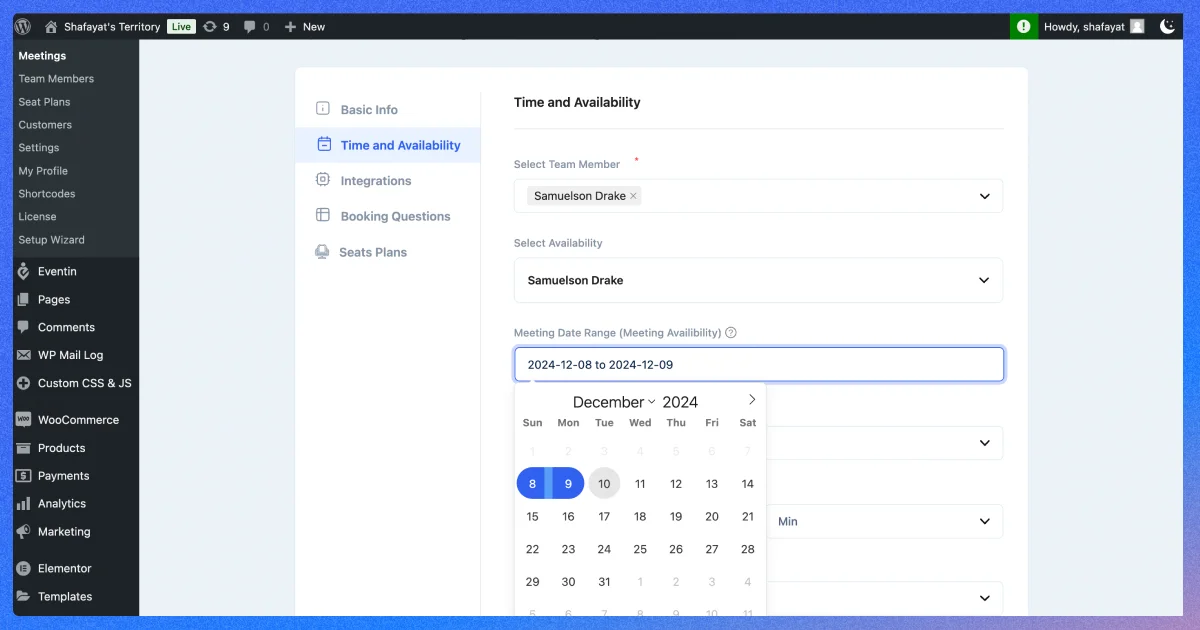
Select your preferred dates and Save Updates. Now, your appointments are rescheduled, and the set date and time will automatically get extended or shortened.
Read also: Learn How to Create a WordPress Booking Website | Read More
Method 2: Reschedule an appointment as a customer
To reschedule an appointment as a customer, you can go back to your scheduling page from where you booked your ticket.
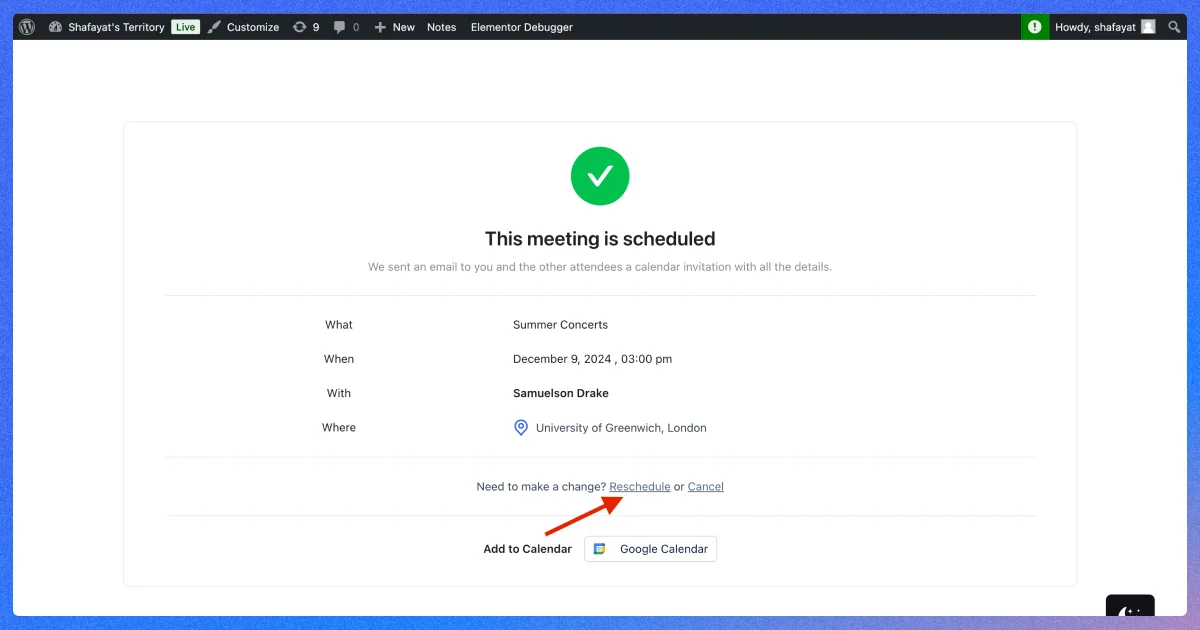
Here, you can see an option to ‘Reschedule’ your appointments.
When you click on the ‘Reschedule’ option, it will take you back to the scheduling section.
Here, you can select your new date and time.
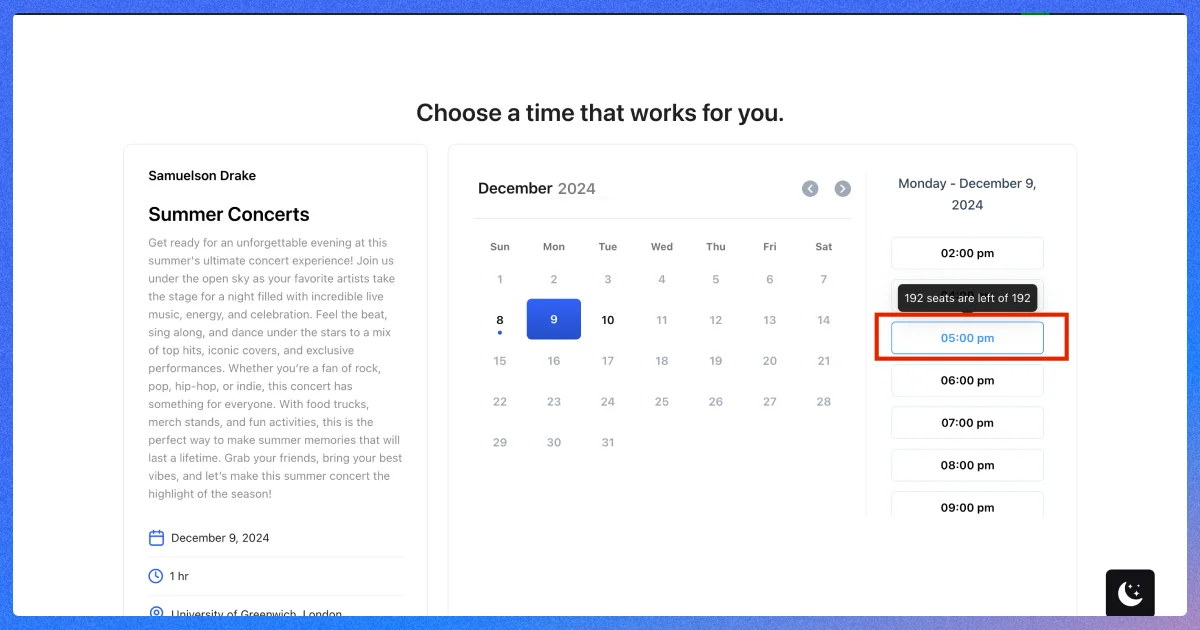
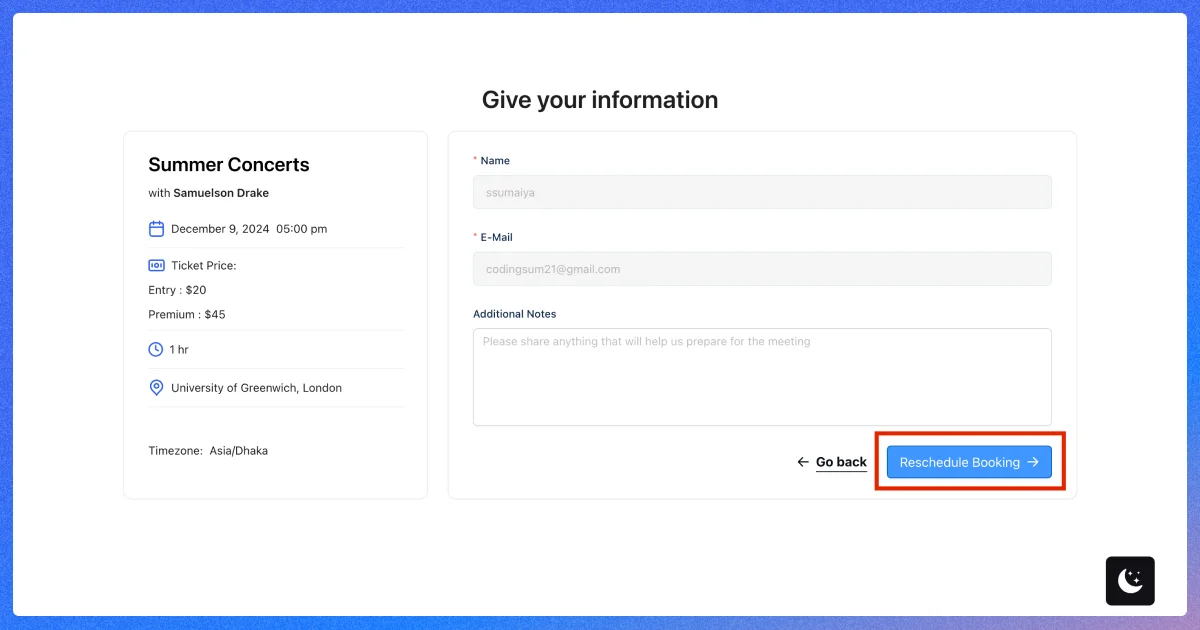
Once selected, simply click on ‘Reschedule Booking’ and the appointment will be rescheduled for you.
5 pro tips for smoother appointment rescheduling
Rescheduling does not have to feel messy or awkward. Use these simple tips to make each reschedule clear, quick, and easy for both you and your clients.
1. Communicate ASAP
Having emergencies is not a crime. We can all have unexpected tasks on our schedule that we can´t avoid. So, when you have to cancel a meeting or appointment, reach out to your customers immediately as soon as you know about it.
While it´s also okay to have last-minute cancellations even after following the best time management system, getting in touch as soon as possible shows that you value your customers’ time and needs.
Even if it´s not always you who is on the custody side, your customers can also have emergencies. Thus, it´s better to be flexible and open to change.
Read also: How a Booking System Reduces No-Shows and Saves You Time
2. Provide clear reasoning
Well, every customer in your business is special, no matter what. So, when you are trying to communicate with your client to reschedule an appointment, showcase why your business needs to plan another appointment.
Here, be careful about showing respect to your clients. Do not make them feel like they require your presence. Instead, let them understand why you value their presence in your business.
Remember that while a lack of information can cause mistrust, oversharing the situation can also lead to negative perceptions. Here are some appointment rescheduling tips you can utilize while explaining your situation—
- Do not blame your team or others for the situation.
- Avoid vague justifications like ´something unavoidable has appeared´.
- It´s better not to explain unnecessary personal details. Instead, concise and straightforward reasoning can be sufficient.
3. Offer alternative dates and times
After receiving your appointment cancellation mail, your clients might automatically provide you with their preferred time for rescheduling bookings. But that new schedule might not be suitable with your schedule or may require back-and-forth discussion for finalization.
To avoid these situations, include alternative dates and times in your cancellation email. This reduces the number of emails you need to send by preventing clients from feeling overwhelmed.
4. Show appreciation
If you check out other businesses’ rescheduling email template examples, one thing that you may notice common on all of them is the use of ‘Appreciation’. Showing appreciation is a standard etiquette we represent to our clients through various body language cues. You might notice how sales representatives or other salespersons maintain this by wearing a gentle smile, talking in a soft tone, or staying calm and polite in every situation.
It´s easy to express your emotions when you are contacting someone physically. However, when dealing with someone online, and the discussion topic also needs formalities, you have to make sure your messages do not sound harsh on the other end.
And here, you don´t need to write a long paragraph to do that right. Using simple messages like ‘Thanks for understanding the situation’ or “Thank you for your patience” can go a long way.
5. Update calendar and systems
Lastly, once you are done changing an appointment, it’s time to update your calendar. So, what’s the importance of doing it after rescheduling a meeting email? Here´s why
- It helps you avoid scheduling conflicts. So, when you are rescheduling appointments, you can ensure there’s no double booking at all.
- Keep your tasks organized so you can look at all your plans at once.
- If you have an open booking page, keeping your calendar updated always helps prevent miscommunication with the clients.
Updating your calendar every time you reschedule appointments can be tedious. As you and your team focus on customer conversion, the risk of forgetfulness also increases. Besides, it can cut off a large part of your team’s productive hours if your business handles a big customer base daily!
Read also: Best Booking Plugins for Educational Institutions
What are the common mistakes of rescheduling an appointment and how to avoid them
Rescheduling is normal, but a few mistakes can create confusion or make the situation feel unprofessional. Here are the most common ones to watch out for:
- Waiting too long to inform the client: Delaying the message gives the other person less time to adjust. Tell them as soon as you know you need a new time.
- Giving a vague reason: Saying things like “something came up” can feel unclear. You don’t need to overshare, but a short and honest reason builds trust.
- Offering no alternative times: If you only say “Can we reschedule?” the conversation will drag on. Share a few new time options to keep things simple.
- Sounding too formal or too casual: Your tone matters. Keep it polite, clear, and friendly so the message feels respectful.
- Forgetting to update your calendar: Many rescheduling issues come from double bookings. Always update your calendar or booking system right after confirming the new time.
Ready to turn your rescheduling hassles into success with the WP Timetics?
There are a bundle of reasons why you need to choose the WP Timetics appointment scheduler to create bookings for your business.
It offers the best option for simplifying your booking management processes. Your customers can even leverage the simplest platform to reschedule their appointments. Thus, you can now boost your sales growth more easily by reducing no-shows.
However, while using the best appointment scheduler for your business, be mindful to stay organized, leverage automated reminders, keep buffer time, and be considerate of time zones.
Double-check your calendar before rescheduling appointments, and you will be ready to win your ‘how to reschedule an appointment’ struggles!
FAQs about appointment rescheduling
How do I politely ask to reschedule?
Keep your message short, clear, and respectful. Explain the reason in one line, offer new time options, and thank the person for understanding.
How do I tell a client I need to change the time?
Inform them as soon as possible. Share the updated situation, give two or three new time slots, and wait for their confirmation before updating your calendar.
Is it unprofessional to reschedule?
No. Rescheduling happens in every business. It becomes unprofessional only if you do it too often or inform the client too late.
What message should I send to reschedule an appointment?
A simple message works best. State the reason briefly, suggest new times, and ask if any of them fit. Avoid long explanations.
How can I stop frequent rescheduling?
Use a booking system that shows real-time availability, sends reminders, and prevents double bookings. Tools like WP Timetics help reduce last-minute changes by keeping your schedule updated automatically.
Read also:
1. Get the Best WordPress Cache Plugins | Read More
2. Explore the Best WordPress Restaurant Themes | Read More
3. 13 Best Fitness and Gym Plugins for WordPress | Read More
4. Best WordPress Booking Plugins | Read More