
Overview
Booktics Coupons let you give customers a discount code they type in while booking an appointment. You create each code in your WordPress admin, choose a percent or a fixed amount off, and decide when it works, how many times it can be used, and which services it covers.
Use coupons for a seasonal sale, a first-visit offer, or a thank-you code for regular clients. Booktics checks every code on the server when the booking is placed, so the discount the customer sees is the discount they get, and nobody can change the price from the browser. Coupons are part of Booktics Pro.
Requirements
You need Booktics Pro and at least one payment method other than WooCommerce turned on: Local Payment, Stripe, or PayPal.
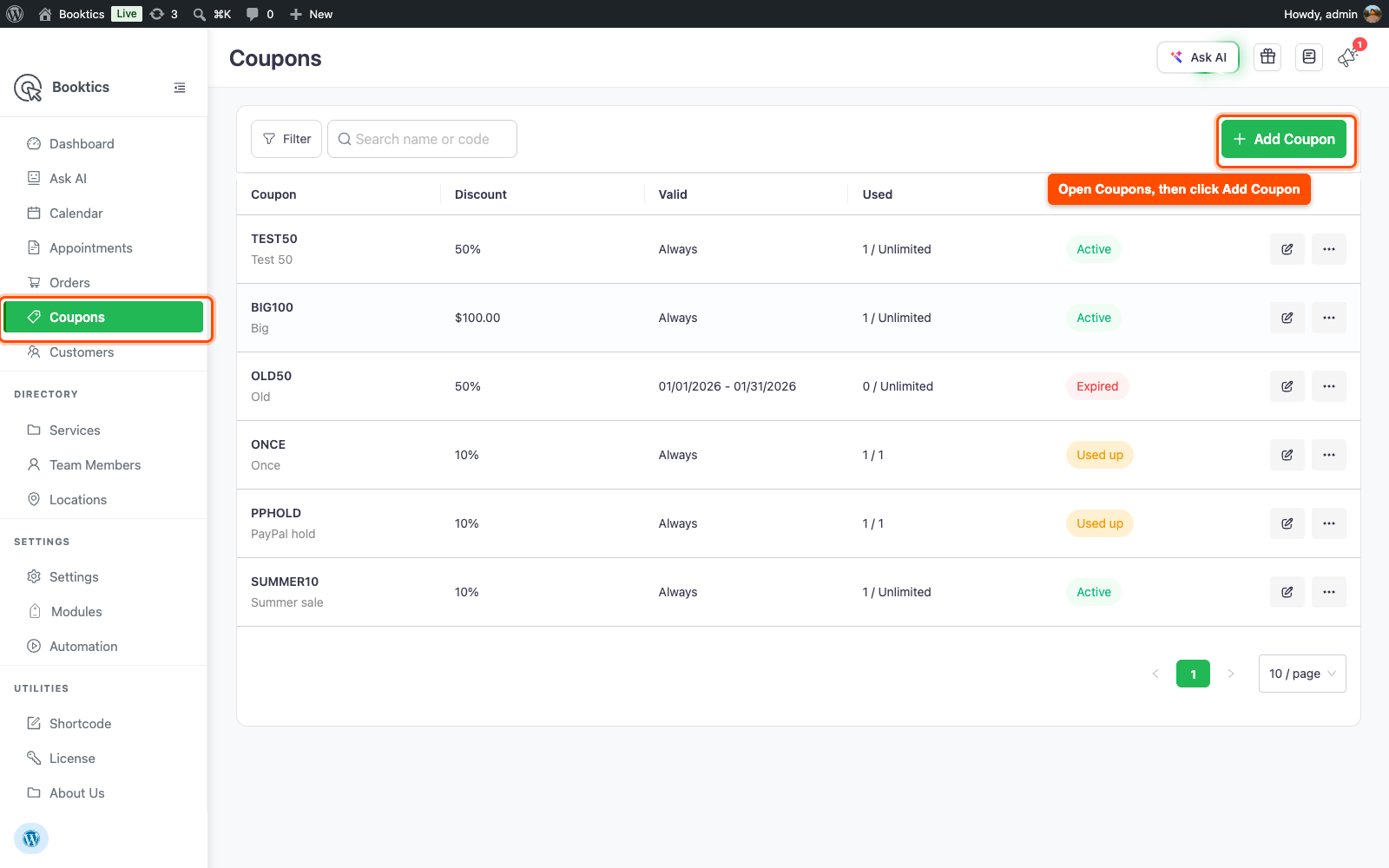
Step 1: Open the Coupons Page.
- In your WordPress dashboard, go to Booktics.
- In the Booktics sidebar, click Coupons (right below Orders).
- Click + Add Coupon at the top right.
Step 2: Name the Coupon and Set Its Code
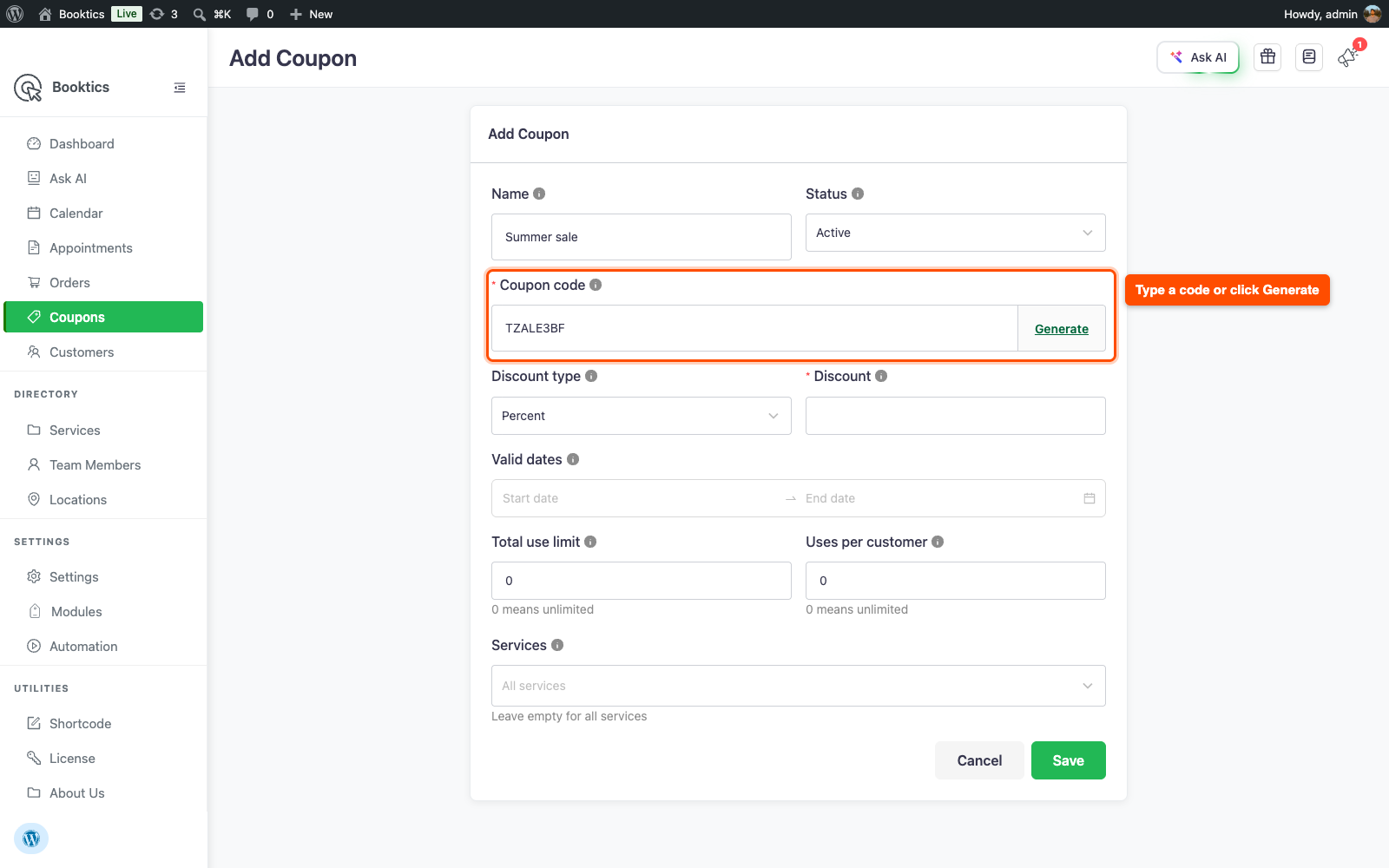
- Enter a Name, for example “Summer sale”. Only you see the name. Customers only see the code.
- Leave Status on Active. Choose Inactive when you want to pause a coupon without deleting it.
- Type a Coupon code, for example
SUMMER10, or click Generate to make a random one.
A code can use letters, numbers, - and _, up to 50 characters. It is saved in capital letters, and customers can type it in any case. Each code must be unique, so you’ll see “This coupon code is already in use.” if another coupon has it.
Step 3: Choose the Discount
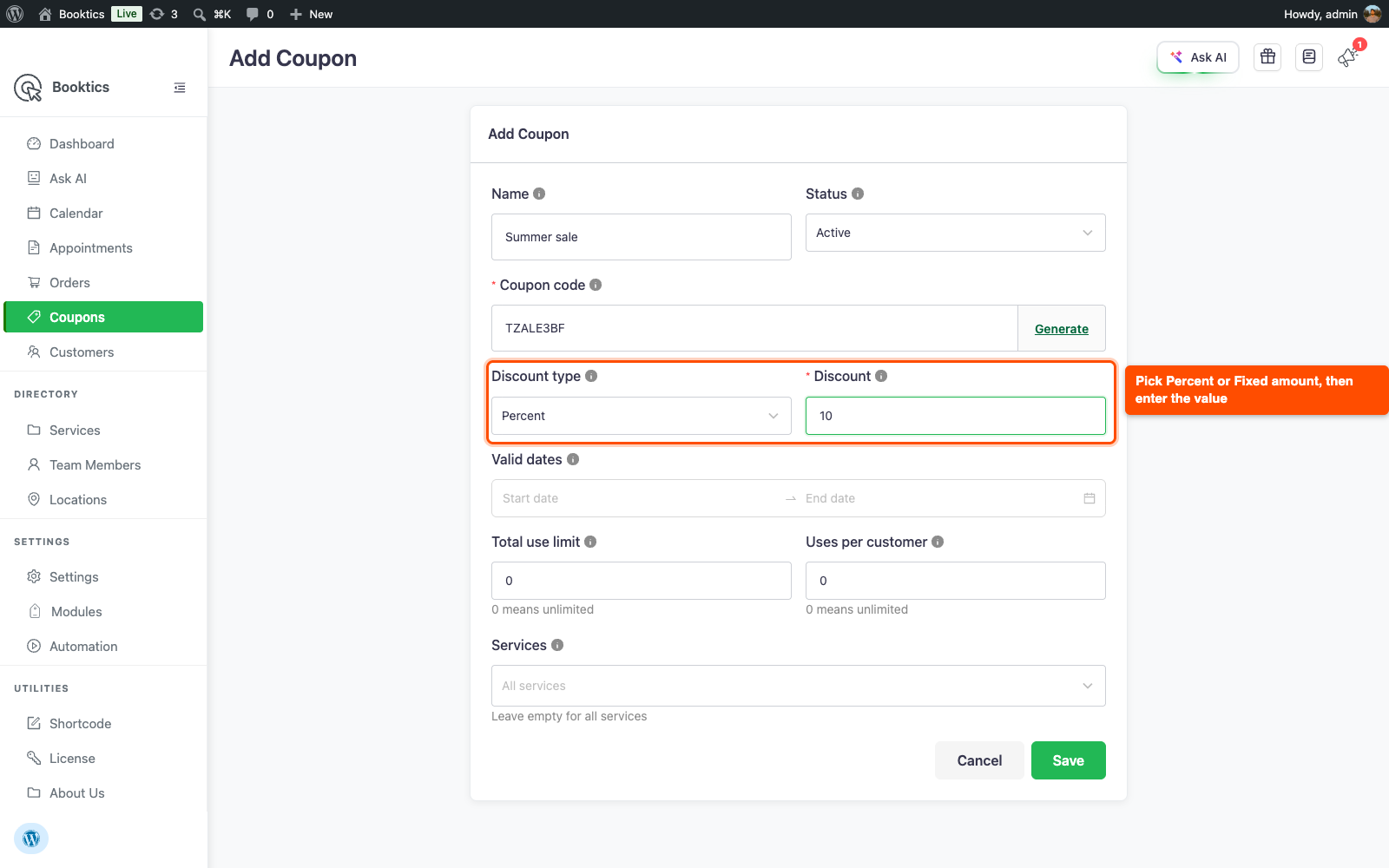
- Pick a Discount type:
- Percent: a share of the price, from 0.01 to 100.
- Fixed amount: an amount off the order, in your shop currency.
- Enter the Discount value.
A fixed amount comes off once per order, not once per service. The total never goes below 0. If you limit the coupon to some services (Step 4), the discount only counts the price of those services.
Step 4: Set Dates, Limits, and Services
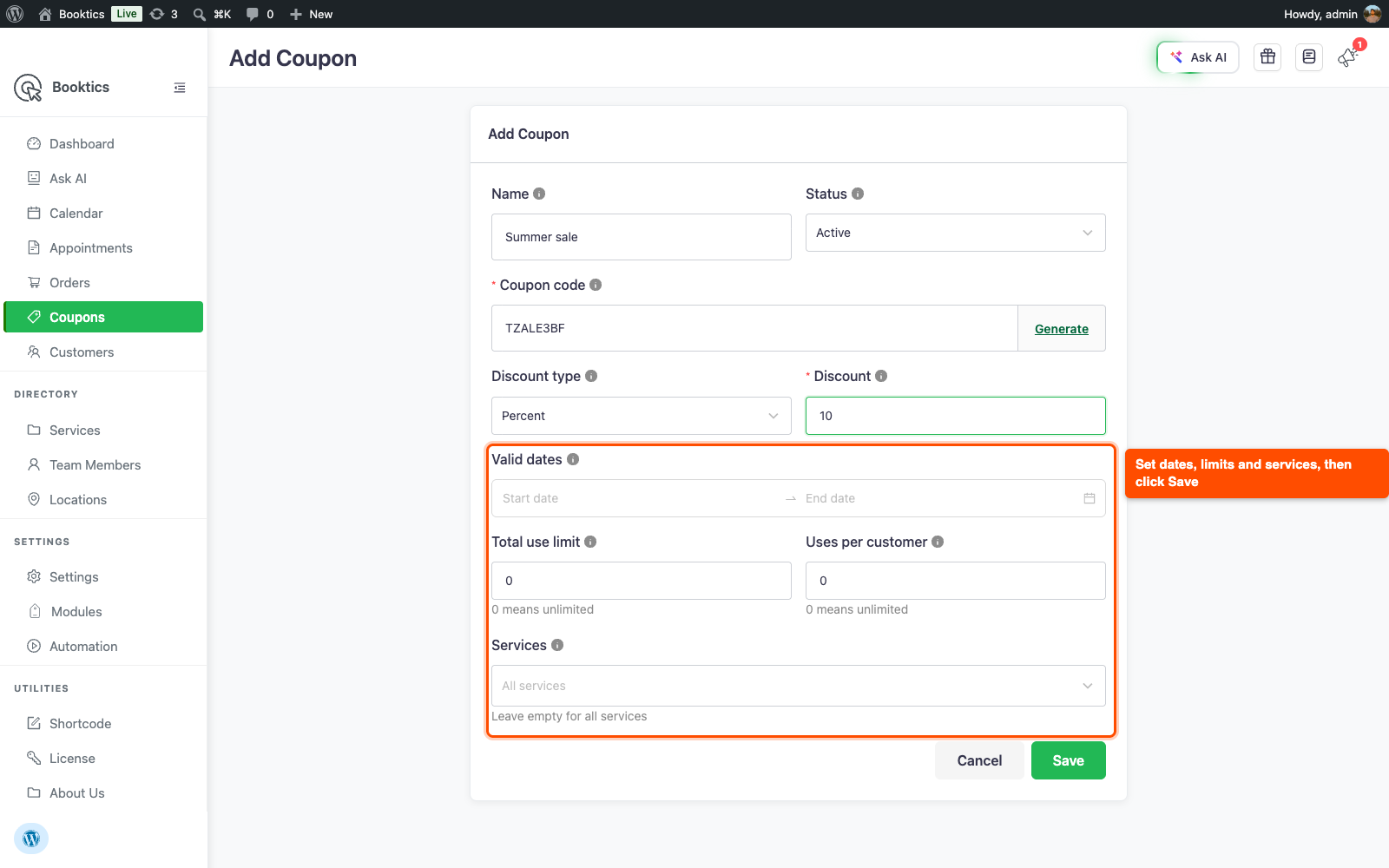
- Valid dates: pick a start and an end date. Leave a side empty for no start or no end. Leave both empty and the coupon works any day.
- Total use limit: how many times the coupon can be used across all customers. Enter 0 for unlimited.
- Uses per customer: how many times one customer can use it. Customers are matched by email. Enter 0 for unlimited.
- Services: pick the services that get the discount. Leave it empty for all services.
- Click Save.
| Note: A use is counted when an order with the code is placed. If you cancel that order, the use is given back. If a customer starts a Stripe or PayPal payment and leaves without paying, the use is held only until the Release unpaid slot after (minutes) time runs out (10 minutes by default), and then it is free again. |
Step 5: Manage Your Coupons
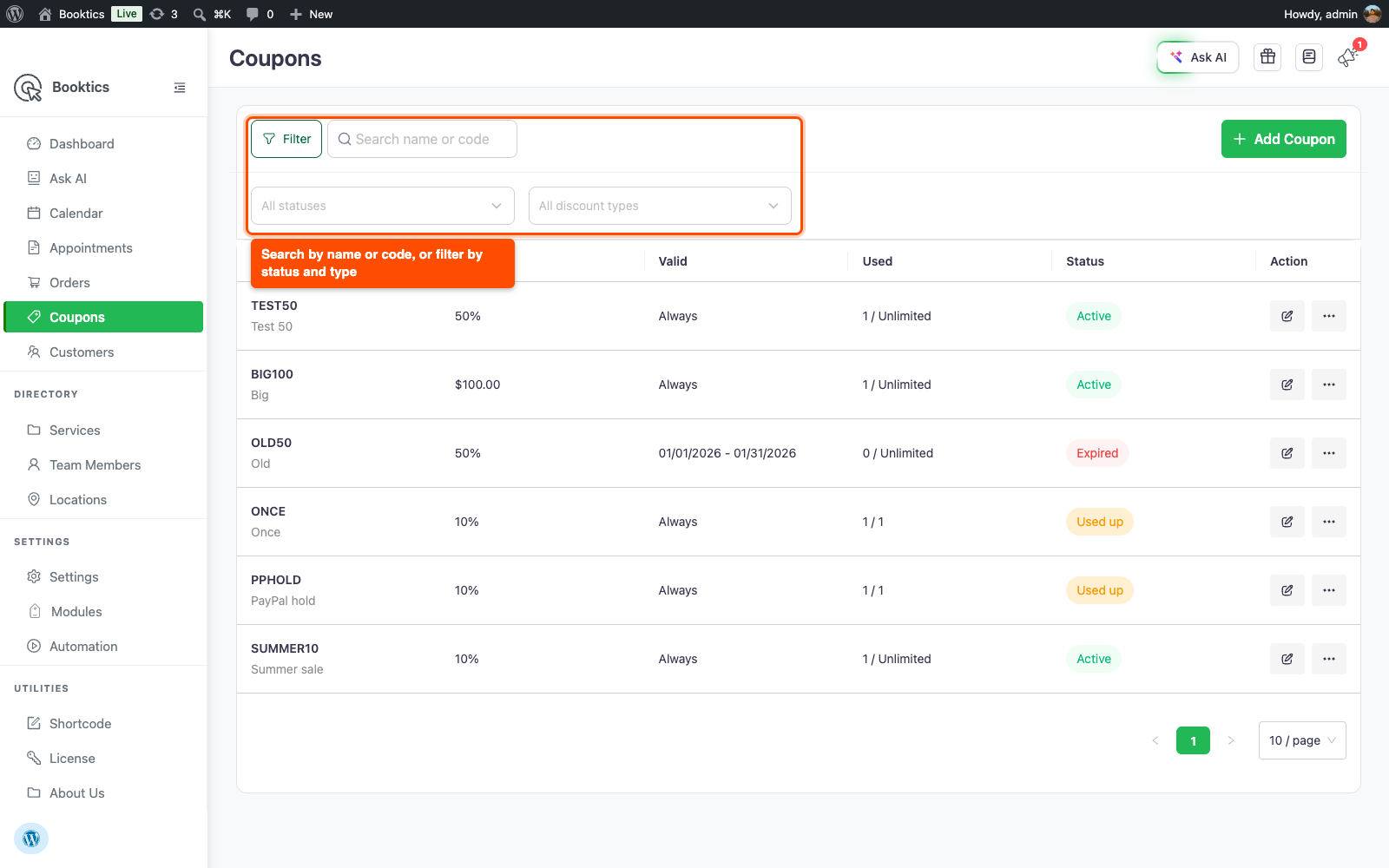
The Coupons list shows each coupon’s code and name, discount, valid dates, how many times it has been used (for example 3 / 10 or 3 / Unlimited), and its status.
| Status | What it means |
| Active | Customers can use it now. |
| Scheduled | The start date is still in the future. |
| Expired | The end date has passed. |
| Used up | It has reached its total use limit. |
| Inactive | You switched it off. |
- Type in Search name or code to find a coupon.
- Click Filter to show only one status or one discount type. Click All Clear to reset.
- Click the pencil icon to edit a coupon, or the ⋯ menu and then Delete to remove it. Old orders keep the code and discount they were booked with.
Step 6: See What Your Customers See
The coupon box sits on the customer details step of the booking form, just above the payment buttons.
- The customer clicks Have a coupon code?.
- They type the code and click Apply (or press Enter).
- The code appears as a green tag with the discount and the new Total below it. The × on the tag removes the coupon.
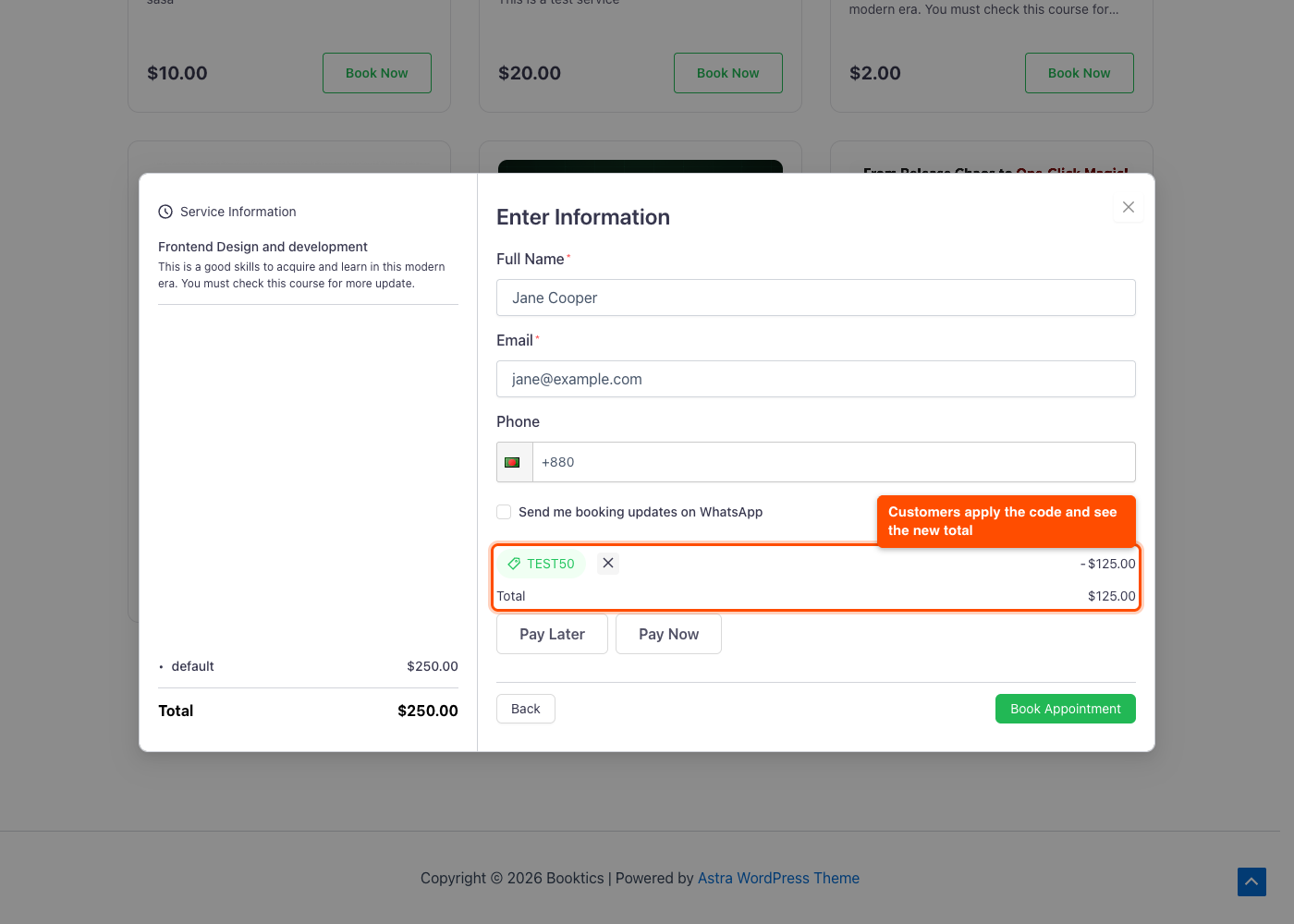
If a code can’t be used, the customer sees a clear reason, such as “This coupon has expired.”, “This coupon has reached its usage limit.”, “You have already used this coupon.”, or “This coupon does not apply to the selected services.” If they go back and change their booking after applying a code, the discount is cleared and they see “Booking changed. Apply the code again.”
| Tip: The coupon box is hidden when the booking total is 0, since there is nothing to discount. |
Frequently Asked Questions
| Why don’t my customers see the coupon box? Most often, WooCommerce is your only payment option. WooCommerce checkout charges its own cart price, so a Booktics coupon can’t be used there. Turn on Local Payment (shown to customers as Pay Later), Stripe, or PayPal as well, and the box appears. Once a coupon is applied, the WooCommerce option is hidden for that booking. The box is also hidden for free (0) bookings. |
| Does a canceled booking still count against the coupon’s limit? No. A use only counts while its order is not canceled. When you cancel an order, its use goes back to the coupon, so a coupon showing Used up can become Active again. An unpaid Stripe or PayPal checkout holds a use only for your Release unpaid slot after time. |
| Can I change a coupon’s code after customers have used it? You can, but it is better to make a new coupon instead. Uses are counted by the code, so changing SUMMER10 to SUMMER15 starts the new code at 0 uses, and the old limit no longer remembers past bookings. Set the old coupon to Inactive and create a fresh one with the new code. |
Conclusion
Booktics Coupons give you a quick, safe way to run discounts on your bookings, with limits and dates that the server checks every time. Create your first code from Booktics > Coupons and try it on your booking page.