
Overview
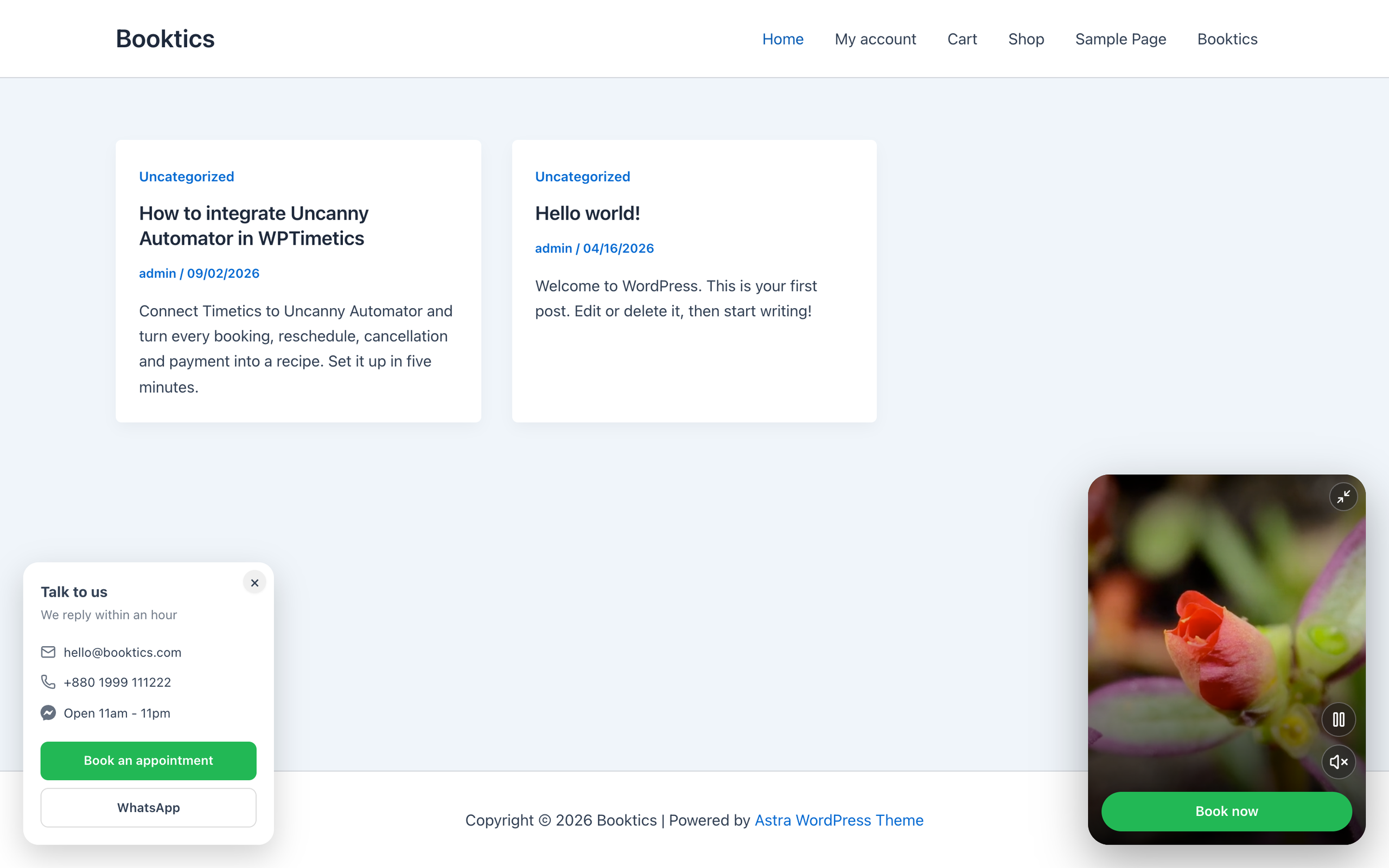
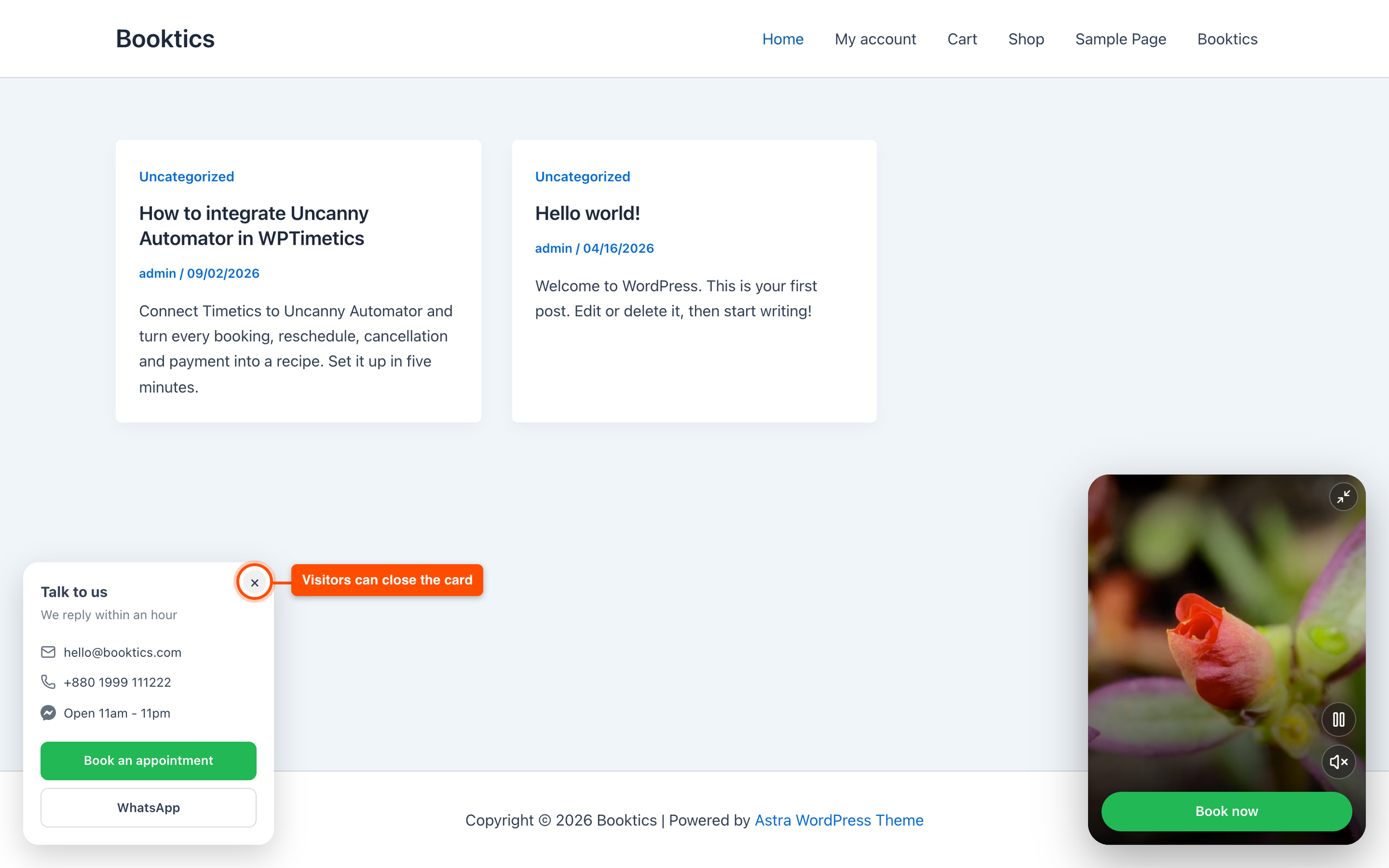
Presence Widgets are two floating panels. Booktics Pro adds to the front of your site. The Video Popup plays a short silent clip in a corner with one button on it, and the Quick Contact Card shows your phone number, address, or opening hours with up to two buttons. Both are set up in Booktics settings.
Most visitors land on a service page, read for a few seconds, and leave without asking anything. These two widgets put a face and a phone number in front of them while they read, so the next step is one click away instead of a trip to your contact page.
Requirements
- Booktics and Booktics Pro active.
- A short video file (MP4 or WebM), or a video link from YouTube, Vimeo, Loom, Wistia, or Dailymotion (only needed for the Video Popup).
Step 1: Open the Presence Widgets tab.
- Go to Booktics > Settings in your WordPress admin.
- Click the Presence Widgets tab in the left list.
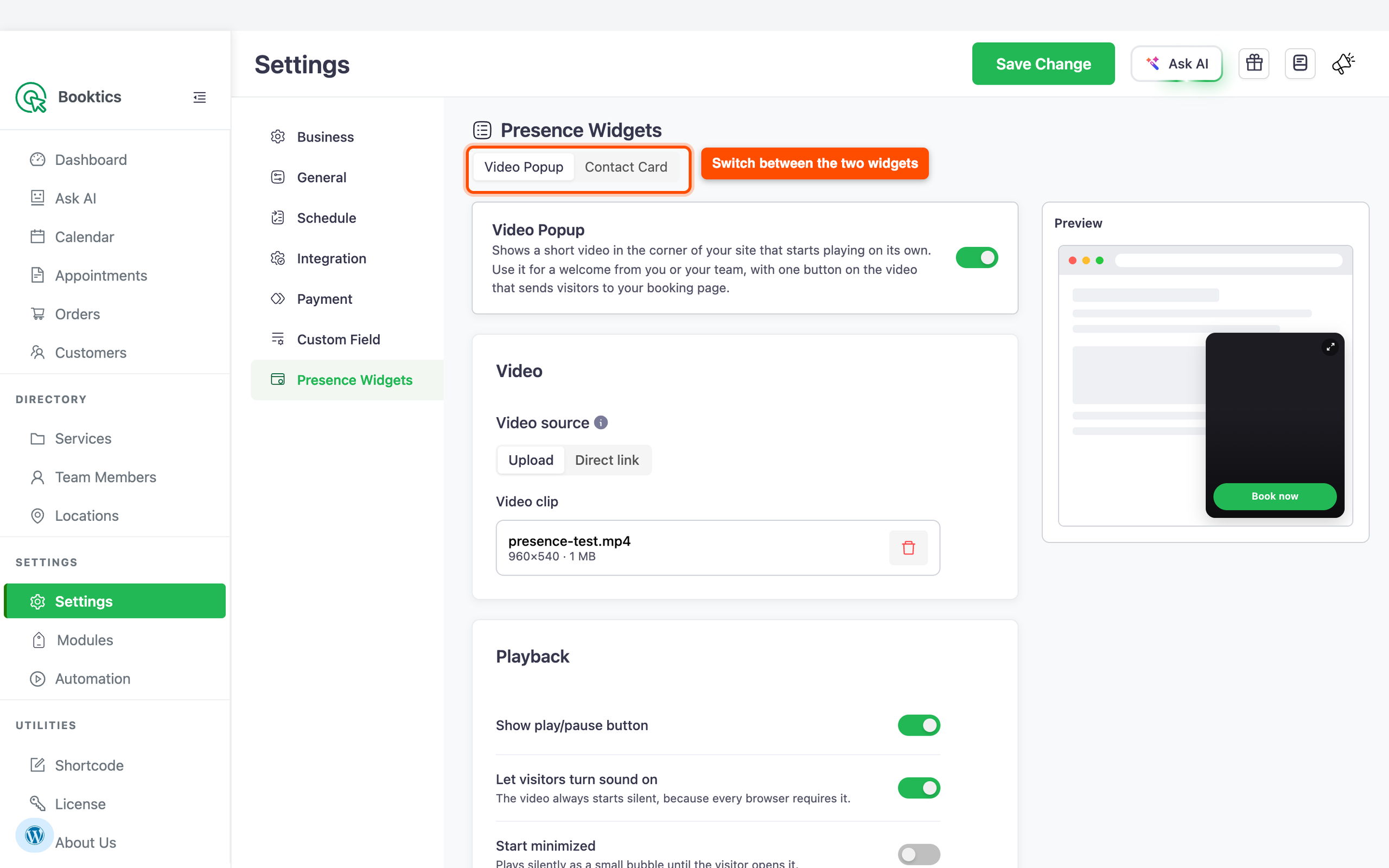
- Use the switcher at the top to move between Video Popup and Contact Card.
Both panels keep what you type, so you can set up one, switch to the other, and save once at the end. Without an active Booktics Pro license, this tab shows an upgrade screen instead of the settings.
Step 2: Turn on the Video Popup and choose your video.
- Turn on the switch in the Video Popup card at the top.
- In the video card, pick a video source: upload or direct link.
- For upload, click Choose video file and pick an MP4 or WebM from your media library. The hint under the field shows the largest file your server accepts.
- For a direct link, paste a link to an MP4 or WebM file, or a video page on YouTube, Vimeo, Loom, Wistia, or Dailymotion.
The clip plays on its own, without sound, and loops. A short portrait clip of 10 to 20 seconds works best, because the panel is small.
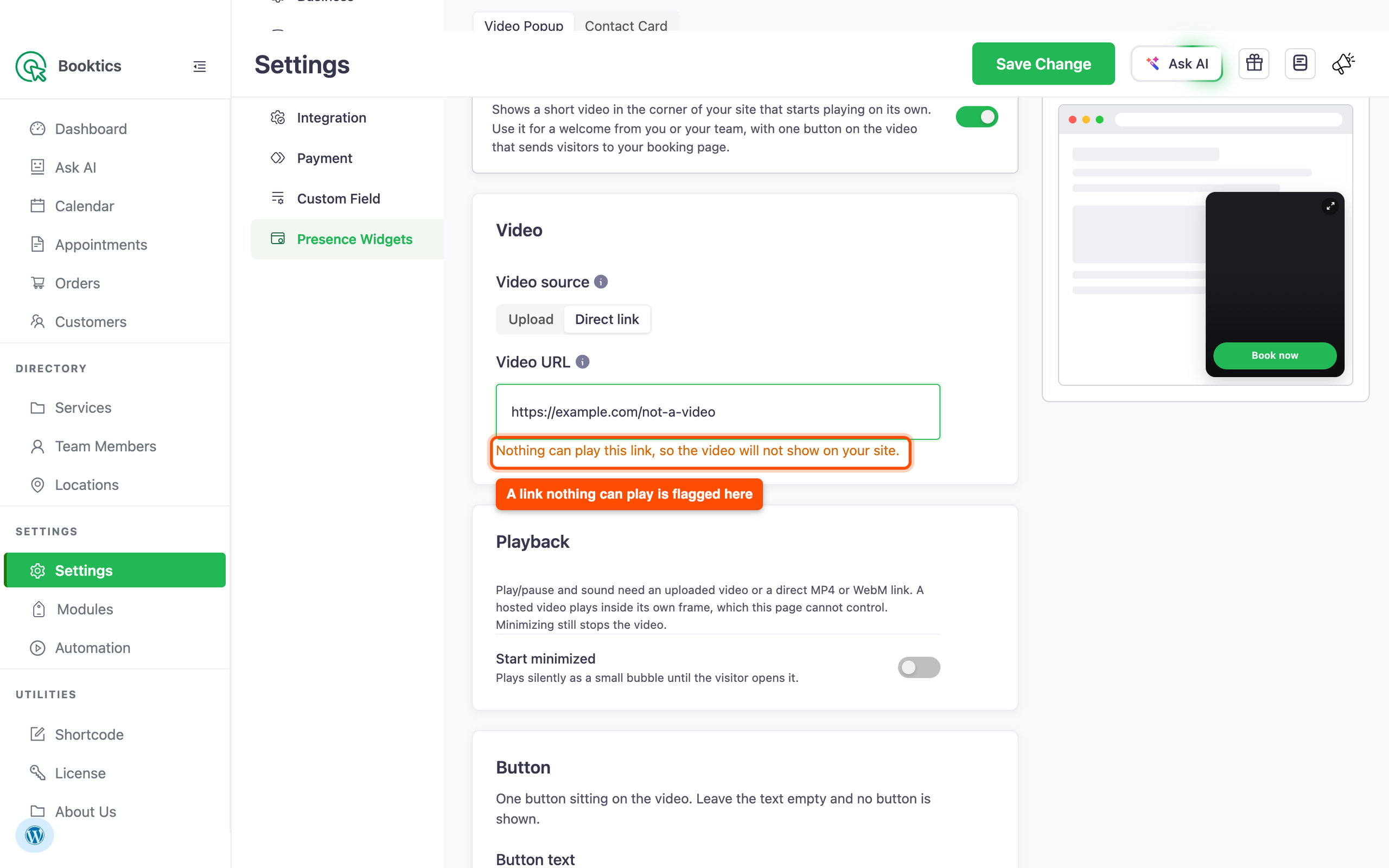
If you paste a link, nothing can play, a red line appears under the field, and the widget stays hidden on your site until you fix the link.
| Note: The field you are not using keeps its old value, but only the source you picked is used. If you switch to Upload and pick no file, no video shows. |
Step 3: Set how the video behaves.
The Playback card has three switches:
- The show play/pause button puts a play and pause control on the video.
- Let visitors turn the sound on; add a sound button. The video always starts silent, because browsers block sound until a visitor asks for it.
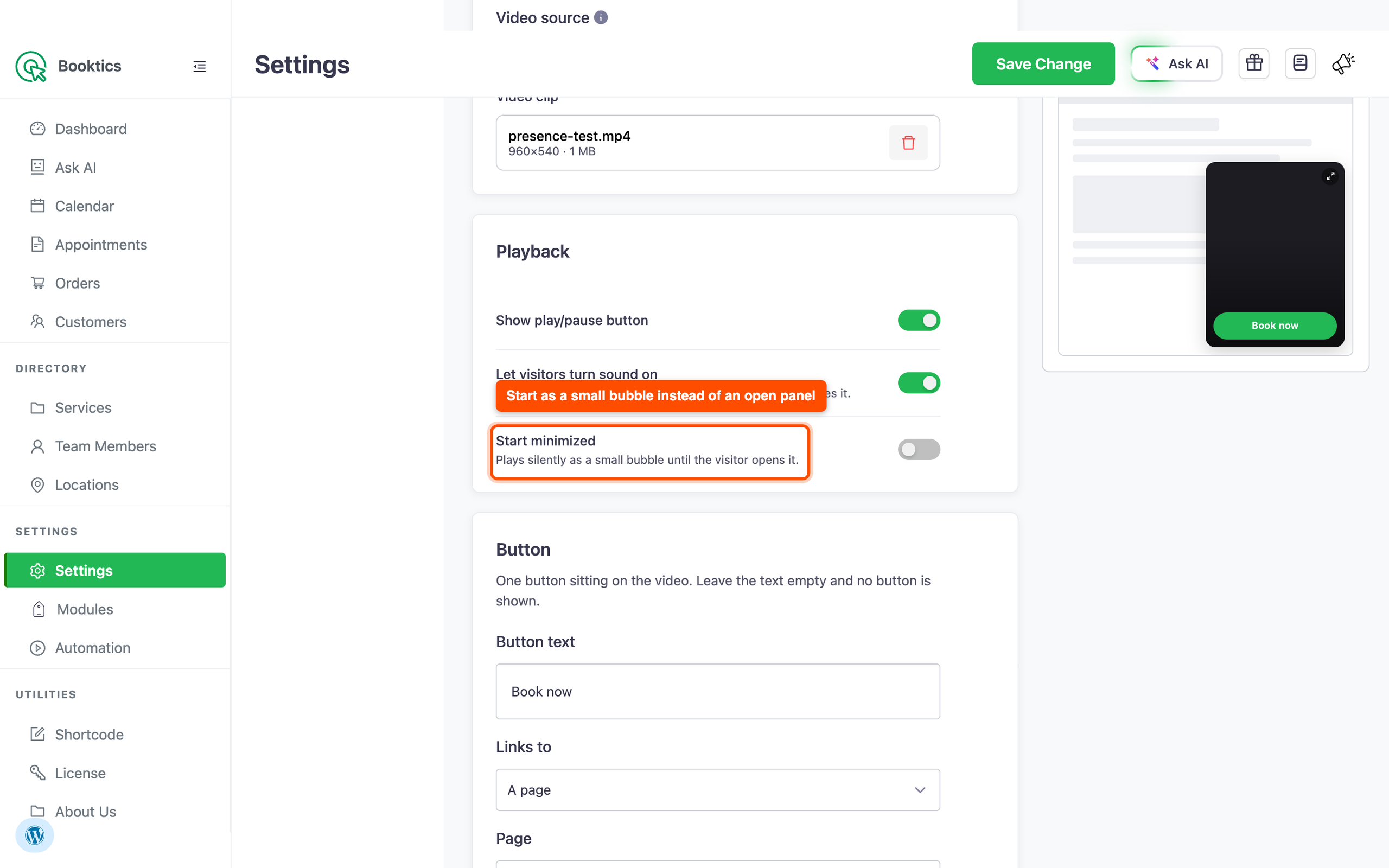
- Start minimized shows a small bubble instead of the open panel. The video keeps playing silently inside the bubble until someone opens it.
The first two switches only appear for an uploaded file or a direct MP4 or WebM link. A YouTube or Vimeo video plays inside the host’s own frame, which your site cannot control, so you get a short note in place of those switches. Minimizing still stops the video in both cases.
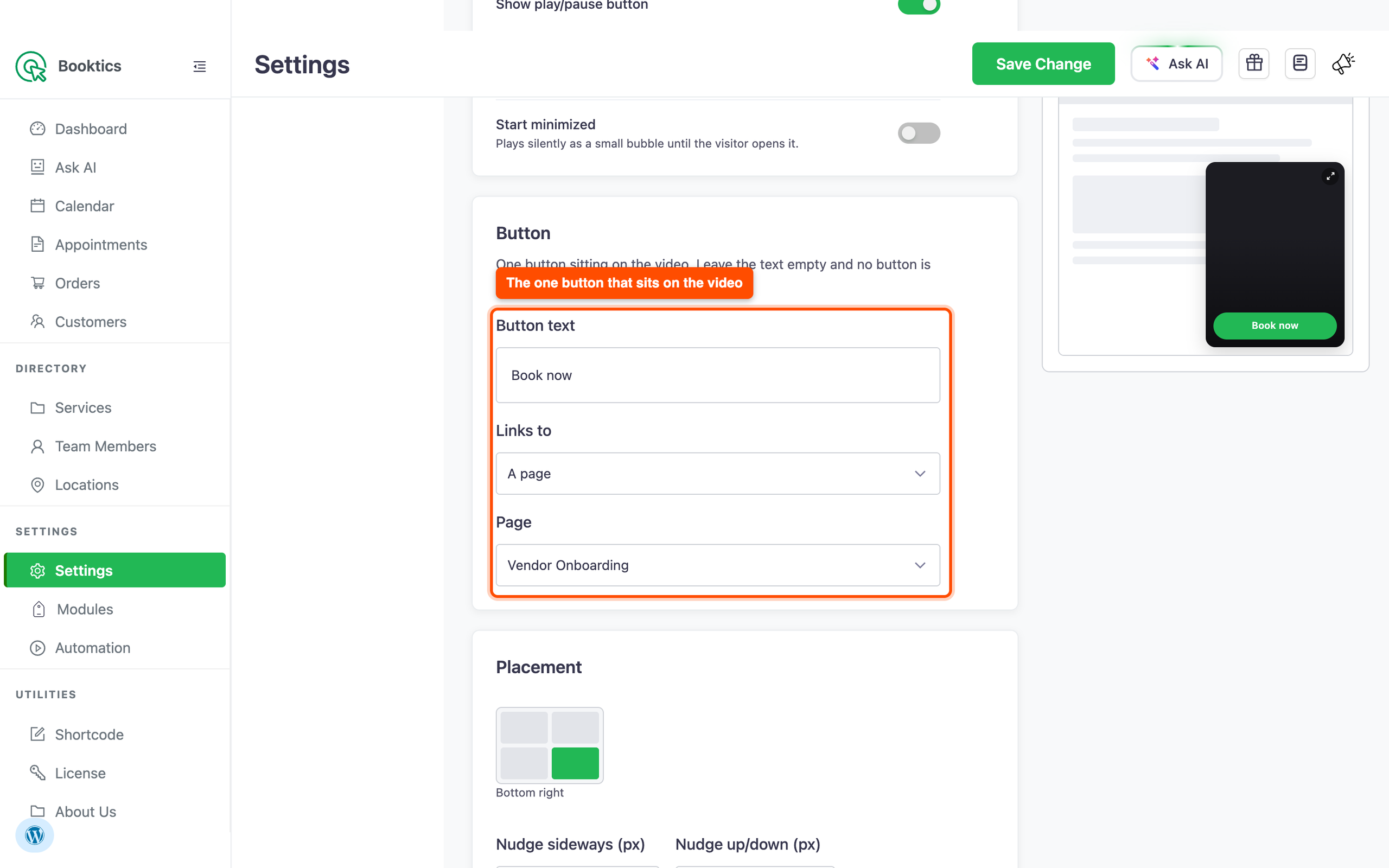
Step 4: Add the button on the video.
- Type the text in the button text, for example, “Book now.” Leave it empty, and no button is shown.
- In Links to, pick a page to choose one of your pages, or link to paste any address.
- Pick the page, or paste the link.
The button sits on top of the video, so keep the text to two or three words.
Step 5: Place the widget and choose its pages.
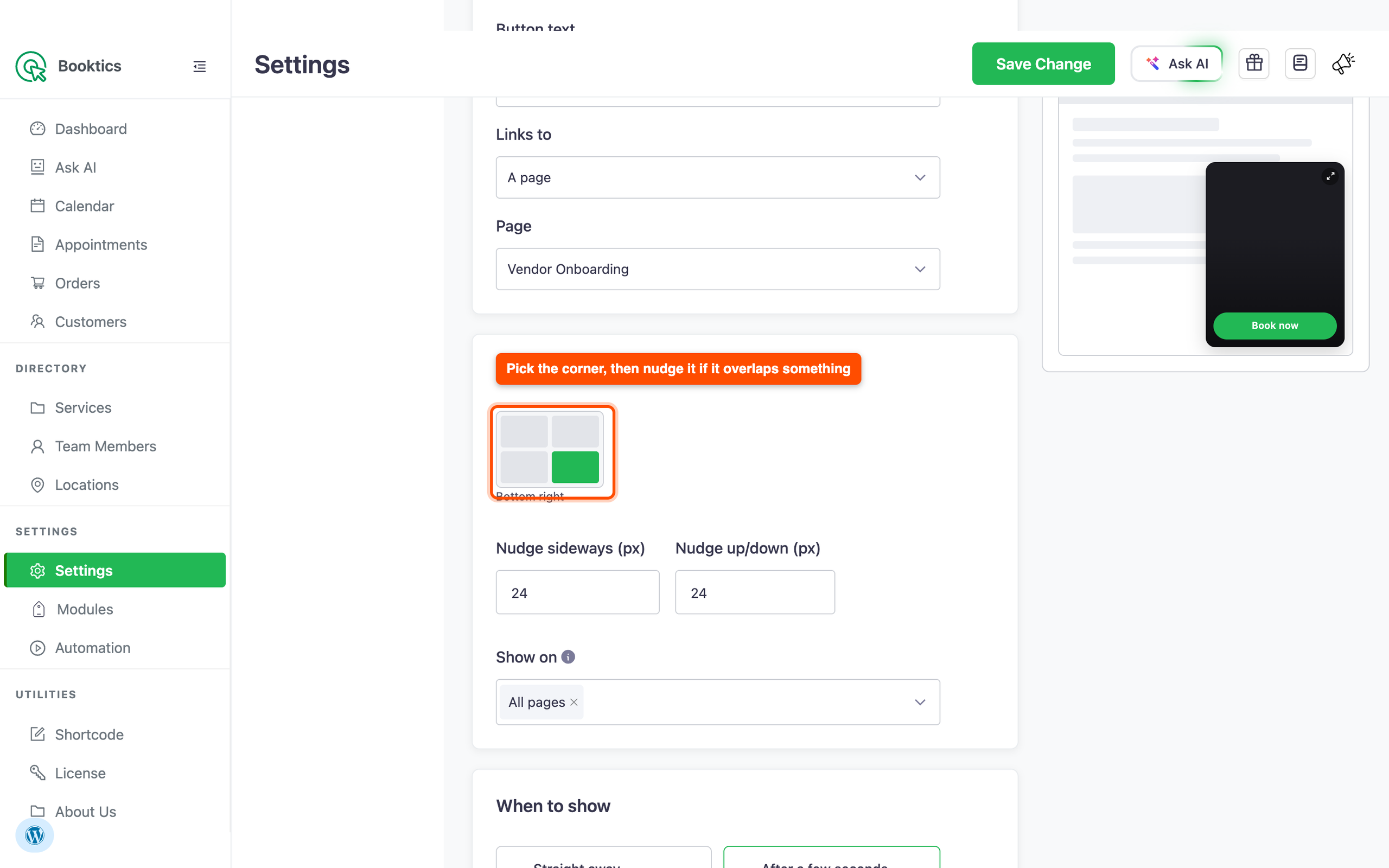
The placement card controls where the widget sits:
- Click one of the four corners in the small grid.
- Use Nudge sideways (px) and Nudge up/down (px) to move it away from anything it overlaps, like a chat button.
- In Show on, pick All pages, or pick single pages by name. Remove every choice, and it shows nowhere, which is a quick way to pause a widget without turning it off.
Step 6: Choose when it appears.
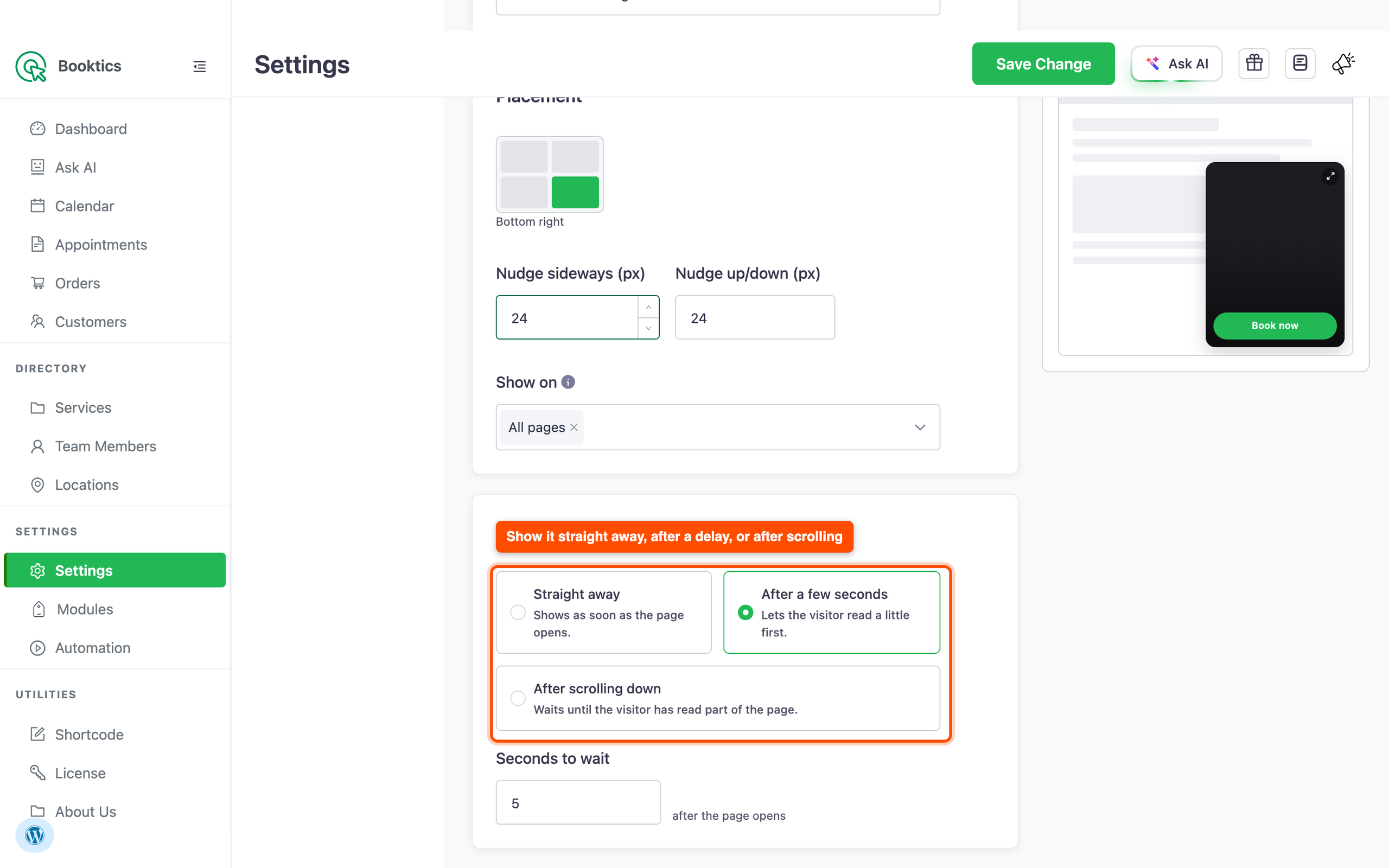
The When to Show card has three options:
- Straight Away shows it as soon as the page opens.
- After a few seconds, wait, and you set seconds to wait.
- After scrolling down, wait until the visitor has read part of the page, and you set Scroll depth as a percentage.
A delay of 5 to 10 seconds usually reads as helpful. Straight away, I can feel pushed on a long article.
Step 7: Set up the Quick Contact Card
Switch to Contact Card at the top of the page and turn on its switch. Then fill in the cards below:
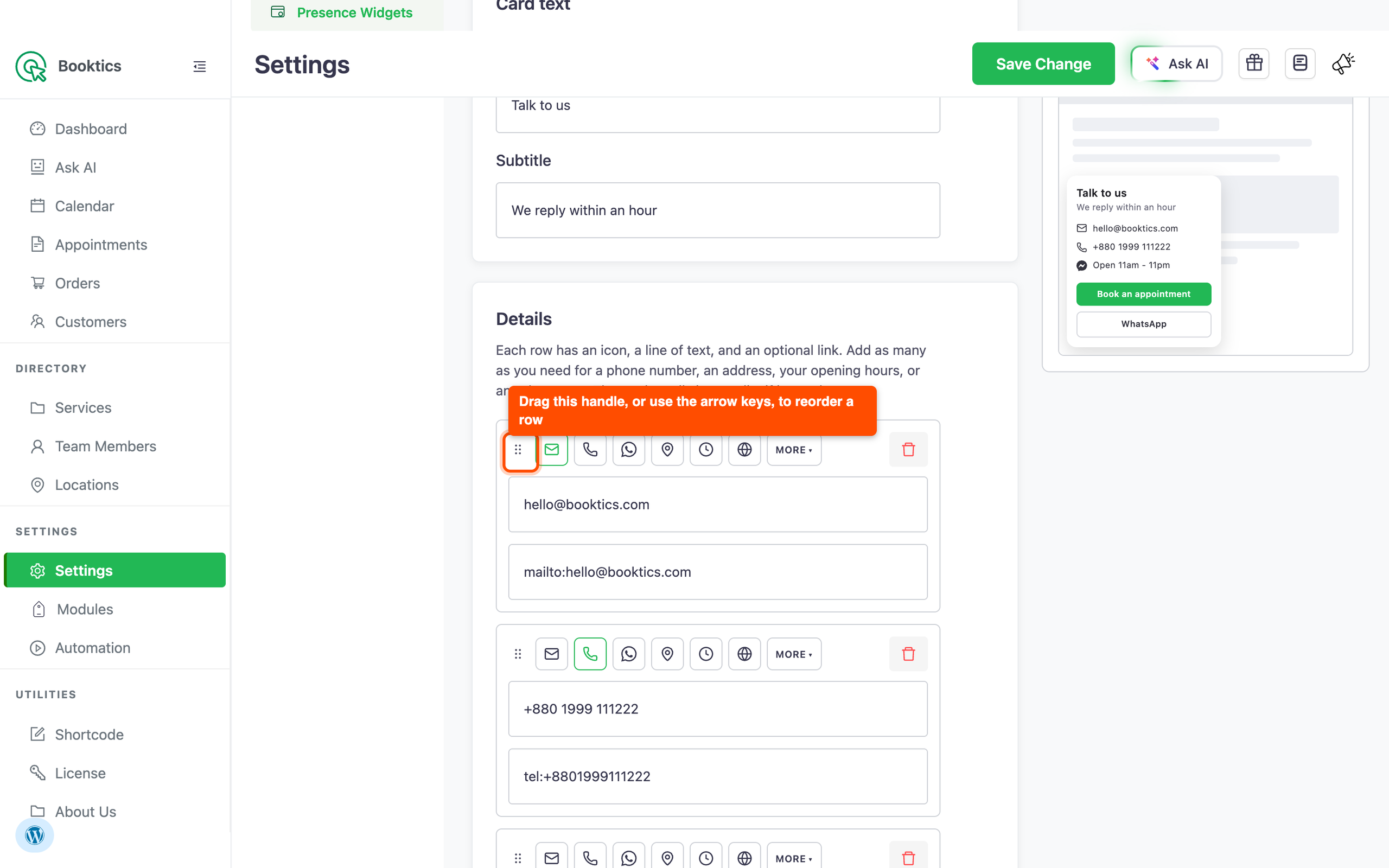
- Card text: a title such as “Talk to us” and a subtitle line under it. Both are optional.
- Details: click + Add row for each line. Type the text (a phone number, an address, or your hours), pick an icon, and add a link if the line should be clickable. Drag a row by its handle to reorder it, or hold the handle and use the up and down arrow keys.
- Buttons: a primary and a secondary button, each with text and a link. A button needs both; otherwise, it is skipped.
Phone and email links open in the visitor’s own app, and web links open in a new tab.
Step 8: Decide when the card shows and save.
The Contact Card has the same placement and when to show cards as the video, plus one extra switch: Stay closed once the visitor closes it. With it on, the card stays hidden for the rest of that visit and comes back on the visitor’s next one. With it off, it comes back on every page.
Click Save Change at the bottom of the settings page, then open your site in a new tab and check both widgets.
If a widget does not appear, check three things: its switch is on, Show on covers the page you are looking at, and the widget has something to show. An empty card, or a video link nothing can play, is left out on purpose, and the widget’s CSS and JavaScript are not loaded on pages where nothing shows.
Frequently Asked Questions (FAQ)
| Q1: Why is my video not showing on the site? Three things hide it: the Video Popup switch is off, the Show on does not include that page, or the link cannot be played. Booktics accepts direct MP4, WebM, and OGV files, plus YouTube, Vimeo, Loom, Wistia, and Dailymotion links. A link to a page that only embeds a video elsewhere will not work. |
| Q2: Can visitors hear the video straight away? No. The video always starts silent, because browsers block sound on a video that plays by itself. Turn on the “Let visitors turn sound on” and a sound button appears so the visitor can unmute it. That switch only exists for an uploaded file or a direct MP4 or WebM link. |
| Q3: What happens for visitors who turn off animations on their device? Booktics respects the “reduce motion” setting in Windows, macOS, iOS, and Android. Those visitors get the widget without the sliding animation, and the video does not start playing by itself. They can still open the panel and play it themselves when the play button is on. |
Conclusion
Overview
Presence Widgets are two floating panels. Booktics Pro adds to the front of your site. The Video Popup plays a short silent clip in a corner with one button on it, and the Quick Contact Card shows your phone number, address, or opening hours with up to two buttons. Both are set up in Booktics settings.