
Overview
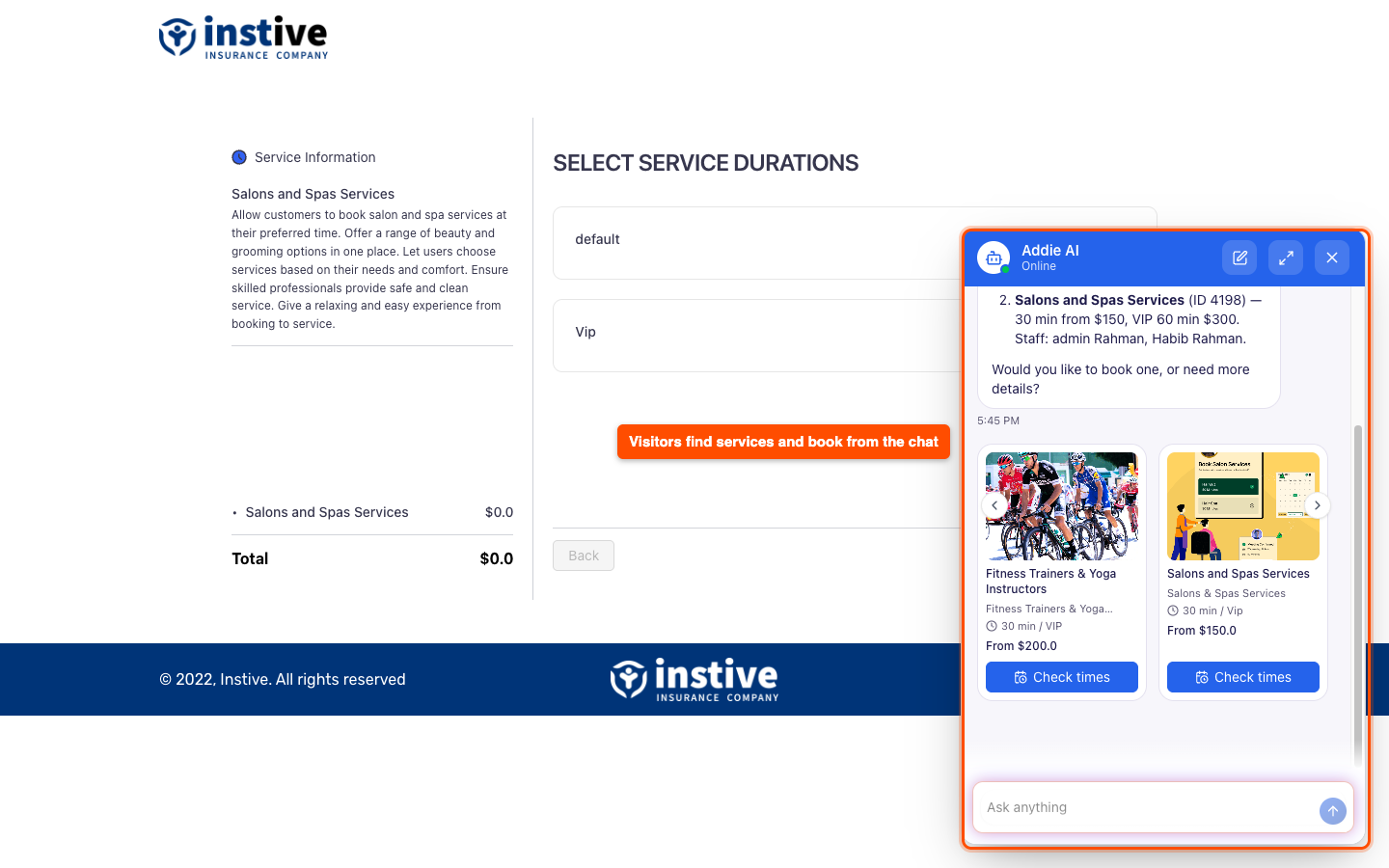
The Booktics AI booking assistant is a chat window on your website that helps visitors find a service, check real free times and start a booking without clicking through every form step. It runs on the Aisentic plugin and reads your Booktics services, prices, staff and schedules directly.
Without it, a visitor who wants a haircut on Saturday morning has to open the service, pick a staff member and click through the calendar day by day. With the assistant, they type “Any haircut slot on Saturday morning?” and see the free times right in the chat. One tap on a time gives them a button that opens your booking form with everything already filled in.
Requirements
- Booktics 1.0.31 or later
- Aisentic 1.1.7 or later, registered to Aisentic AI (free, with 200 credits)
- At least one published Booktics service with a team member and working hours
- Booktics Pro (optional): only if you want the assistant to offer extra services, group bookings or more than one location
Step 1: Check Your Aisentic AI Account
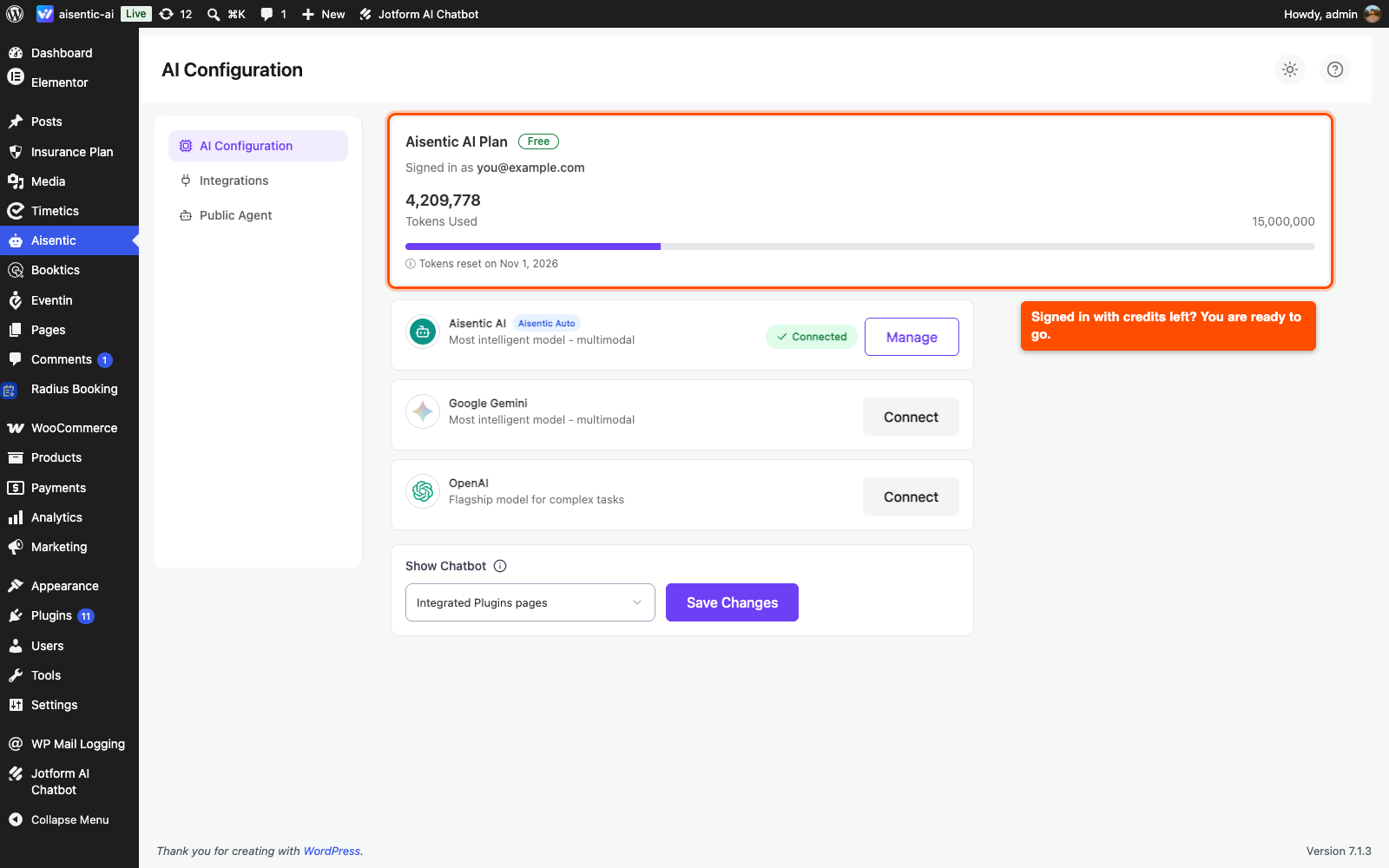
When you register to Aisentic, Aisentic AI connects on its own and your account gets 200 free credits. The booking assistant runs on those credits, so you do not need an API key to start.
- Go to Aisentic > Settings > AI Configuration.
- On the Aisentic AI Plan card, check that Signed in as shows your email.
- Check the usage bar to make sure you still have credits left.
If you would rather use your own key, you can set up another provider on the same page. Find OpenAI or Google Gemini, click Connect, paste your OpenAI API key or Google Gemini API key, pick a Default Model and click Save Configuration.
Step 2: Turn On the Booktics Assistant
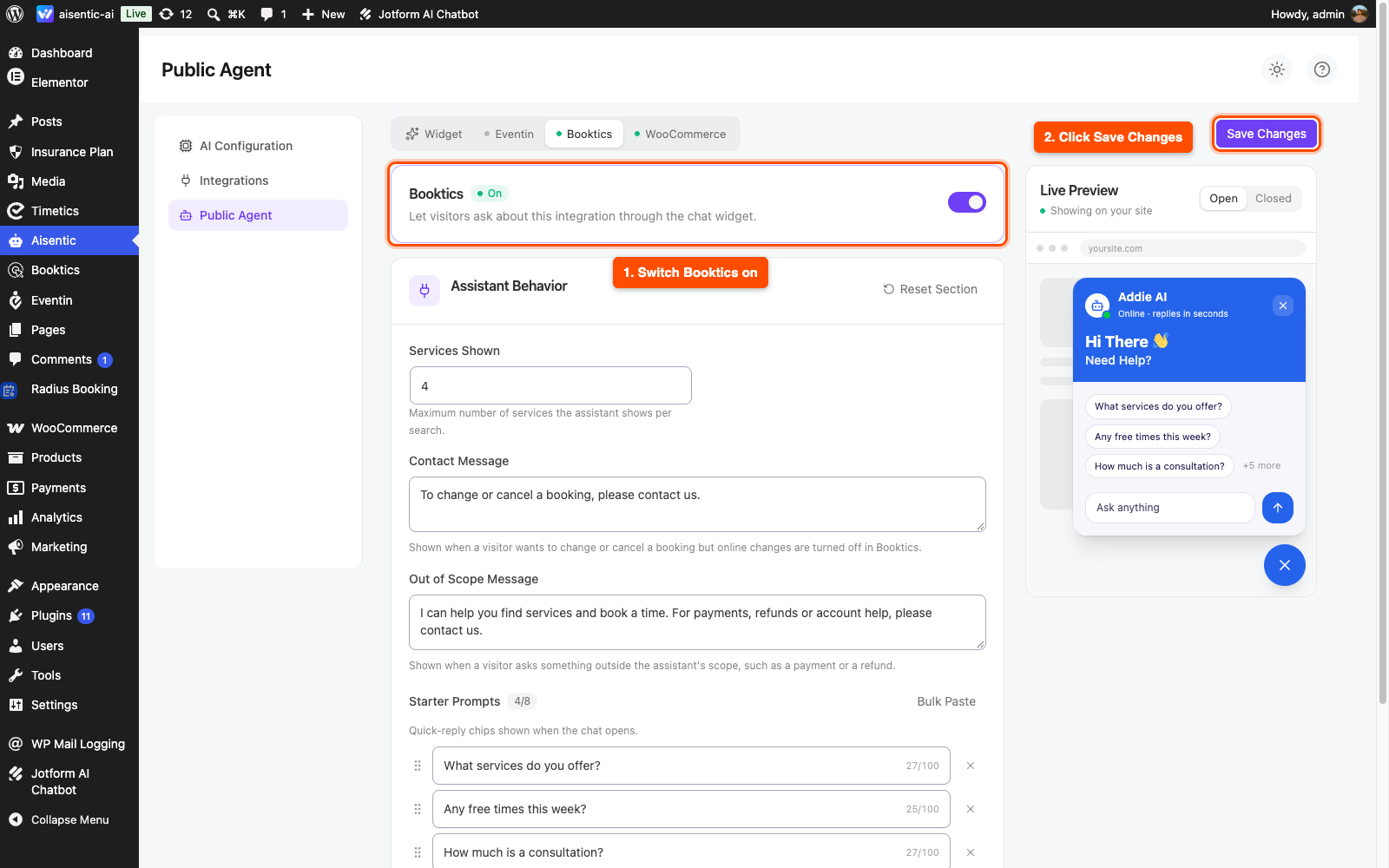
- Go to Aisentic > Settings > Public Agent.
- Open the Booktics tab. You only see this tab while Booktics is active.
- Switch the toggle on. The badge next to the title changes from Off to On.
- Click Save Changes.
The chat launcher now appears on every page of your site for visitors.
Step 3: Set How the Assistant Behaves
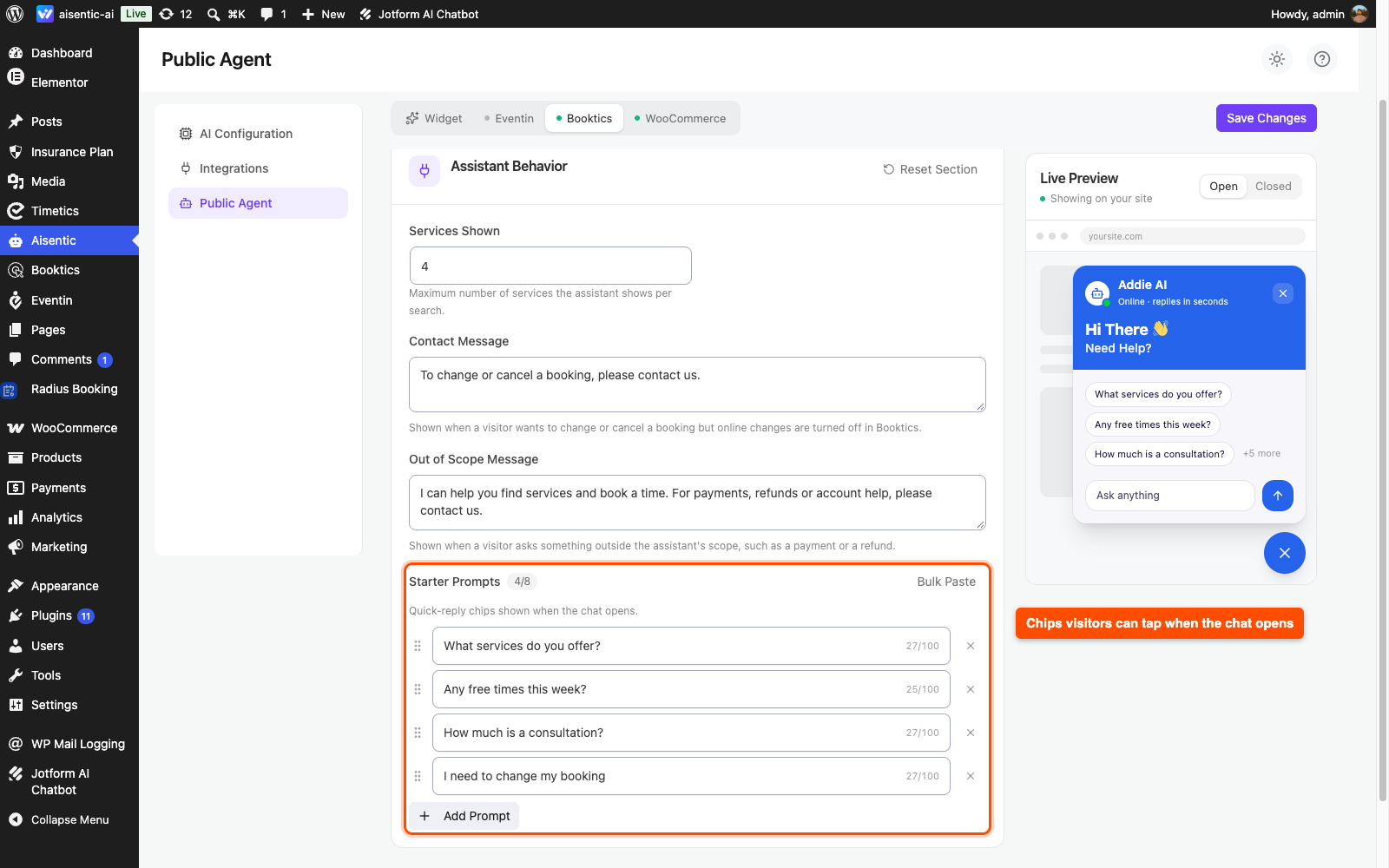
On the same Booktics tab, the Assistant Behavior section controls what the assistant shows and says. Every field has a sensible default, so you can leave them as they are and change them later.
- Services Shown: how many services the assistant shows in one search, from 1 to 12. The default is 4.
- Contact Message: shown when a visitor wants to change or cancel a booking but you have turned online changes off in Booktics.
- Out of Scope Message: shown when a visitor asks about something the assistant does not handle, like a refund or a payment problem.
- Starter Prompts: the tap-to-ask chips a visitor sees when the chat opens, for example “Any free times this week?”. You can add up to 8, each up to 100 characters.
Click Save Changes when you are done. To go back to the defaults, click Reset Section.
Step 4: Match the Chat Widget to Your Brand
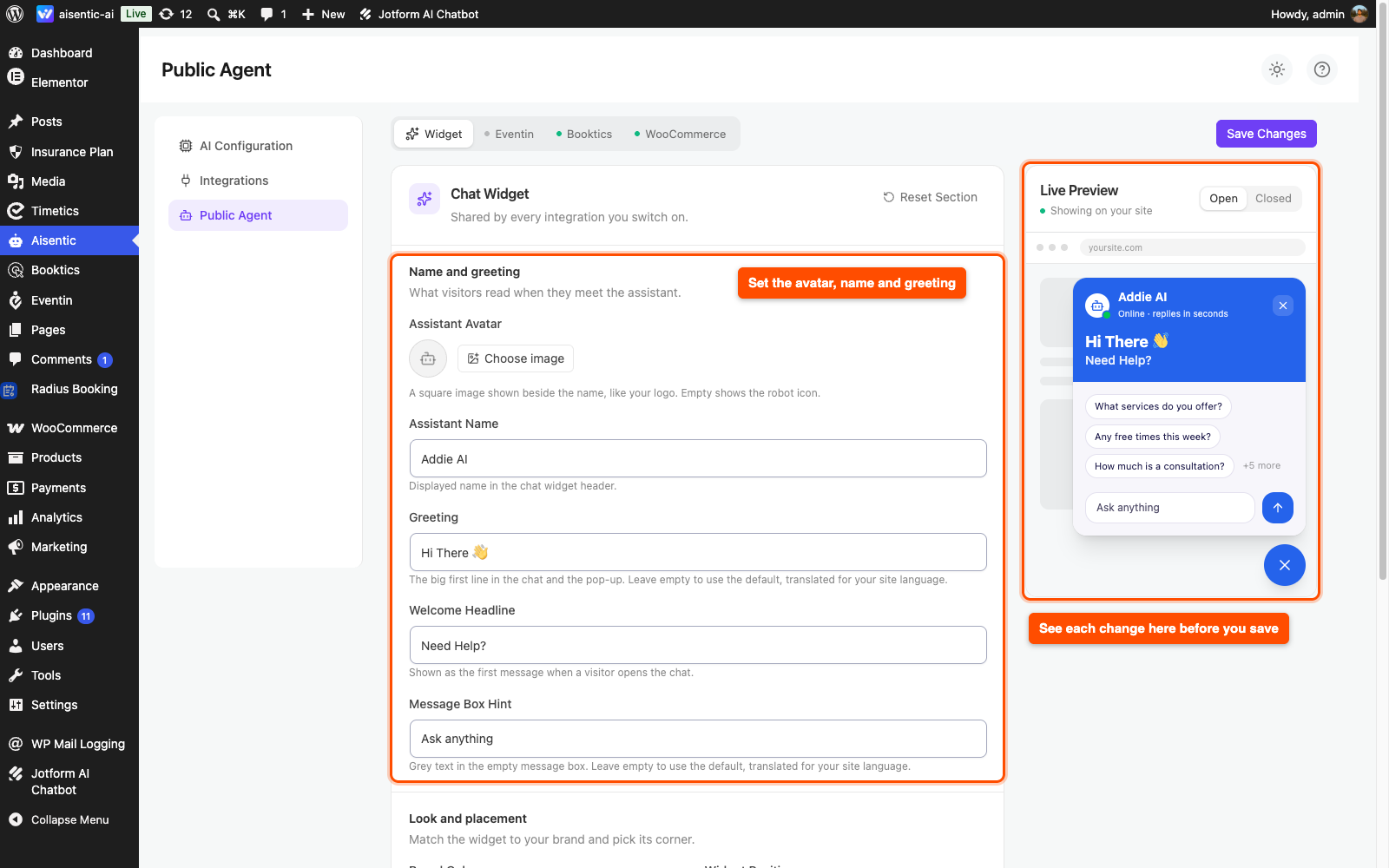
You can change how the chat looks and what it says, so it feels like part of your site. Go to Aisentic > Settings > Public Agent and open the Widget tab. All the customization settings are in the Chat Widget section, and the Live Preview on the right updates as you type.
- Under Name and greeting, set the Assistant Avatar (your logo works well), Assistant Name, Greeting (up to 50 characters), Welcome Headline and Message Box Hint (up to 70 characters).
- Under Look and placement, pick a Brand Color and the Widget Position (bottom right or bottom left).
- Under Usage limits, check Rate Limit (per hour). This is how many messages one visitor can send in an hour. The default of 20 is enough for a full booking conversation.
- Click Save Changes.
| Tip: Leave Greeting and Message Box Hint empty if your site runs in more than one language. The assistant then uses its built-in text, translated for each visitor’s language. |
Step 5: Let Customers Change or Cancel Bookings by Email (Optional)
The assistant can also help a customer who wants to move or cancel an existing booking. It never shows booking details in the chat. Instead, it asks for the customer’s email and Booktics sends them a private email with Reschedule and Cancel buttons for each upcoming booking.
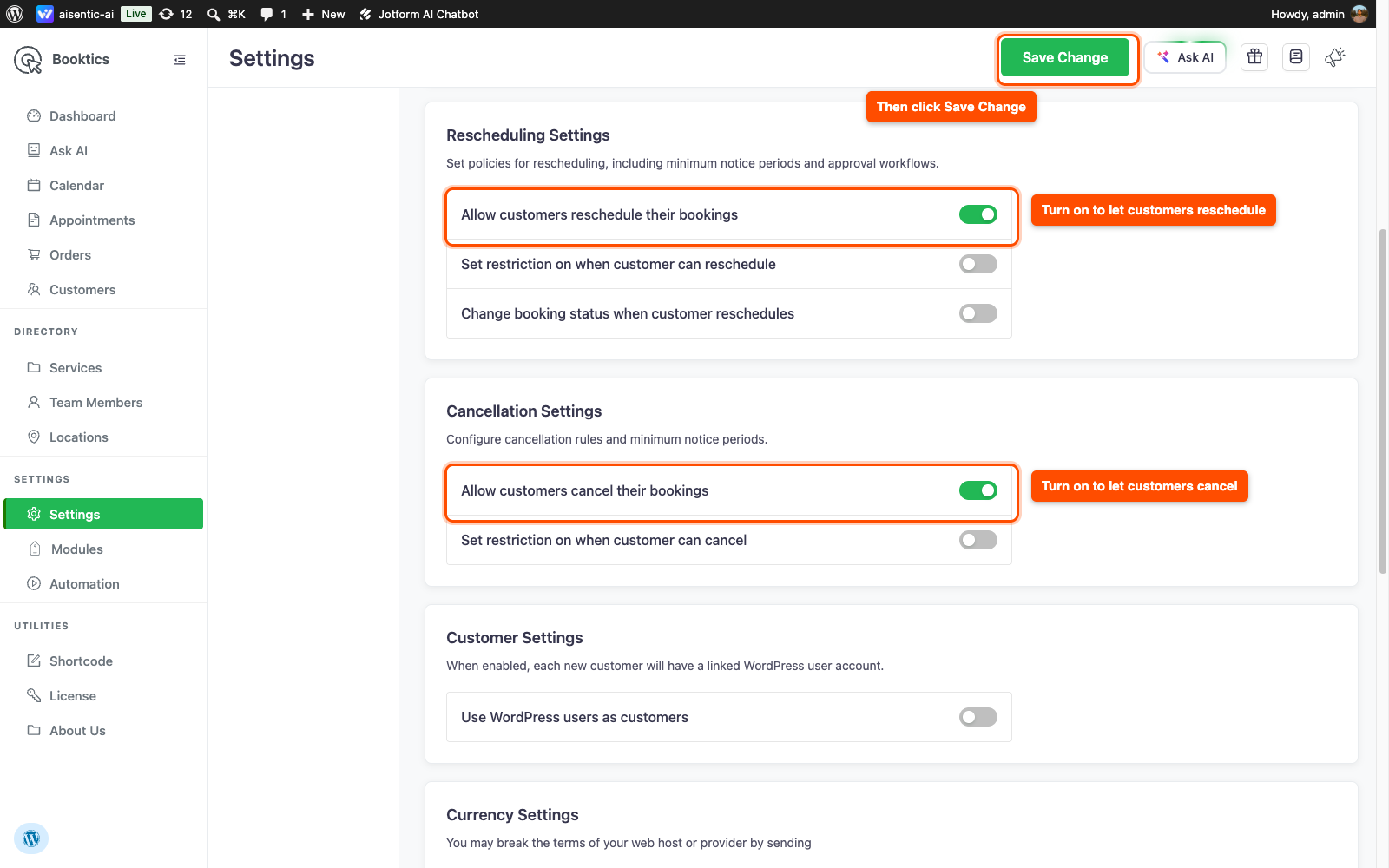
- Go to Booktics > Settings > General.
- Under Rescheduling Settings, turn on Allow customers reschedule their bookings.
- Under Cancellation Settings, turn on Allow customers cancel their bookings.
- Click Save Change at the top of the page.
Booktics creates the email for you. You can find and edit it under Booktics > Automation, named Manage Links Requested, with the subject “Your upcoming bookings”.
If both options are off, the assistant shows your Contact Message from Step 3 instead.
Step 6: See How Visitors Book a Service
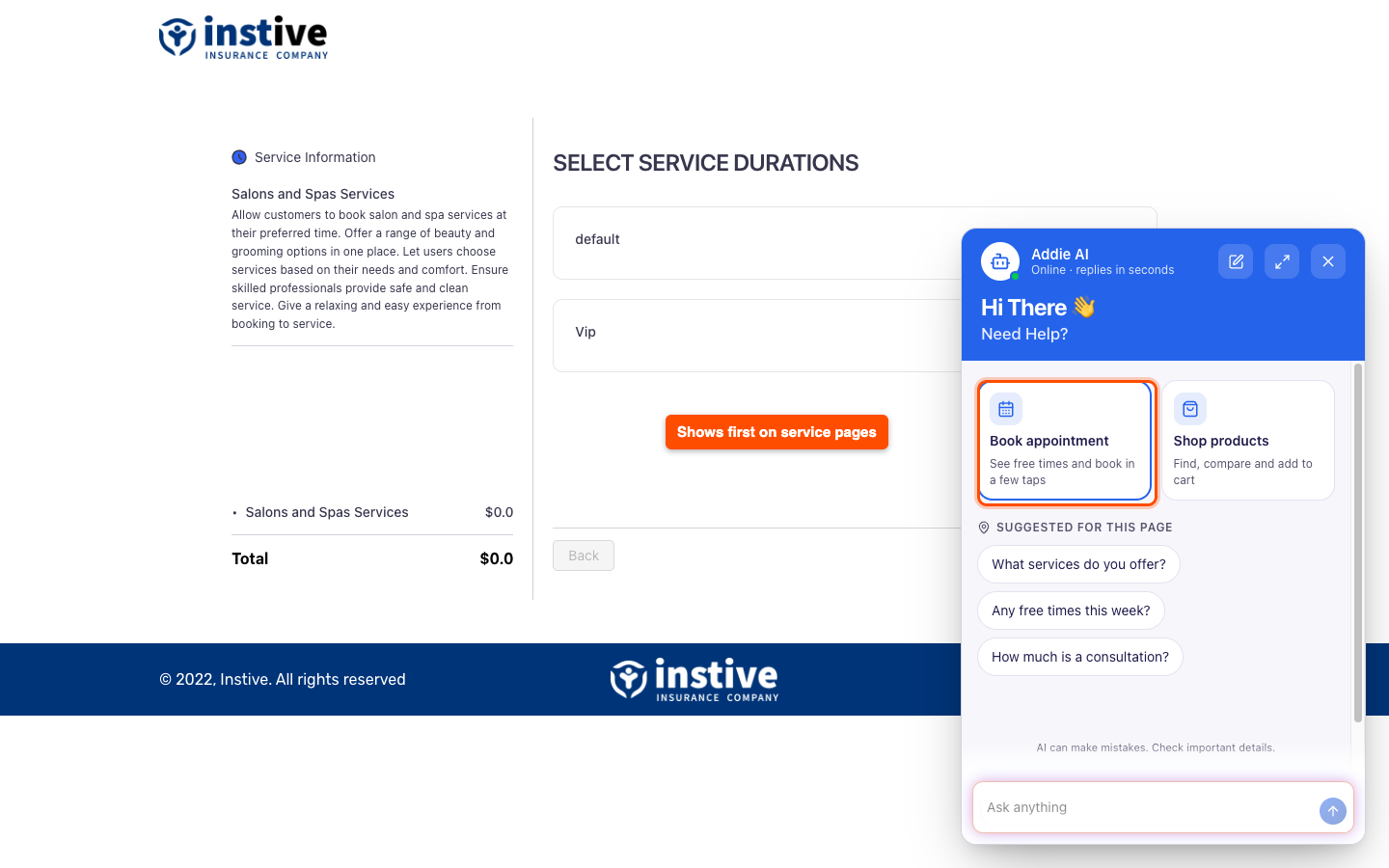
Open your site in a private browser window, so you see it the way a visitor does, and click the chat launcher. On a service page, or any page that has a Booktics shortcode or block, the chat leads with a Book appointment topic.
Here is what a booking looks like from the visitor’s side:
- The visitor asks, for example, “Do you do facials?”. The assistant shows matching services as cards with the price and a Check times button.
- The assistant asks only what that service needs, one question at a time, with answers to tap: the duration, any extras, how many people, the branch and the staff member (or Anyone).
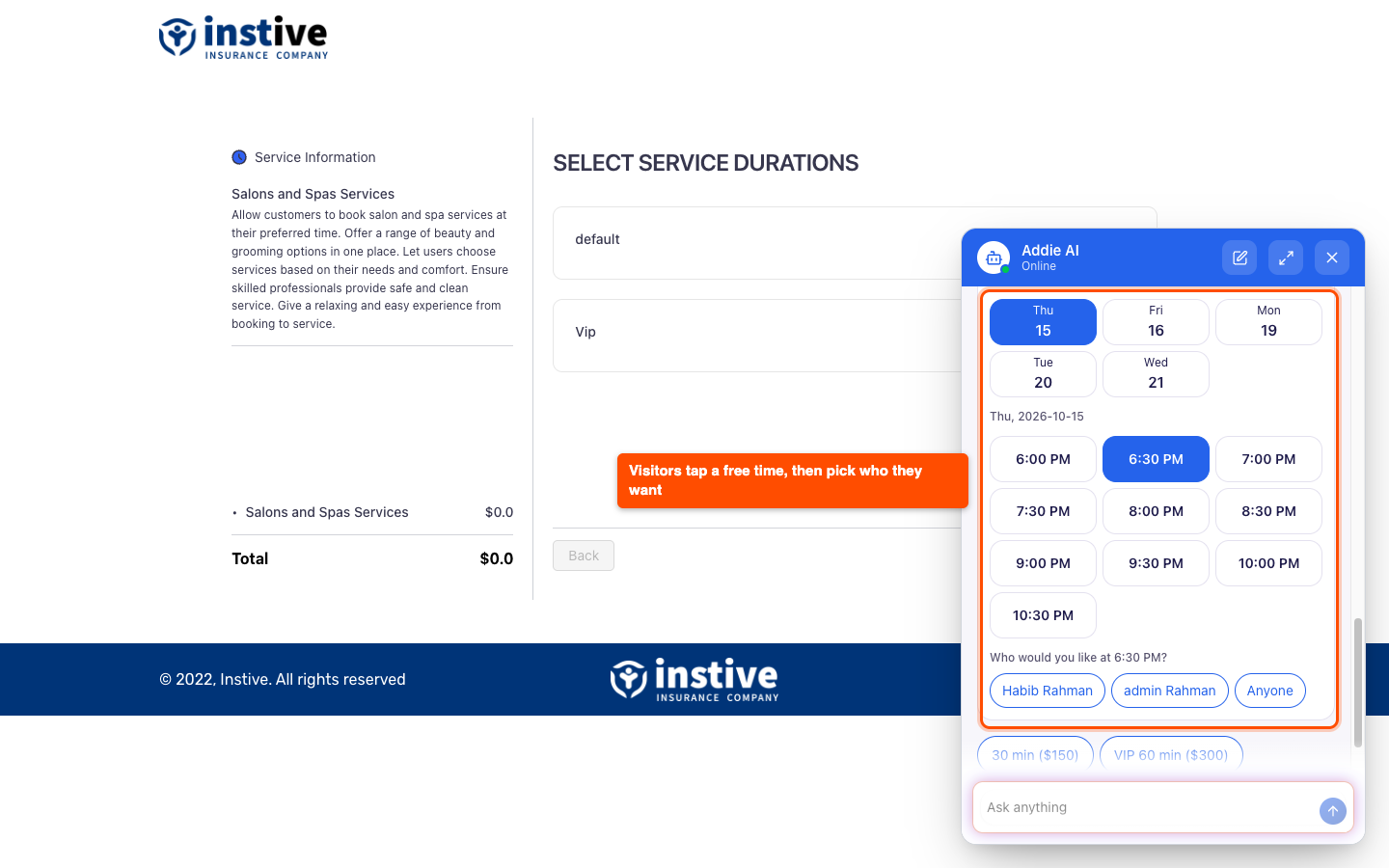
- The visitor picks a day. The assistant shows the free times for that day, grouped by date, in your site’s timezone.
- The visitor taps a time. The assistant checks once more that the time is still free, then shows a booking card with the service, staff, date, time, prices and a Continue booking button.
- Continue booking opens your Booktics booking form already filled in, on the order summary step. The visitor adds their details and pays there, the same as any other booking.
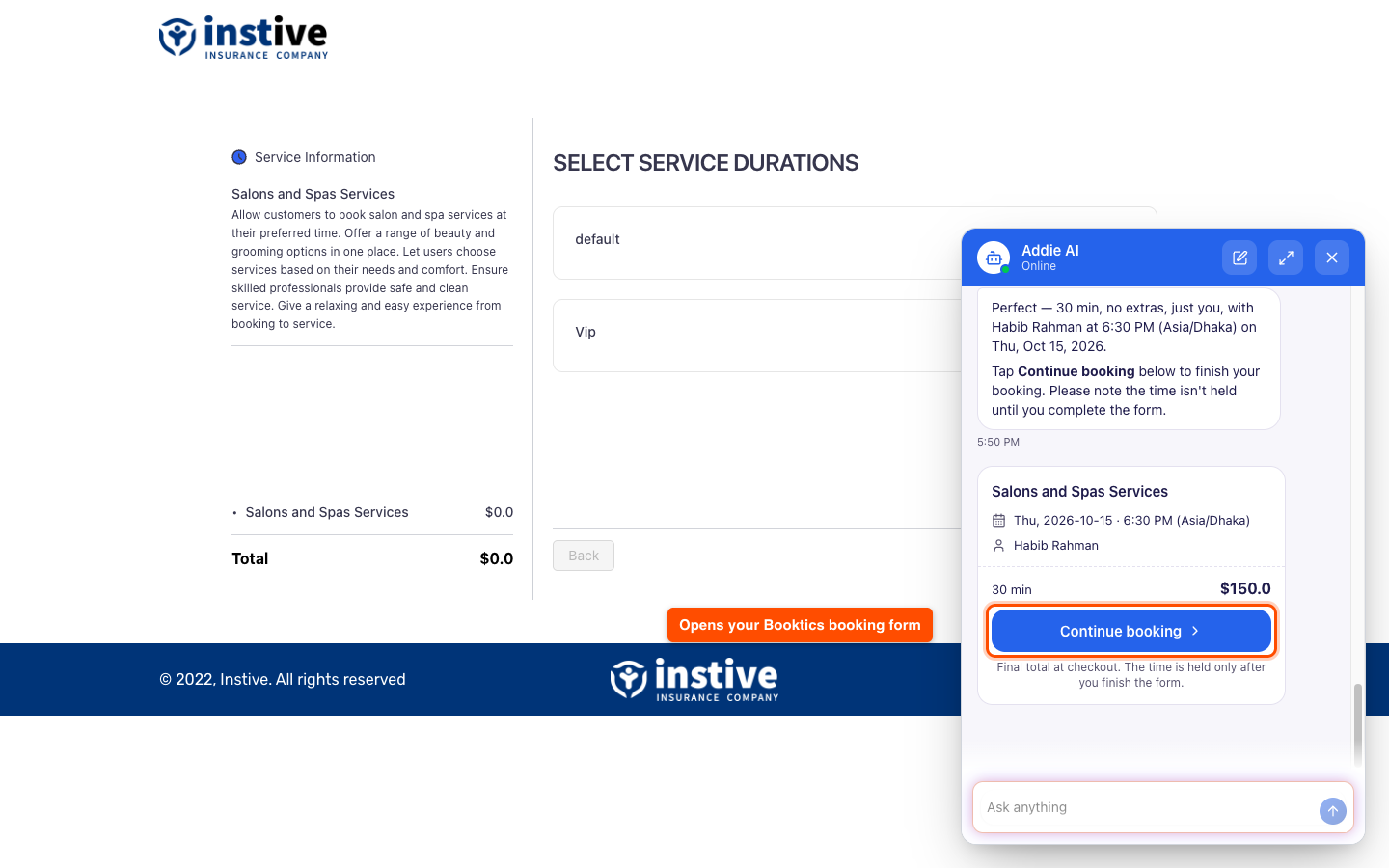
| Note: Nothing is booked until the visitor finishes the Booktics form, and the time is not held while they fill it in. If someone else books that time first, the form tells the visitor to pick another time. |
Frequently Asked Questions (FAQ)
| Q1: Does the AI assistant create the booking by itself? No. The assistant collects the visitor’s choices and checks the time is free, then gives them a Continue booking button. That button opens your normal Booktics form already filled in, so your custom fields, final total and payment step all still apply. The booking exists only after the visitor finishes that form. |
| Q2: Can customers reschedule or cancel a booking through the chat? Yes, through email. The customer types the email they booked with and taps Send link. Booktics then emails them the Reschedule and Cancel buttons for their upcoming bookings. The chat gives the same reply for every email, so nobody can use it to check whether an email has bookings. Your rescheduling and cancellation settings still apply. |
| Q3: Can I show the chat only on my booking pages? Not at the moment. Once the Booktics assistant is on, the chat launcher appears on every page of your site. On service pages, and on pages with a Booktics shortcode or block, the chat opens with the Book appointment topic first, so visitors there see booking help straight away. |
Conclusion
The Booktics AI booking assistant turns “do you have anything free on Saturday?” into a filled-in booking form in a few taps. Turn it on under Aisentic > Settings > Public Agent, then open your site in a private window and try a booking yourself.