
Overview
WhatsApp notifications in Booktics Pro send booking updates to your customers and to your own WhatsApp number. Connect your WhatsApp Business account from Meta once, then use Booktics Automation to send approved message templates when an appointment is scheduled, rescheduled, or cancelled, or when a new order comes in.
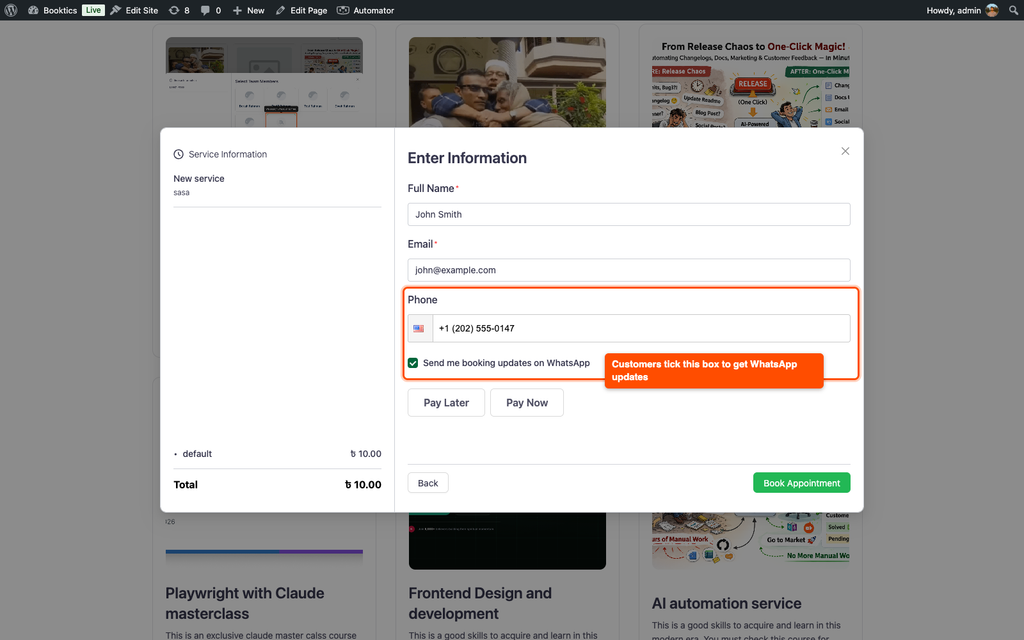
Customers only get messages if they tick the WhatsApp box when they book.
Requirements
- Booktics and Booktics Pro with an active license.
- A Meta for Developers app with the Connect on WhatsApp use case.
- At least one approved message template in WhatsApp Manager.
Step 1: Get Your Details From Meta
- Go to Meta for Developers, click My Apps, and open your app.
- Go to Use cases and click Customize on Connect on WhatsApp.
- Under Basic setup, click Step 1. Try it out.
- Copy the Phone Number ID and the Messaging account ID with the copy icons next to them.
- Under Access token, click Generate token and copy the token.
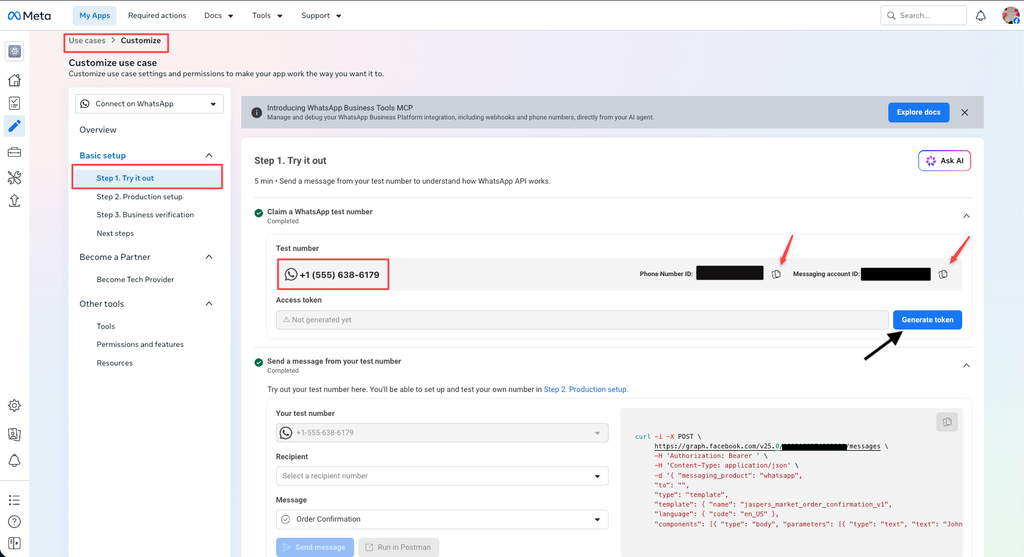
Note: The Messaging account ID is what Booktics calls the WhatsApp Business Account ID. The token from Generate token is temporary, so use it only for testing. For a live site, create a permanent token from a system user with the whatsapp_business_messaging and whatsapp_business_management permissions. |
| Tip: A Meta test number only sends to numbers you add as a recipient on the same page (up to 5). Add your own number there while you test. |
Step 2: Turn On the WhatsApp Module
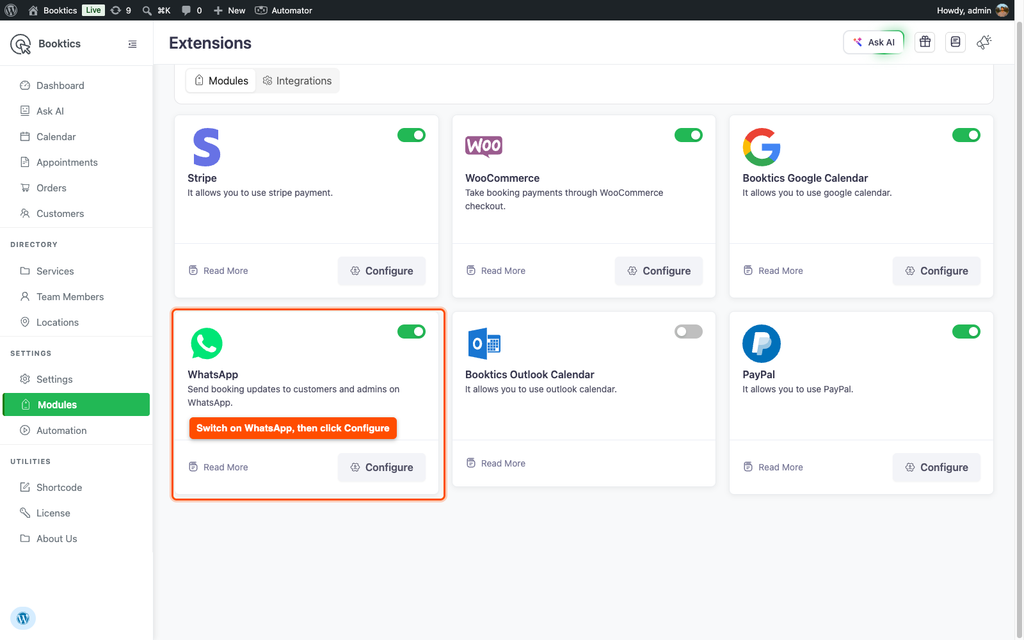
Go to Booktics > Modules and switch on the WhatsApp card.
Step 3: Connect Booktics to WhatsApp
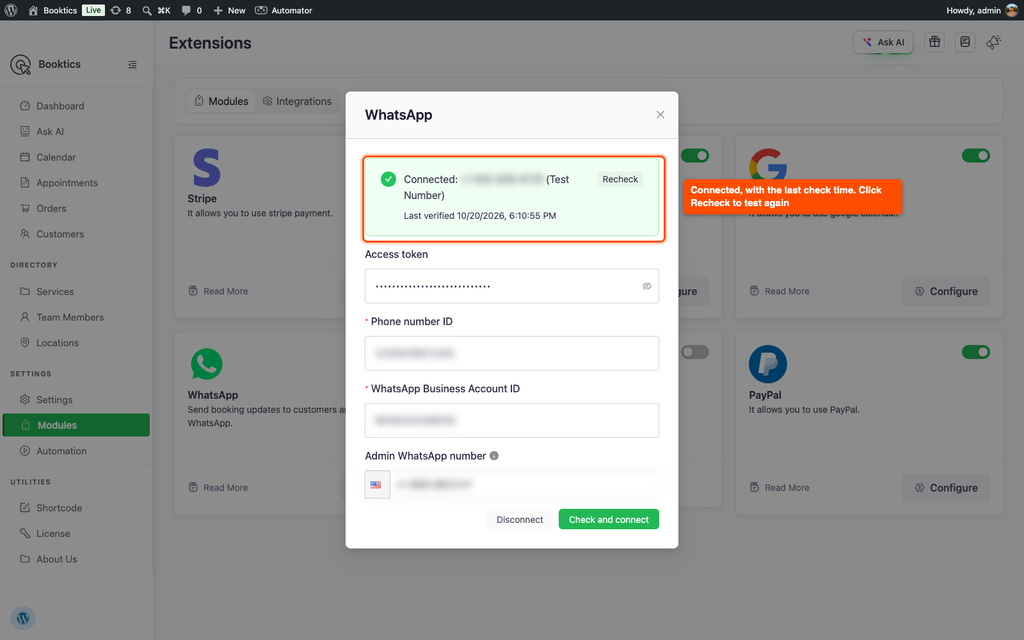
- On the WhatsApp card, click Configure.
- Paste your Access token, Phone number ID, and WhatsApp Business Account ID.
- Enter your Admin WhatsApp number. Messages you send to “Admin Number” go here.
- Click Check and connect.
Booktics checks the details with Meta before saving. If something is wrong, you see Meta’s reason and your old details stay in place.
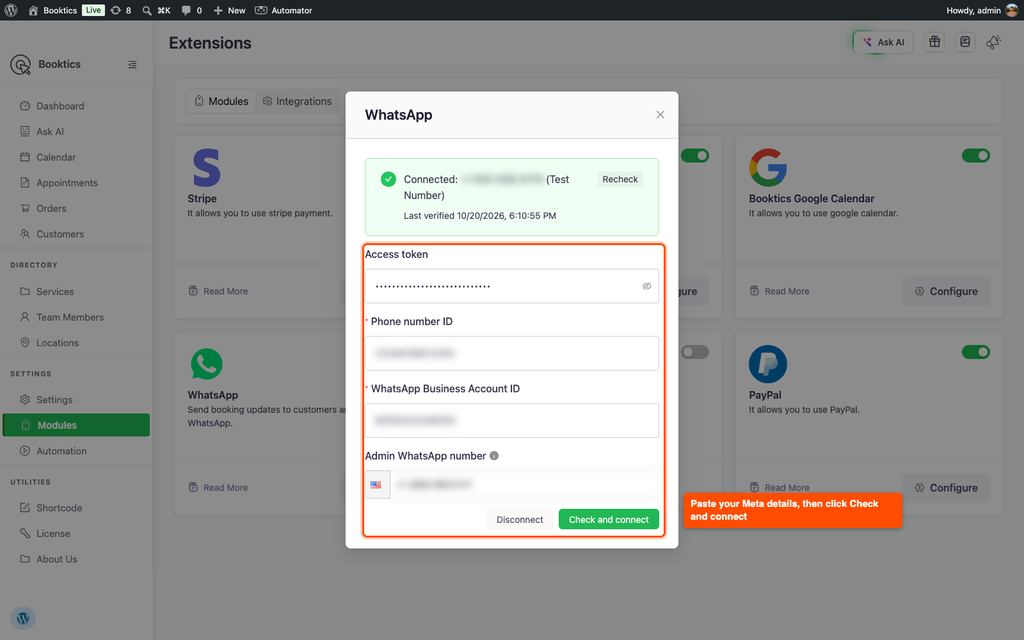
Once connected, the status shows Connected and Last verified. Click Recheck after you change anything in Meta. You can also find this under Booktics > Settings > Integration > WhatsApp.
Step 4: Check the Phone Field
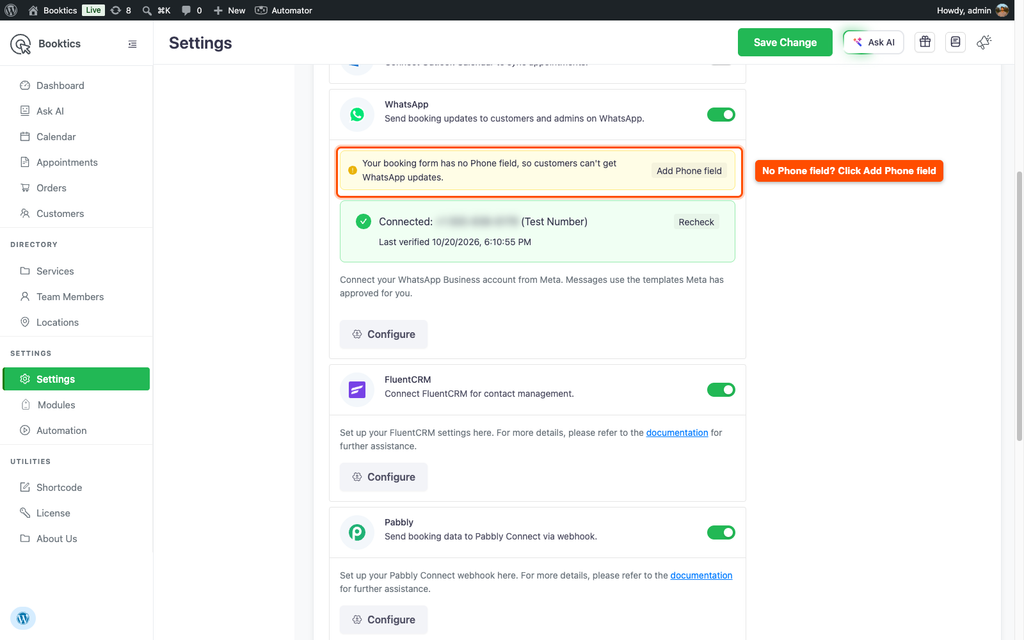
The booking form shows Name, Email, and Phone by default. If you saved your own fields under Booktics > Settings > Custom Field, your list may not have Phone. Booktics then shows a warning in the WhatsApp settings. Click Add Phone field to fix it.
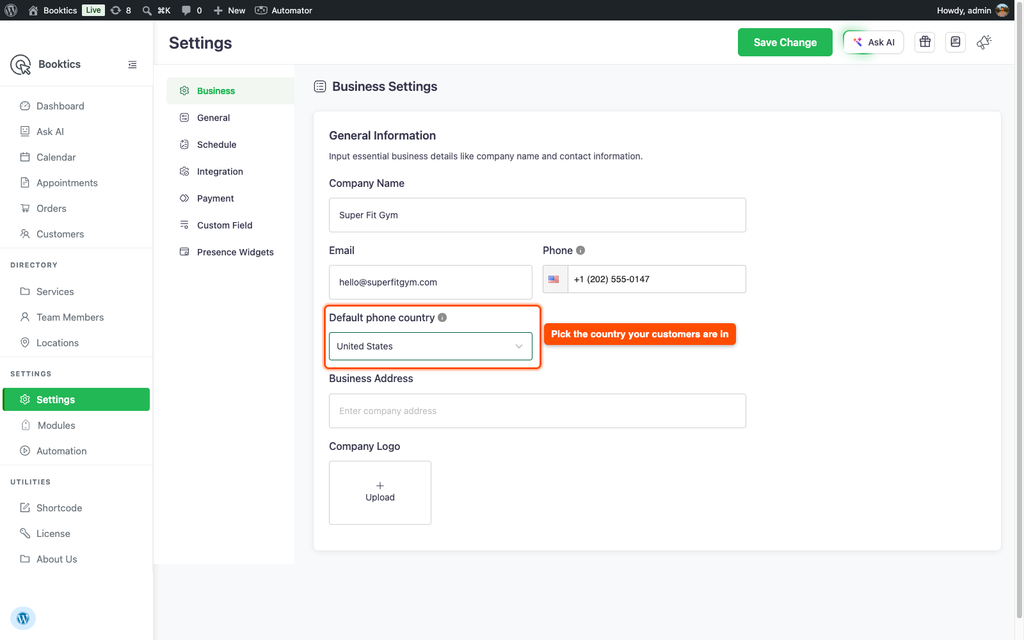
Then go to Booktics > Settings > Business and set Default phone country to your country. The phone field starts with this country, so customers who type a local number get the right country code.
Step 5: Create a Message Template in Meta
WhatsApp only lets a business start a chat with an approved template, so Booktics uses templates for all booking messages.
- Go to WhatsApp Manager > Message templates and click Create template.
- Choose the Utility category and your language.
- Write the body. Use
{{1}},{{2}}and so on for the parts that change:
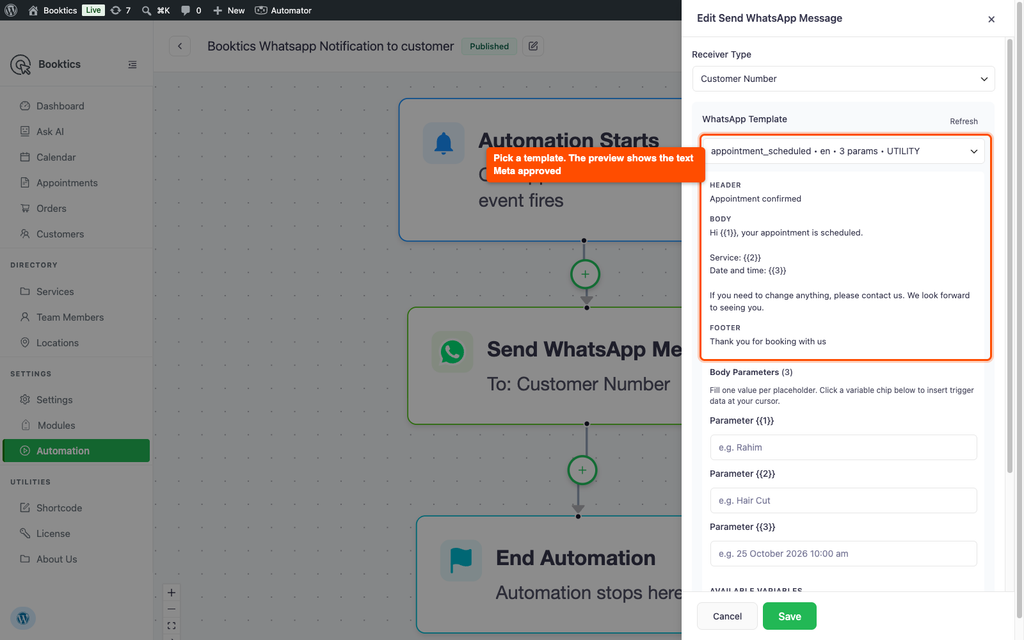
Hi {{1}}, your appointment is scheduled.

Service: {{2}}
Date and time: {{3}}

If you need to change anything, please contact us.- Add a sample value for each variable and submit.
Only Approved templates show in Booktics. Approval usually takes a few minutes, at most 24 hours.
Step 6: Send WhatsApp Messages From an Automation
- Go to Booktics > Automation and create or open an automation.
- Pick a trigger: Order Created, Appointment Scheduled, Appointment Rescheduled, or Appointment Cancelled.
- Add the Send WhatsApp Message action.
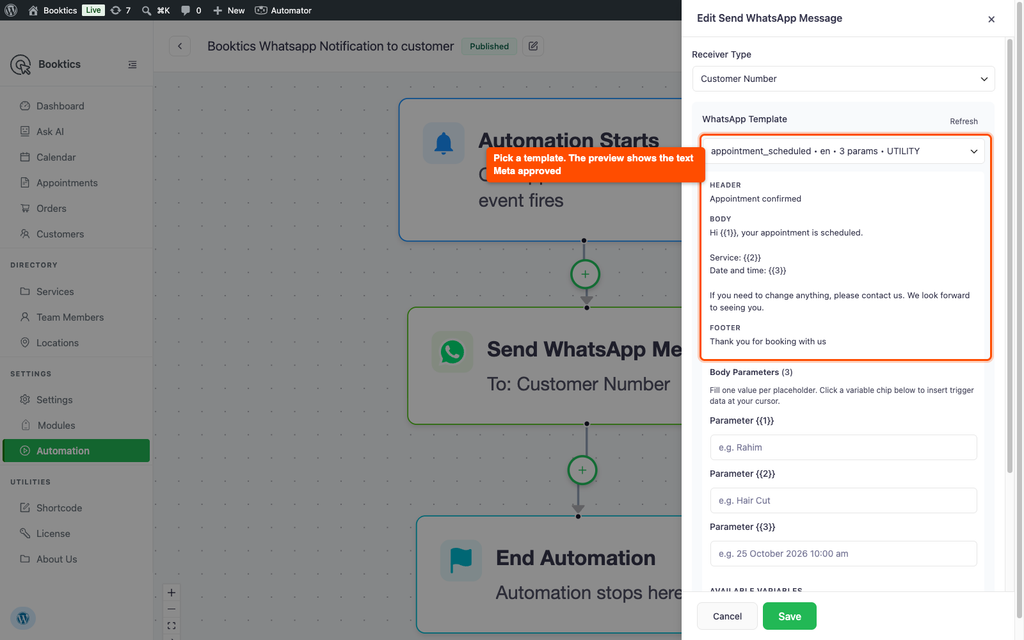
- In Receiver Type, choose Customer Number or Admin Number.
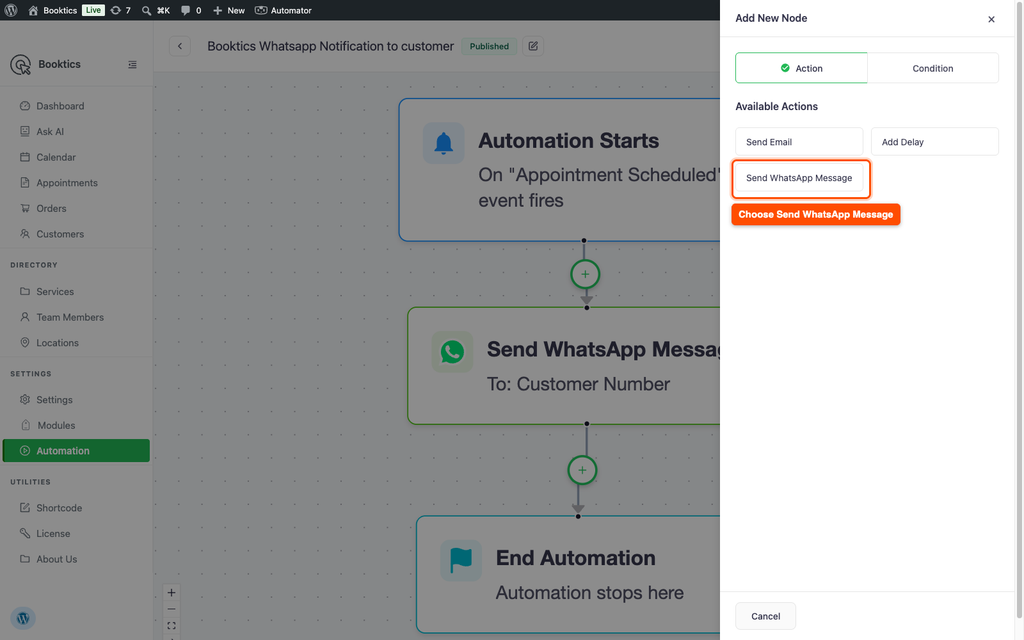
- Pick your template. A new template not showing? Click Refresh.
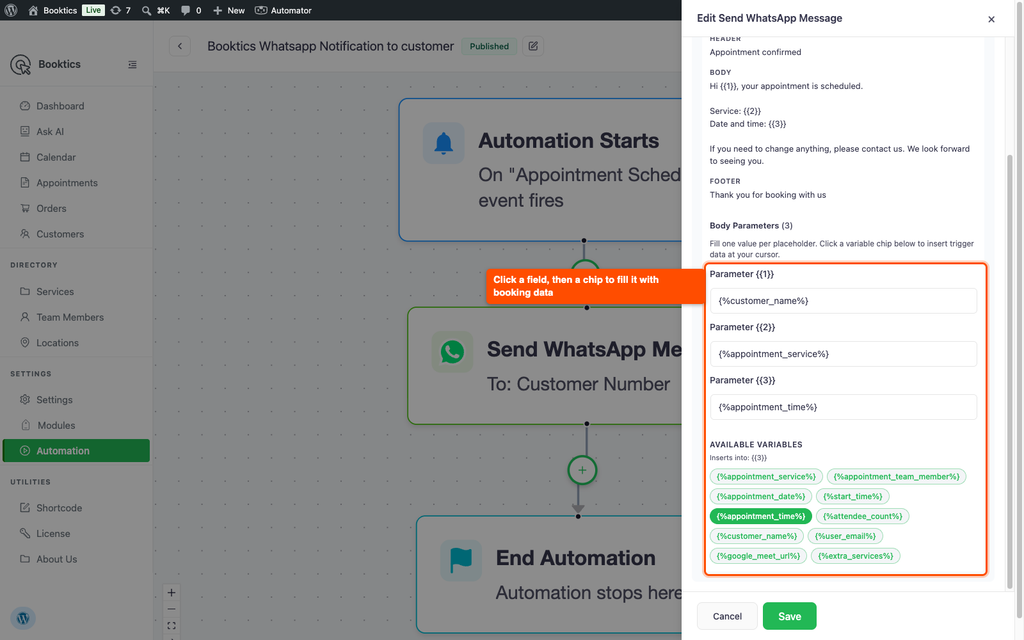
- Click a parameter field, then click a chip under Available variables to fill it. For the template above:
{%customer_name%}for{{1}},{%appointment_service%}for{{2}},{%appointment_time%}for{{3}}. - Save and publish.
To message yourself too, add a second WhatsApp action with Admin Number.
Step 7: How Customers Opt In
The booking form shows a Send me booking updates on WhatsApp box. When a customer ticks it, the phone number becomes required. Only these customers get WhatsApp messages. Your Admin Number gets messages either way.
Frequently Asked Questions
| Q: Why did my customer not get the WhatsApp message? Check three things. Did the customer tick the WhatsApp box when booking? Does the number have the right country code? Is the template Approved in Meta? If you use a Meta test number, the customer’s number must also be added as a Recipient on the Step 1. Try it out page. |
| Q: Can I send a plain text message instead of a template? No. WhatsApp only delivers plain text to people who messaged you in the last 24 hours, and booking updates usually go out before that. So Booktics only offers approved templates. To change the wording, create a new template in Meta and pick it in your automation. |
| Q: My approved template does not show in the list. Why? Usually the template is in a different WhatsApp Business Account than the ID you entered in Booktics. Open the template in WhatsApp Manager and check the account name at the top. If it matches, click Refresh in the template list, because Booktics keeps the list for a few minutes. |
Conclusion
WhatsApp notifications in Booktics send booking updates where your customers already read messages. Connect Meta, get one template approved, and add a WhatsApp action to your Appointment Scheduled automation.