
Overview
Recurring appointments in Booktics Pro let a customer book a series of sessions in one go, like a training session every week for 6 weeks. The customer picks the first date and time, Booktics lists every session and checks it is free, and the customer pays for the whole series in one order.
Your regular clients no longer have to come back and book each session one by one. All of their sessions are held from day one, with the same team member.
Requirements
You need Booktics and Booktics Pro with an active license, plus a service that has a team member with working hours.
Step 1: Turn On Recurring Appointments for a Service
Recurring is set per service, so your other services keep one-time booking.
- Go to Booktics > Services and open the service.
- Open the Recurring tab.
- Turn on the Recurring Booking switch.
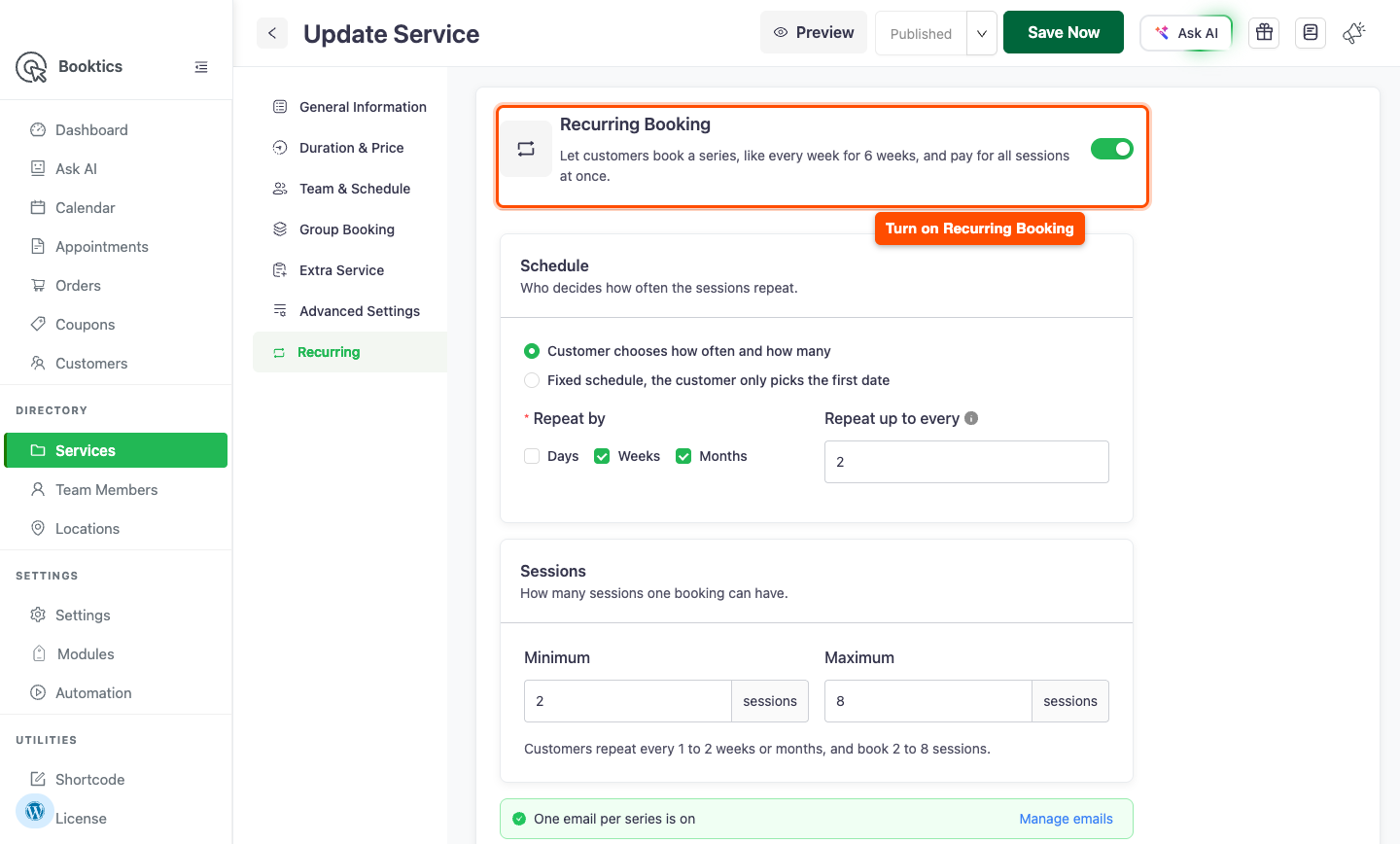
Step 2: Set the Schedule and Sessions
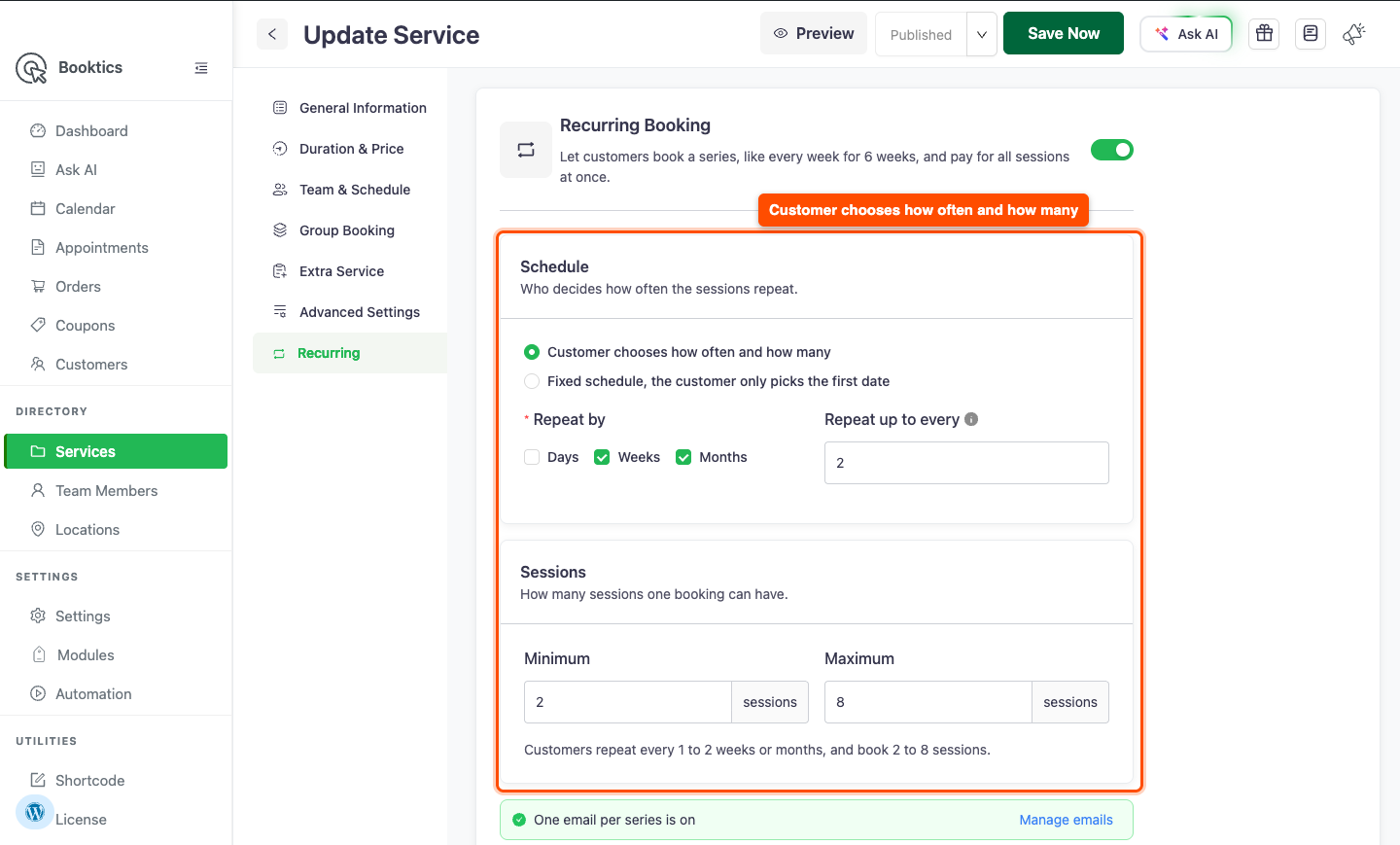
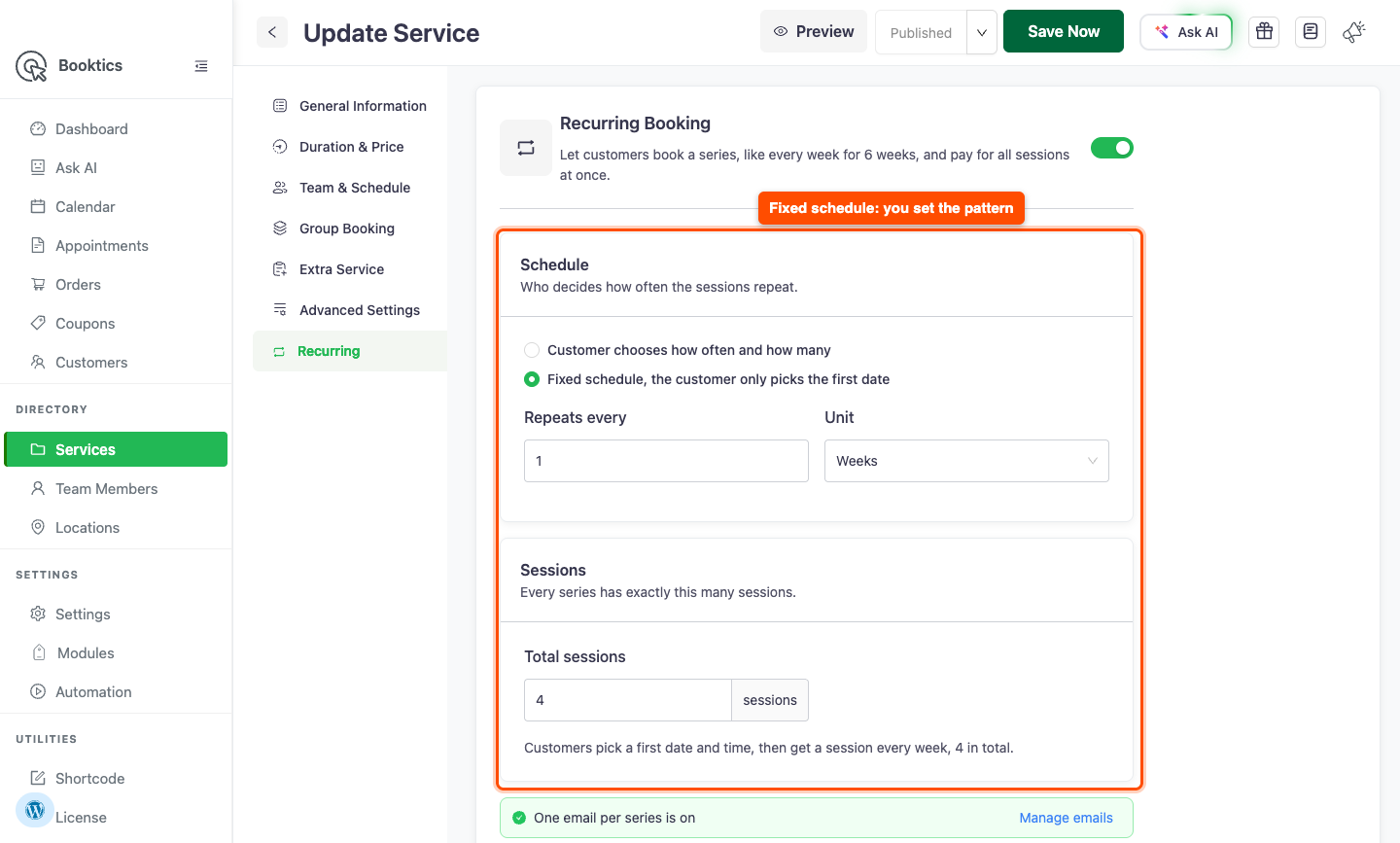
Under Schedule, choose who decides how the sessions repeat.
- Customer chooses how often and how many: tick the units the customer can use in Repeat by (Days, Weeks or Months), set the largest gap in Repeat up to every, then set the Minimum and Maximum sessions. This suits personal training.
- Fixed schedule, the customer only picks the first date: set Repeats every, Unit and Total sessions. This suits a program with a set length, like a 4 week Push Up program. A fixed schedule service can only be booked as a series.
A series has 2 to 52 sessions. The line under the fields shows what the customer will get. Click Save.
| Tip: To send one confirmation email for the whole series instead of one per session, click Turn on under Send one email for the whole series in the same tab. |
Step 3: Book a Recurring Appointment
On the booking form, the customer picks the service, the team member, and the first date and time as usual. Then:
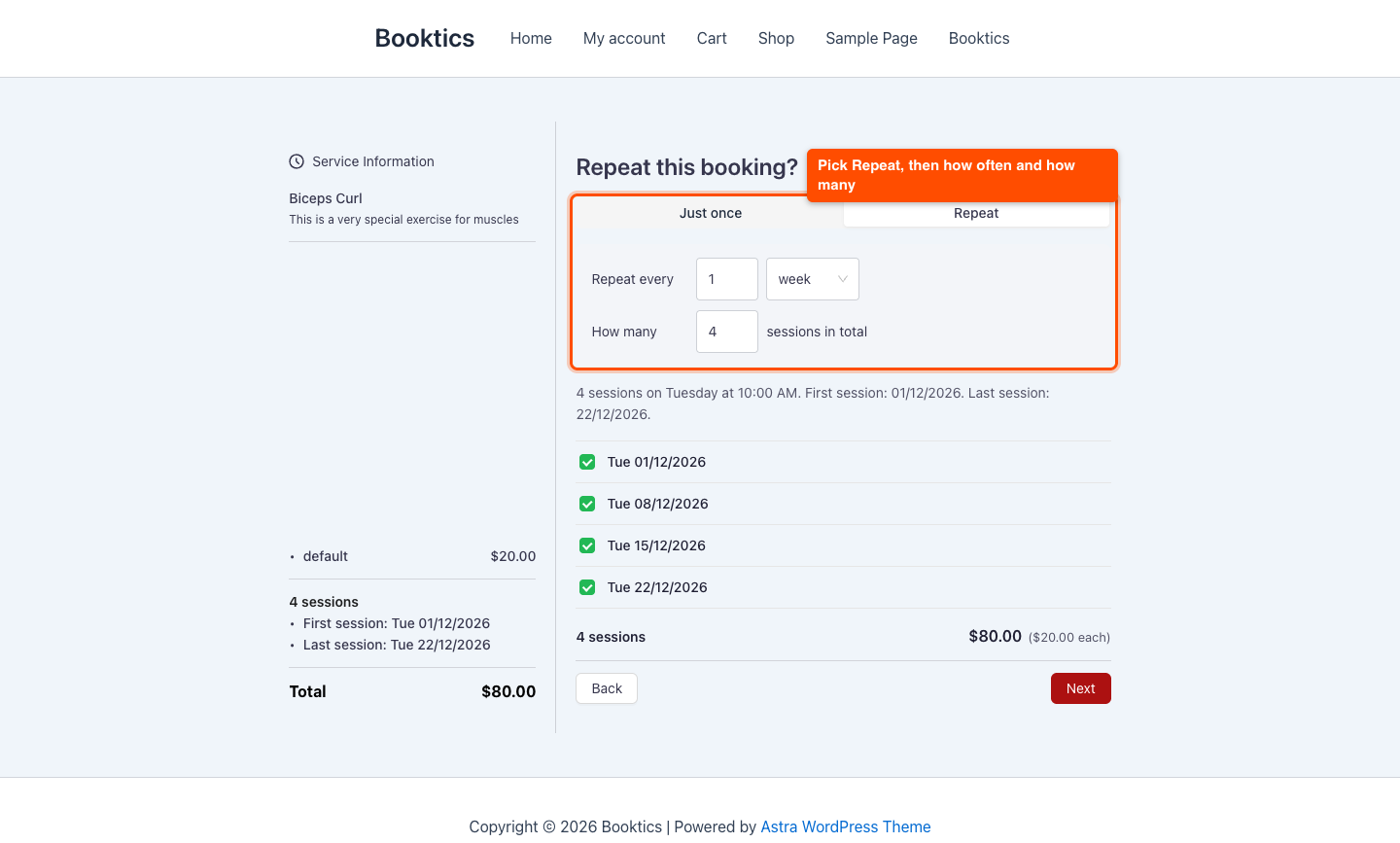
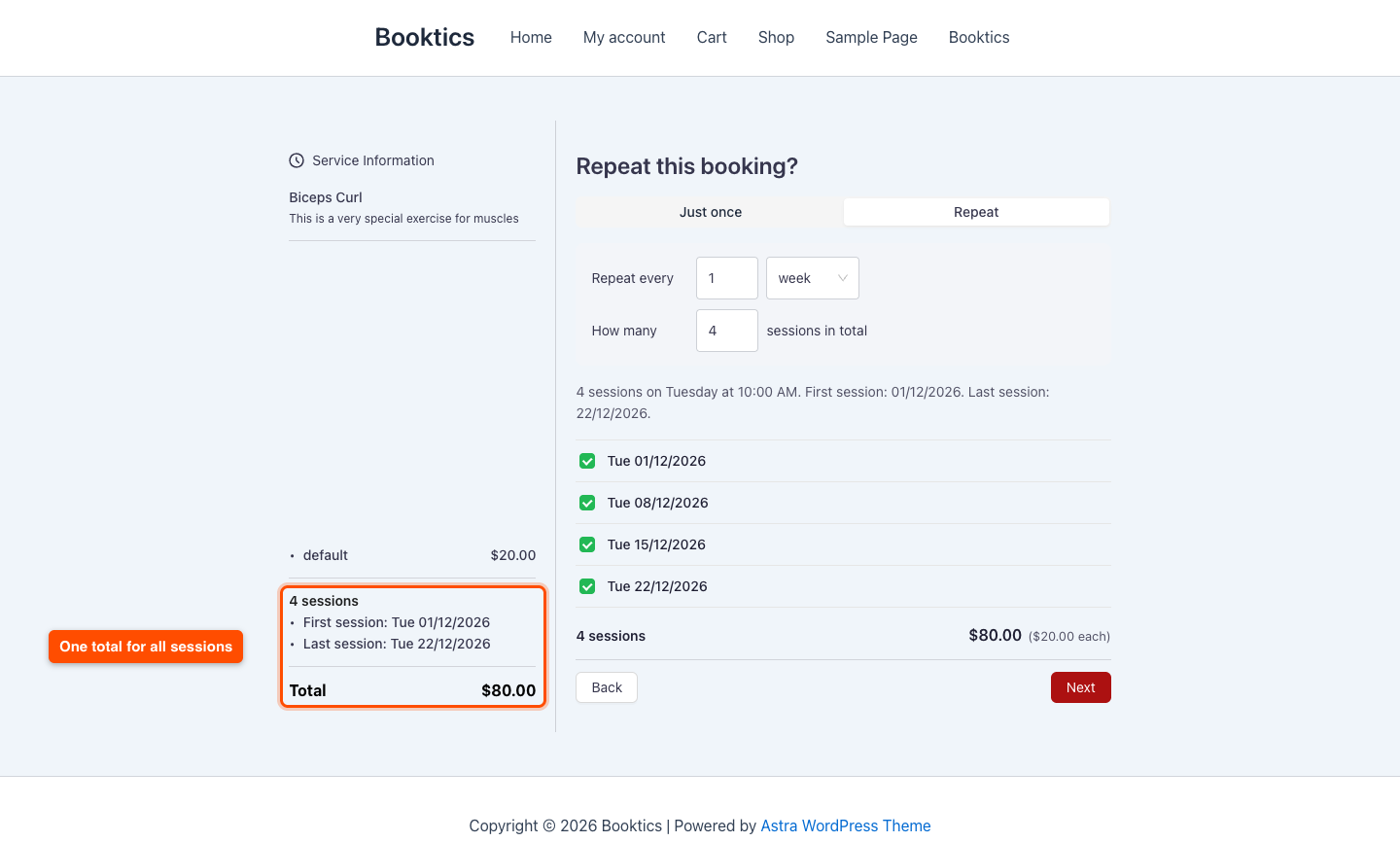
- In Repeat this booking?, the customer picks Repeat. On a fixed schedule service this step is already set.
- The customer sets Repeat every and How many sessions.
- Booktics lists every session with its date. A date that is not free is flagged, and the customer can pick another time or untick it.
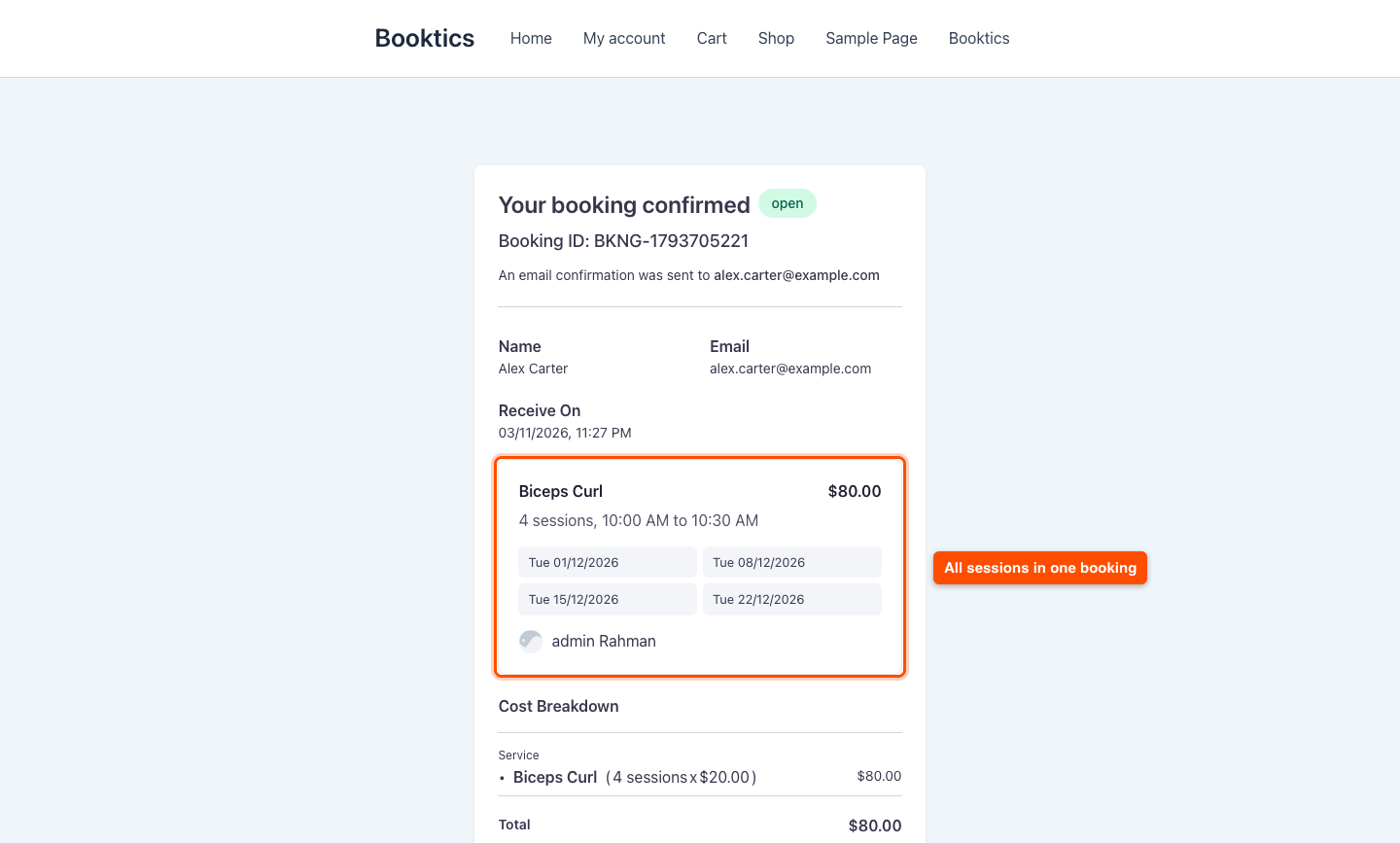
- The summary shows the sessions and the total, and the customer pays once for the series. The confirmation lists every session.
Step 4: Manage a Series
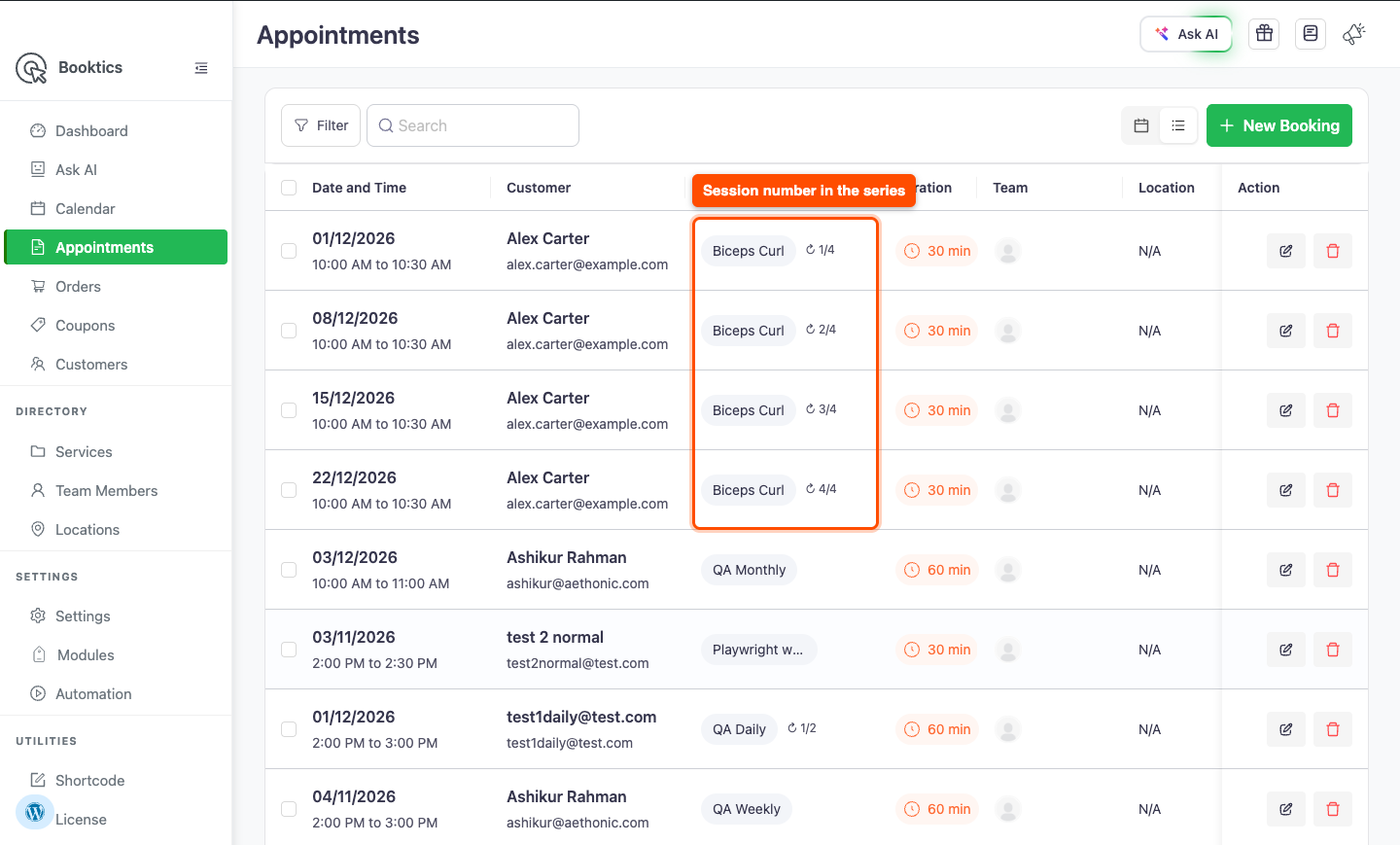
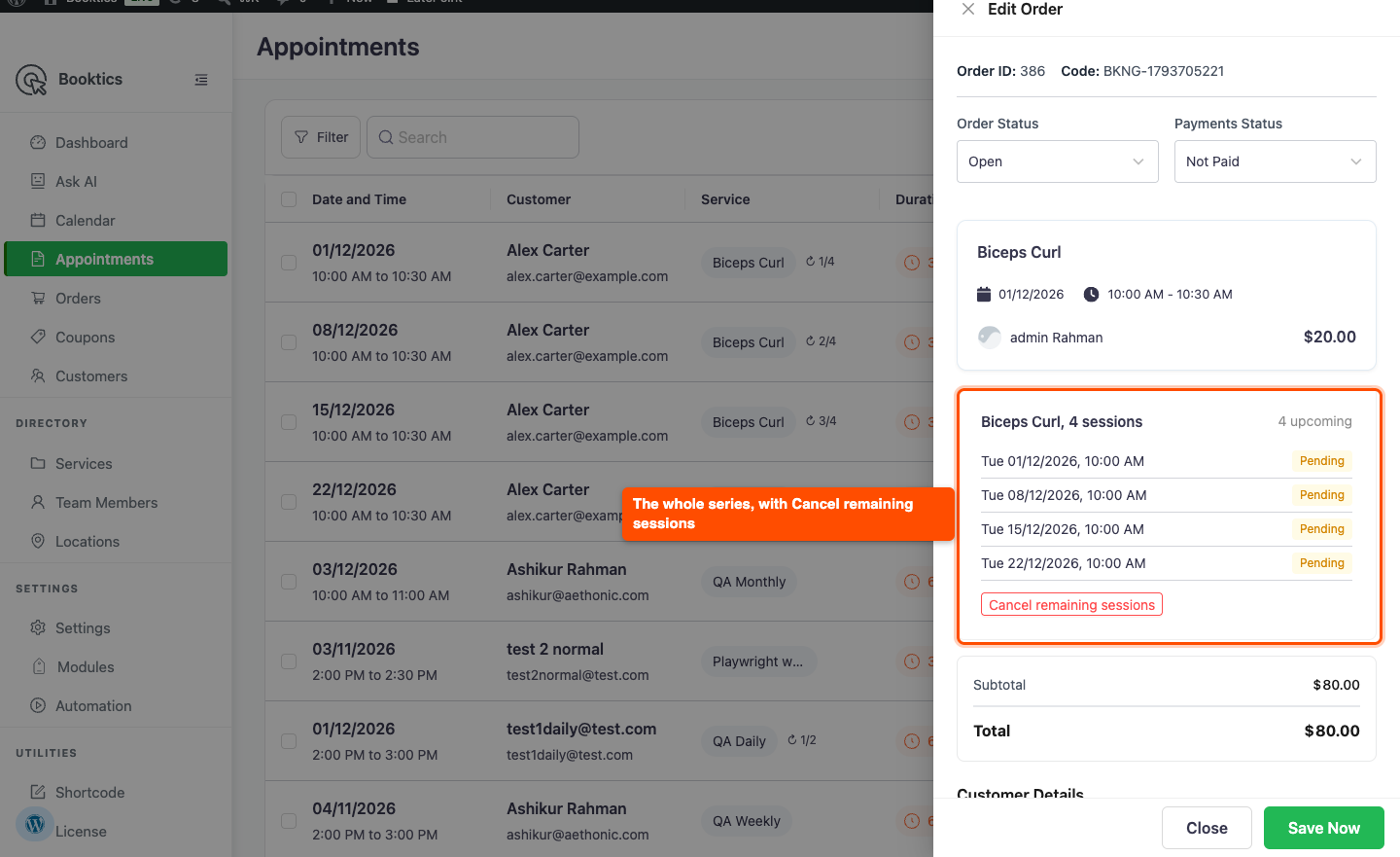
In Booktics > Appointments, each session of a series has a small badge with its number, like 2/4. Open any session to see the whole series, and click Cancel remaining sessions to end it early. Refunds are not sent for you, so send them from your payment gateway.
Frequently Asked Questions (FAQ)
| Q1: Which payment methods work with recurring appointments? You can take payment for a series with Stripe, PayPal or local payment. WooCommerce checks out one booking at a time, so it cannot take a series. When a customer picks Repeat, the WooCommerce option is hidden for that booking. |
| Q2: Can customers use a coupon on a series? Yes. The coupon applies to the total of the whole series, not to one session. For example, 4 sessions at $20 with a 10% coupon come to $72, and the order, invoice, and emails all show $72. See How to Set Up and Offer Customers Coupons in Booktics. |
Conclusion
Recurring appointments in Booktics let your regular clients book a whole program at once, with the same team member every time. Open the Recurring tab on a service and turn it on to get started.