
Overview
Round Robin in Booktics Pro picks the team member for every booking, so your customers never have to choose one. Switch it on for any service that two or more staff can handle, and Booktics hands each new booking to someone who is free, following the sharing rule you set.
Without it, customers pick from the team list and most of them pick the same face. One person ends up fully booked while the rest sit idle. Round Robin spreads the work across everyone who is actually free.
Who is this for?
- Clinics, labs, and repair shops: any staff member can do the job, and the customer has no reason to care who. Use the mode that skips the team step.
- Salons, tutoring, and physiotherapy: regulars want their own person, new customers do not mind. Use the mode that keeps the team list and adds an “Any available” option.
- Call centers and support desks: fairness matters more than choice. Skip the team step and use Strict rotation.
- Single-person services: Round Robin does nothing here. It needs at least two team members to have anything to share.
Requirements
| Prerequisite: You need Booktics with an active Booktics Pro license and a service with at least two team members assigned to it. |
Step 1: Open the service and turn Round Robin on
- Go to Booktics → Services and open the service you want.
- Open the Team & Schedule tab.
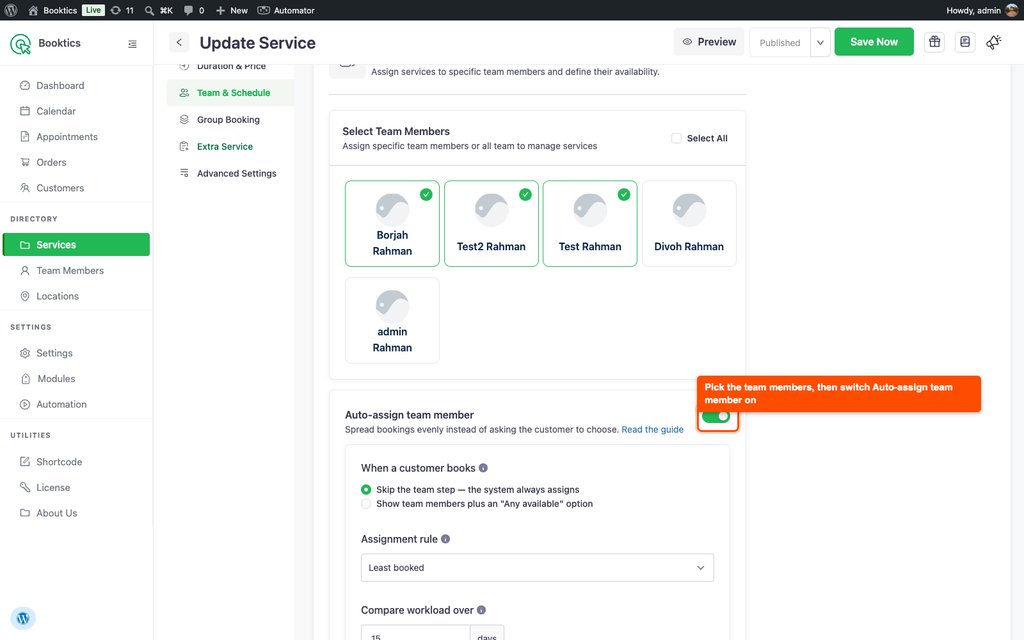
- Select the team members for this service under Select Team Members if you have not already.
- Find the Auto-assign team member card below the team list and switch it on.
The settings only appear once the toggle is on and the service has two or more team members.
Step 2: Choose what the customer sees
When a customer books decides whether the booking form still shows your team.
Skip the team step, the system always assigns
The team step disappears. The customer picks the service and lands straight on the calendar. Booktics fills in the name after they confirm.
Example: a dental clinic with four hygienists who all do the same cleaning. A customer books 3:00 PM on Tuesday. Booktics picks whichever hygienist is free and the customer never sees a list.
Show team members plus an “Any available” option
The team list stays, with one extra tile called “Any available”. Customers who have a favourite pick them by name. Everyone else picks the tile and lets Booktics decide.
Example: a salon with five stylists. A regular picks Rima because she has cut her hair for three years. A first-time customer picks “Any available” and gets whoever has the lightest week.
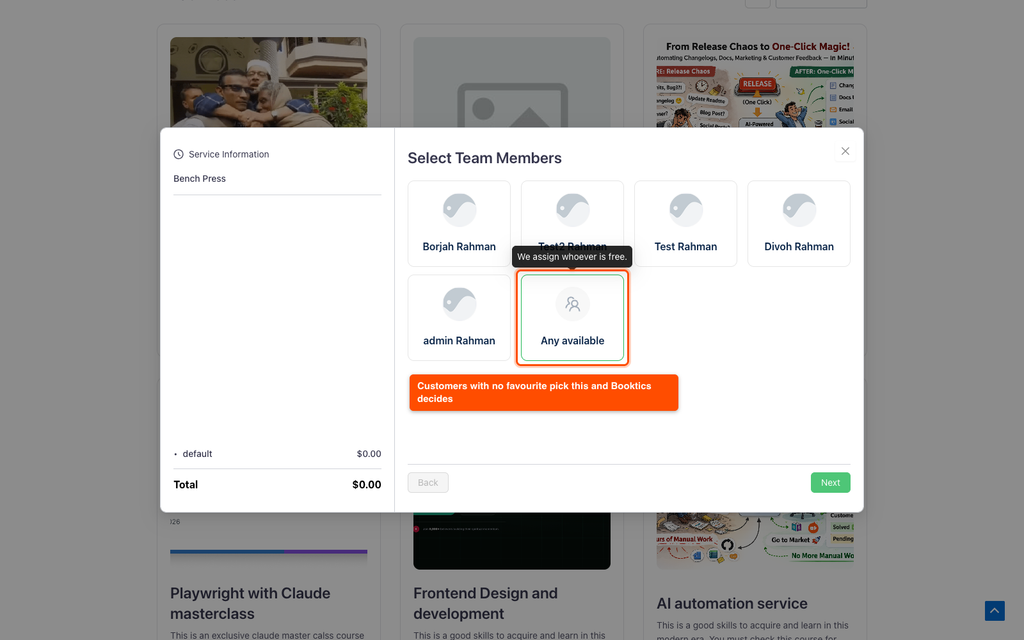
| Note: In the second mode, Booktics only shares out the bookings where the customer chose “Any available”. A customer who picks a name by hand keeps that name. If even distribution is the whole point, use the first mode. |
Step 3: Choose the assignment rule
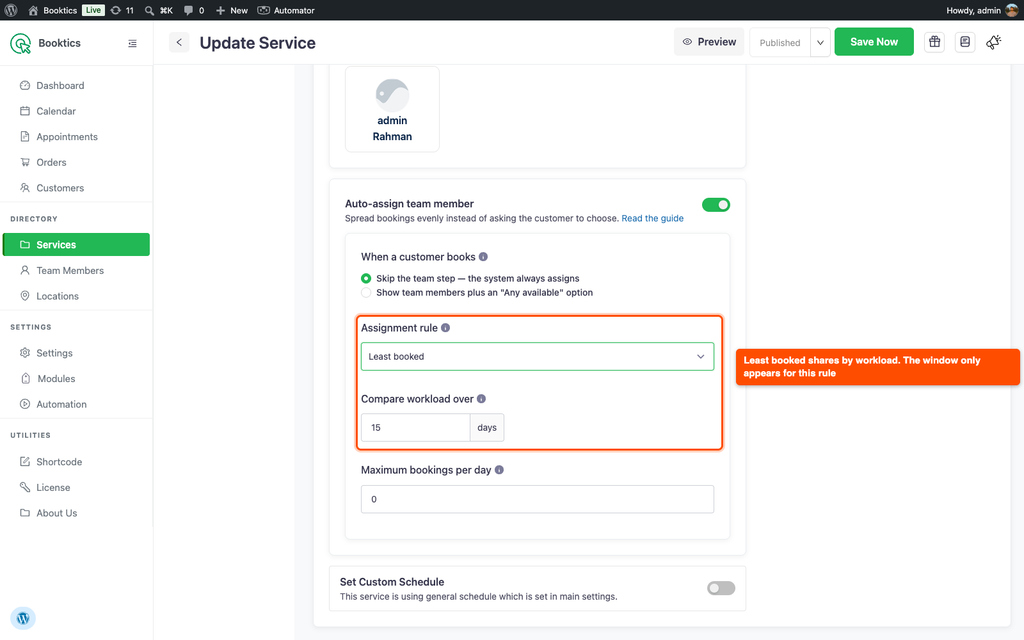
Least booked gives the booking to whoever has the fewest appointments around that date.
Example: a booking for 20 September with the window set to 15 days. Booktics counts everyone’s appointments from 5 September to 5 October, which is 31 days in total. Rahim has 8, Karim has 3, so Karim gets it.
Compare workload over sets that window. It counts the days before and after the booked date, not before and after today. This field only appears for Least booked, because Strict rotation never looks at workload.
Strict rotation takes turns in a fixed order and ignores how busy anyone is.
Example: three team members. Bookings go to the first, then the second, then the third, then back to the first.
Step 4: Set a daily limit (optional)
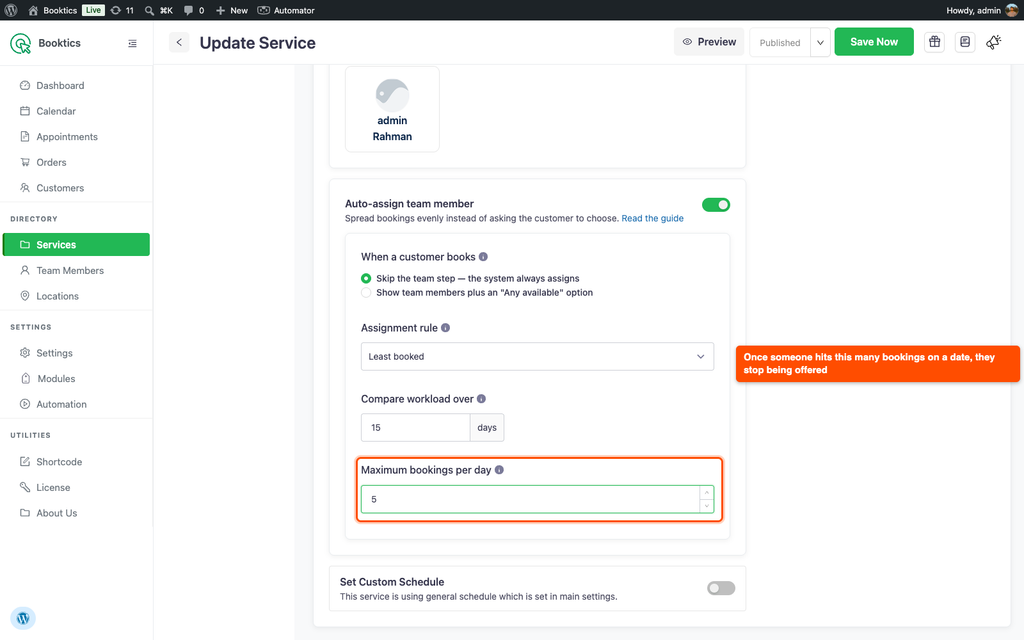
Maximum bookings per day stops one person from filling up. Once a team member hits that number on a date, Booktics stops offering them for that date and gives the booking to someone else.
Set it to 0 for no limit.
Example: a limit of 5. Rahim already has 5 bookings on 20 September, so the sixth booking for that day goes to someone else even if Rahim is still free at that hour.
This limit applies when Booktics does the assigning. It does not apply when a customer picks a team member by name.
Frequently Asked Questions (FAQ)
| Q1: I turned Round Robin on, so why does one team member still get most of the bookings? Two common reasons. First, you are using the mode that shows the team list, and customers are picking that person by name, which Round Robin does not touch. Second, Least booked is still catching up: a member who started with more appointments stays skipped until the others reach the same count. |
| Q2: Does “Maximum bookings per day” stop a customer who picks that person by name? No. The limit only runs when Booktics chooses the team member. If a customer selects someone from the team list, that booking goes through even if the person is over the limit. To enforce the limit on every booking, use the mode that skips the team step. |
| Q3: What happens if nobody on the team is free for the time the customer picked? The booking is refused and the customer sees “No team member is available for that time. Please choose another slot.” Nothing is half-saved. This happens when everyone is outside their working hours, already booked at that time, or at their daily limit. |
Conclusion
Round Robin in Booktics Pro takes the team member decision off your customer and spreads bookings across the people who are free. Open a service, switch on Auto-assign team member, and pick the mode that matches how your customers book.