
Overview
Timetics Pro coupons let you give customers a discount code they enter on the booking form. You choose the code, the discount (a percent or a fixed amount), the dates it works, how many times it can be used, and which meetings it covers. Timetics checks every code before it saves the booking.
Use coupons for a seasonal sale, a thank-you code for returning clients, or a one-time offer for a launch. The customer sees the new price before they confirm, and Stripe or PayPal charges that same price.
Requirements
You need Timetics and Timetics Pro (both updated), an administrator account, and a paid meeting with a payment method such as Stripe or PayPal.
Step 1: Open the Coupons Page
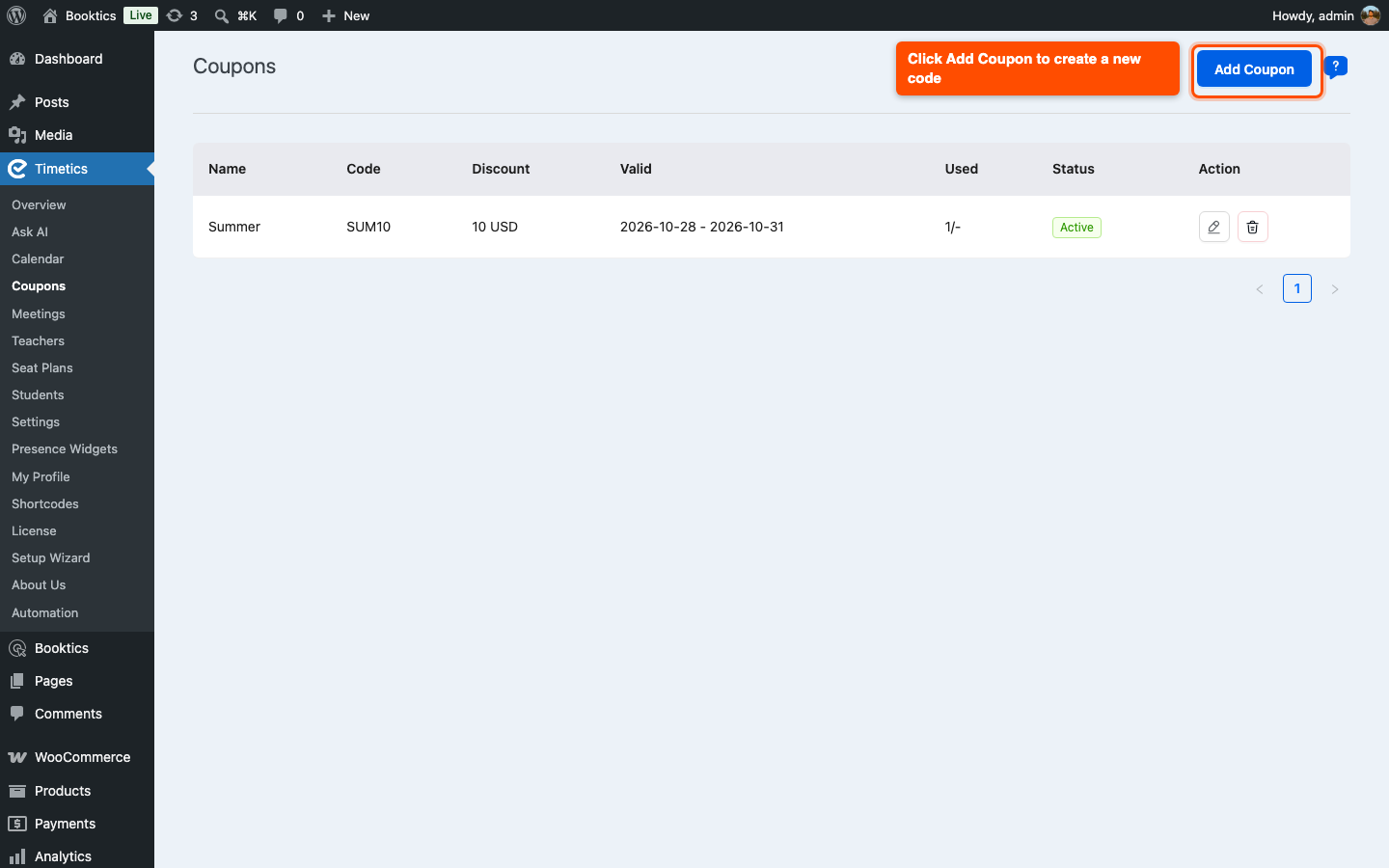
- In your WordPress dashboard, go to Timetics > Coupons.
- Click Add Coupon.
The list shows every coupon with its code, discount, valid dates, how many times it was used, and its status.
Step 2: Name the Coupon and Set the Code
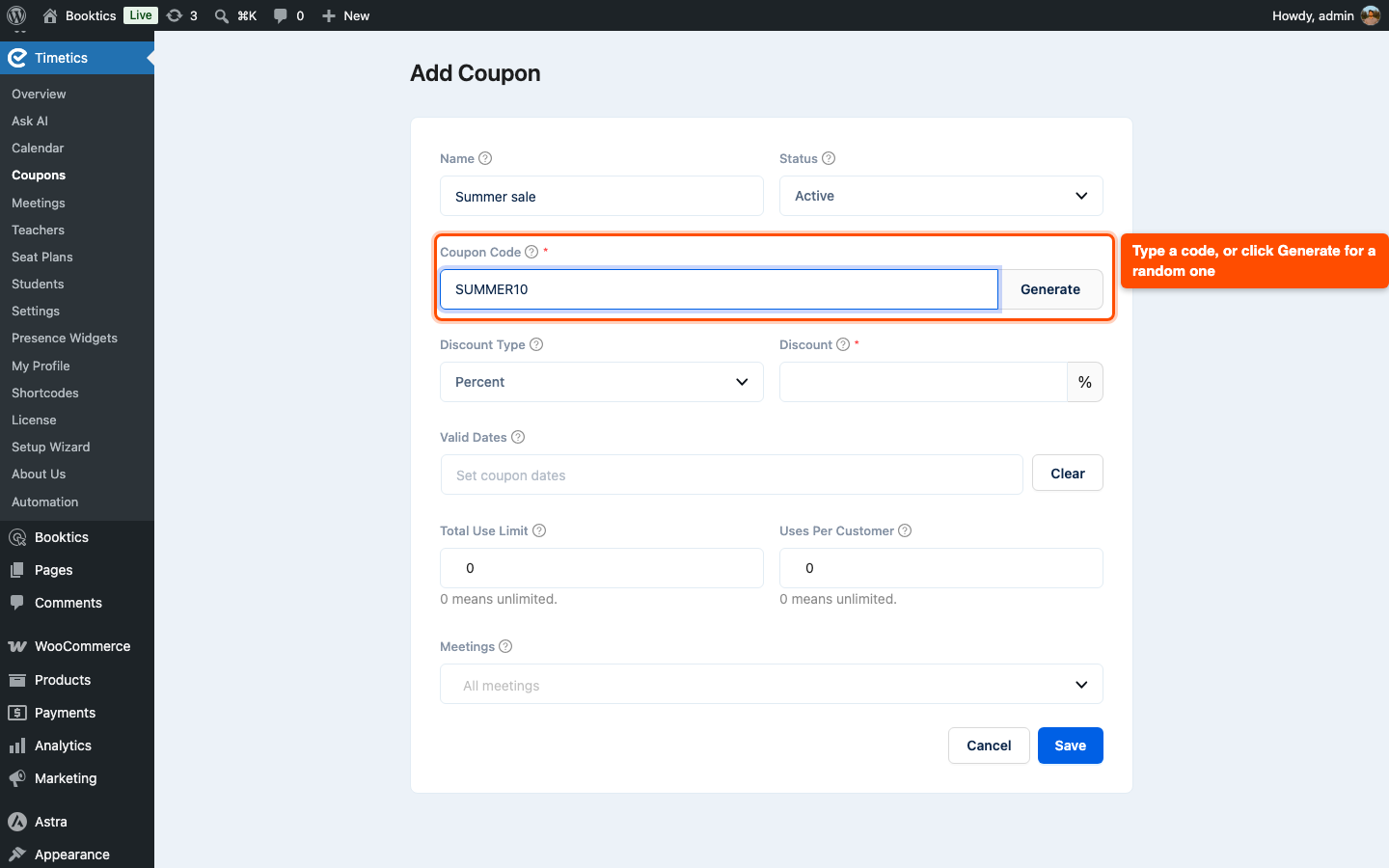
- Enter a Name, for example “Summer sale”. Only you see the name.
- Set Status to Active. Choose Inactive to turn a coupon off without deleting it.
- Type a Coupon Code, or click Generate to create a random one.
Codes are not case sensitive, so “SUMMER10” and “summer10” work the same. Each code must be unique.
Step 3: Set the Coupon Discount
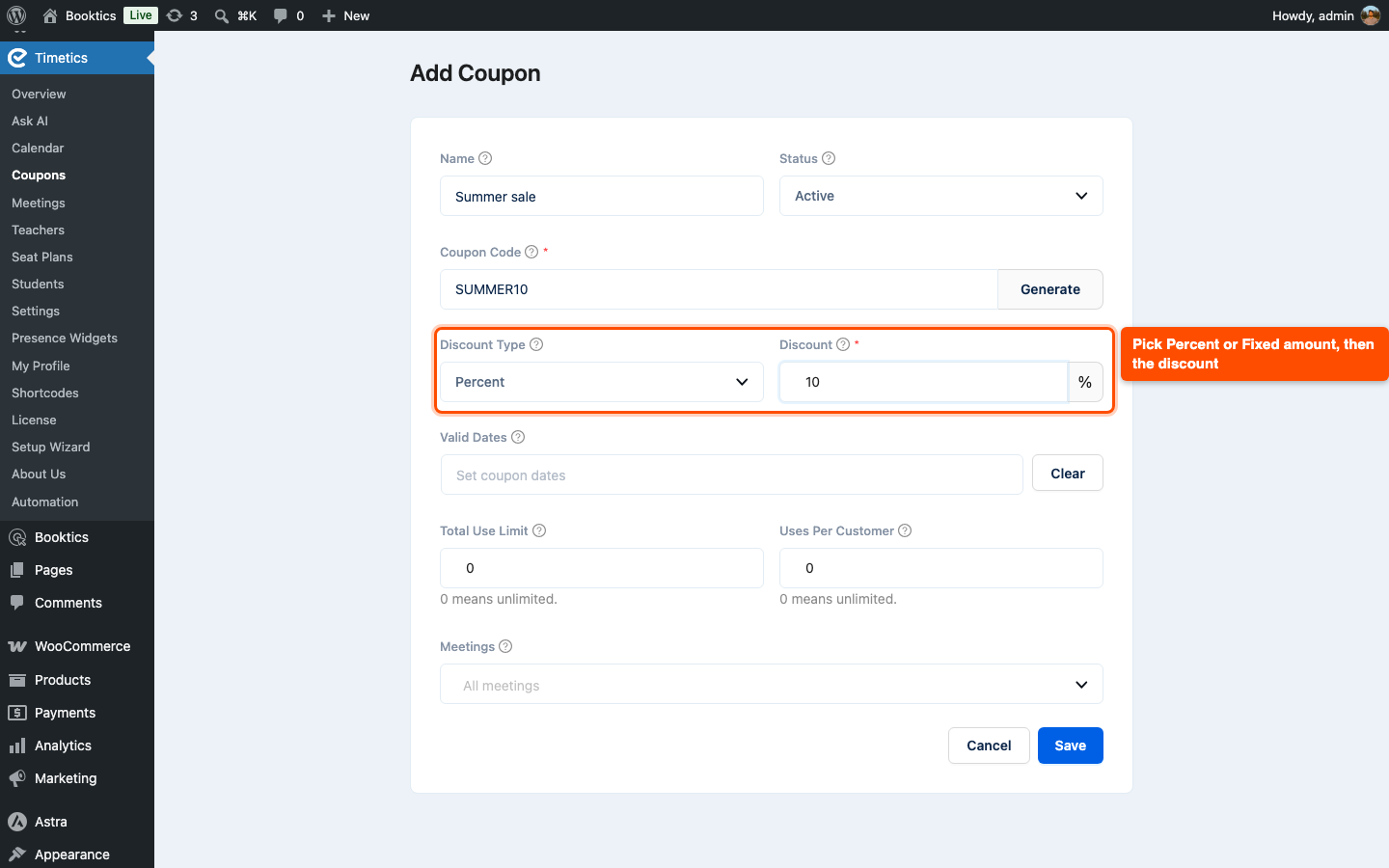
- Pick a Discount Type: Percent or Fixed amount.
- Enter the Discount. The field shows % or your currency, so you can see which one you picked.
For example, a 10% coupon on a $50 meeting brings the price to $45. A fixed $20 coupon brings it to $30. If the discount is bigger than the price, the booking becomes free. The total never goes below 0.
Step 4: Choose Dates and Usage Limits
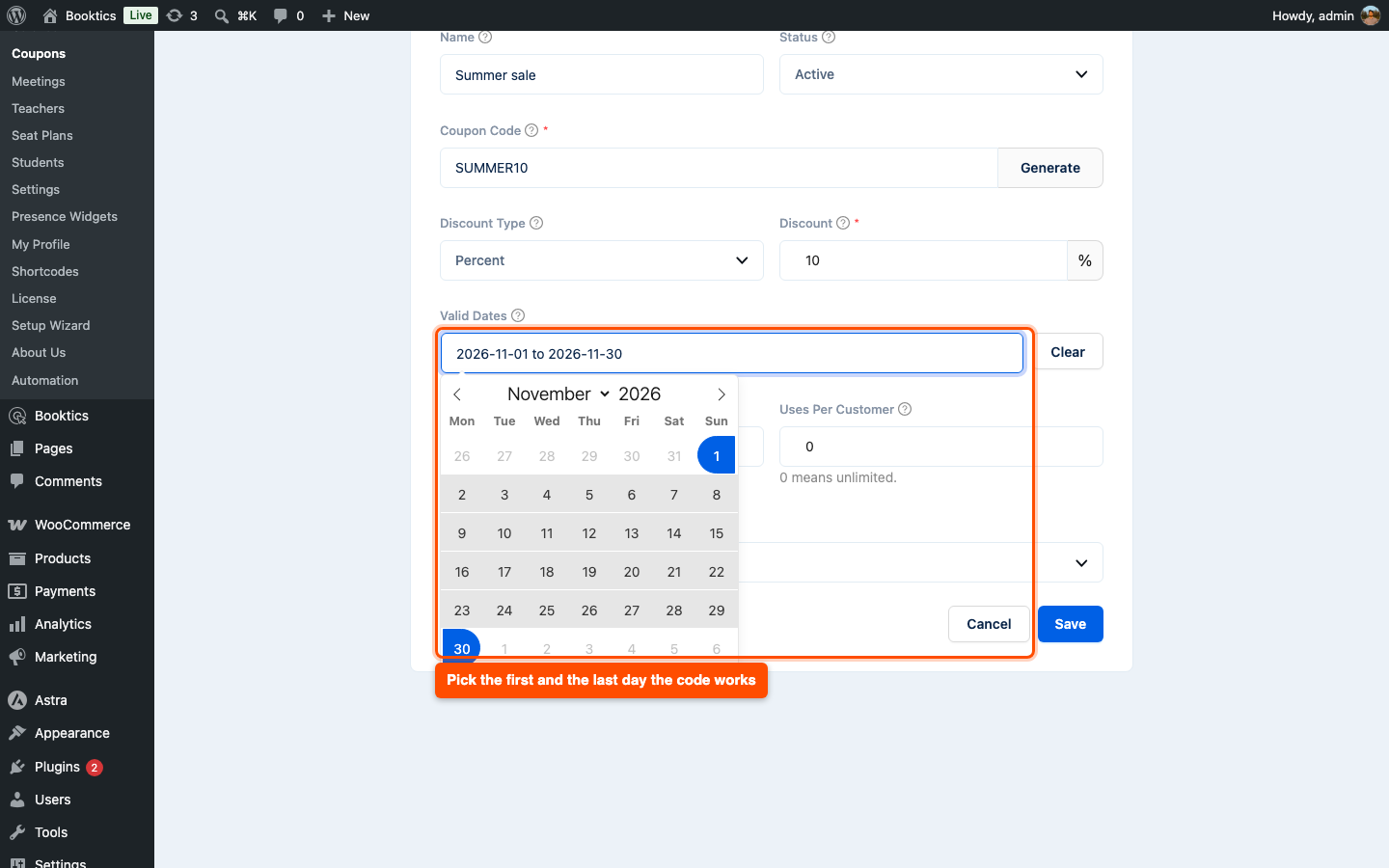
- Click Valid Dates and pick a start and an end day. Click Clear to remove them.
- Enter a Total Use Limit, the number of bookings that can use this code in total.
- Enter Uses Per Customer, the number of times one customer can use it.
Leave the dates empty and the coupon works on any day. Both the start and end days are included, and dates follow your site’s timezone (Settings > General in WordPress). A limit of 0 means unlimited.
| Tip: Set Uses Per Customer to 1 for a first-booking offer. Timetics matches customers by email, in any letter case. |
Step 5: Pick Meetings and Save
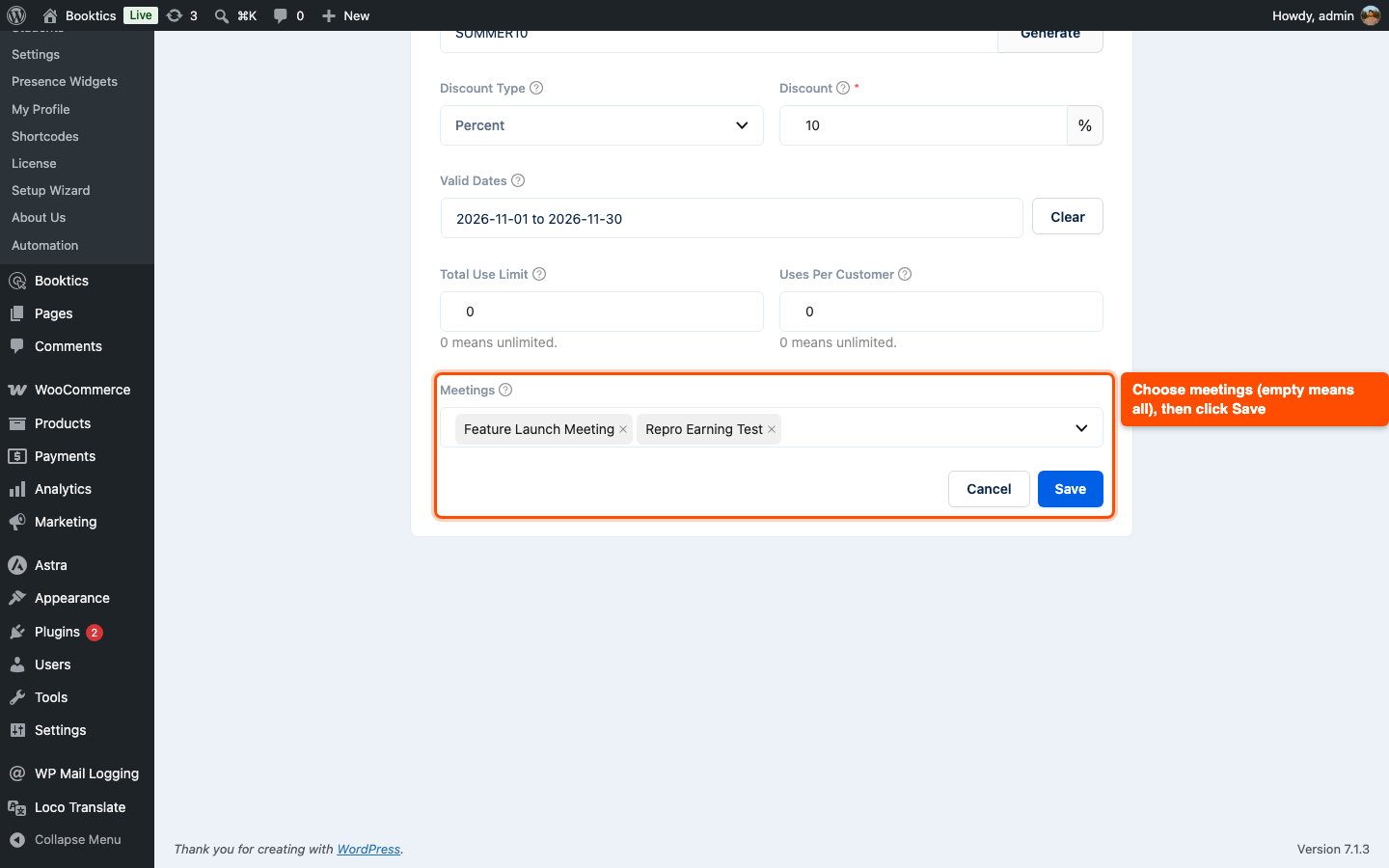
- In Meetings, choose the meetings this coupon works for. Leave it empty to use it on all meetings.
- Click Save.
The new coupon now appears in the list. Click Edit to change it later, or Delete to remove it.
Step 6: See How Customers Apply a Coupon
Customers enter the code on the booking form, in the Coupon Code box above the payment choice.
- The customer types the code and clicks Apply (or presses Enter).
- A green tag shows the code and the amount saved. The booking summary shows the old price struck out and the new price.
- To remove the coupon, the customer clicks the small x on the tag.
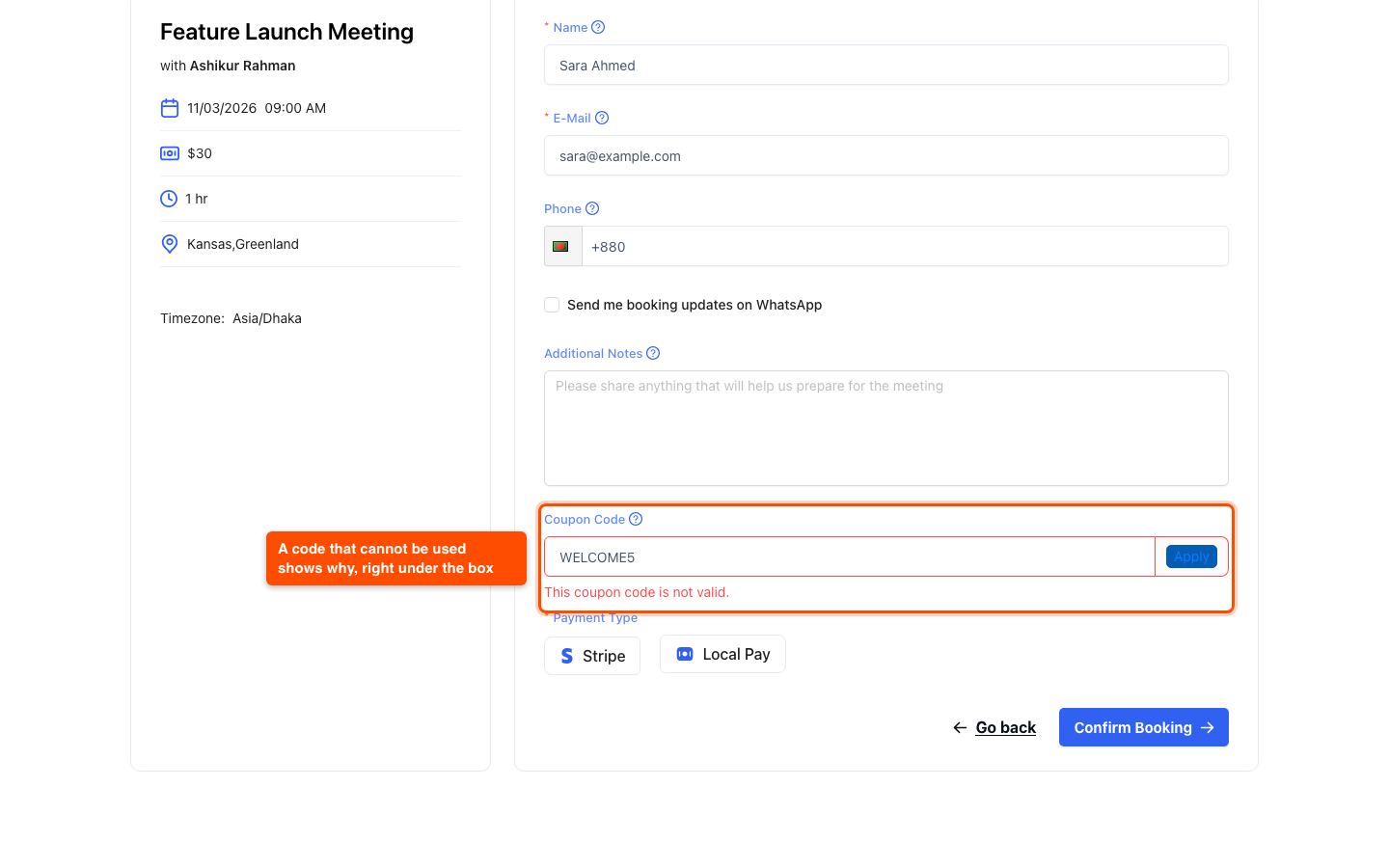
If a code cannot be used, a short message shows under the box:
- “This coupon code is not valid.” (unknown or inactive code)
- “This coupon is not active yet.” or “This coupon has expired.”
- “This coupon does not apply to this meeting.”
- “This coupon has reached its usage limit.” or “You have already used this coupon.”
If the customer changes the meeting, the seats, or their email after applying a coupon, Timetics removes it and asks them to apply it again. The code stays in the box, so they only click Apply once more.
| Note: When WooCommerce payment is turned on in Timetics, the coupon box is hidden and customers use WooCommerce coupons at checkout instead. Your Timetics coupons start working again when you turn WooCommerce payment off. See the WooCommerce payment setup guide. |
Frequently Asked Questions
| Q1: Why don’t my customers see the coupon box? The box only shows on paid meetings when WooCommerce payment is off. It is also hidden when a customer reschedules a booking, because they already paid. Check that Timetics and Timetics Pro are both updated, that the meeting has a price, and that WooCommerce payment is turned off in Timetics settings. |
| Q2: Does a cancelled booking still count as a coupon use? No. Timetics counts uses from approved, pending, completed, and failed bookings. When you cancel a booking, its use comes back, so the customer or someone else can use the code again. An unpaid PayPal booking that Timetics cancels on its own gives its use back too. |
| Q3: What does “The price changed. Please apply the coupon again.” mean? It means the price changed after the customer applied the coupon, for example you edited the discount or the meeting price. Timetics never books a price the customer did not see, so it stops the booking. The customer applies the code again, sees the new price, and confirms. |
Conclusion
Coupons in Timetics Pro let you run sales and special offers right on your booking form, with dates and limits you control. Create your first code from Timetics > Coupons and try it on a test booking before you share it.