
Overview
Round robin in Timetics is a Pro feature that shares new bookings between the hosts of one meeting. You pick two or more team members as hosts, and each time a customer books, Timetics picks one free host for them. Your team gets an even share of meetings, and nobody has to hand them out.
Without round robin, a meeting with several hosts asks the customer to choose one. Most customers pick the first name in the list, so one person ends up with most of the calls. Round robin removes that choice from the booking page and lets Timetics decide, based on who is free and who has the lightest load.
Requirements
- Timetics and Timetics Pro, both active
- At least 2 team members to use as hosts
Step 1: Open the Meeting’s Time and Availability Step
Round robin is set per meeting, so you can turn it on for one meeting and leave it off for others.
- In your WordPress dashboard, go to Timetics > Meetings.
- Click Edit on the meeting you want to use, or click Add New to create one.
- Open the Time and Availability step.
Step 2: Select the Hosts
- In the Select Team Member field, add every person who should take bookings for this meeting.
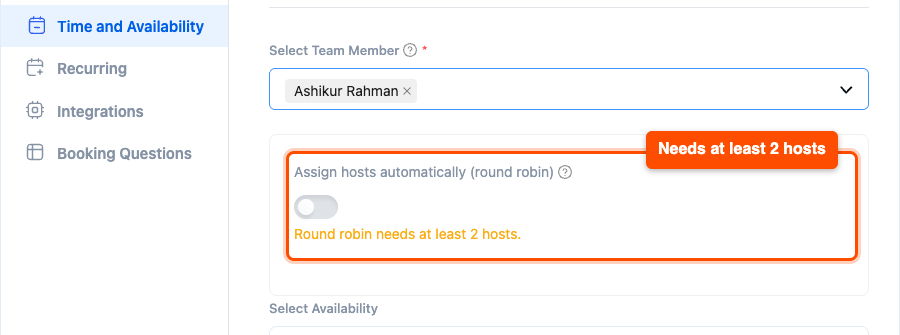
- Add at least 2 hosts. With only one host, the round robin switch stays off and greyed out, and you see the message “Round robin needs at least 2 hosts.”
Step 3: Turn On Round Robin
- Below the host field, find the round robin card.
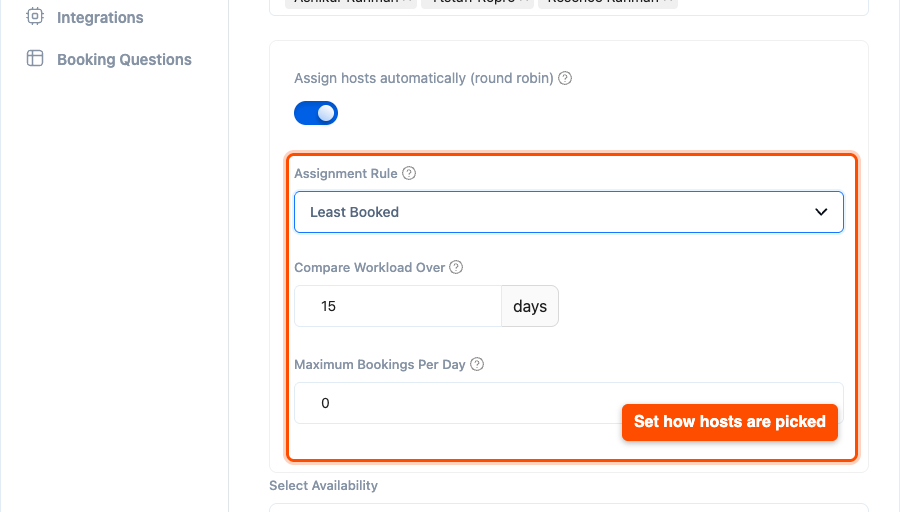
- Turn on Assign hosts automatically (round robin).
The rest of the settings appear once the switch is on.
Step 4: Choose the Assignment Rule
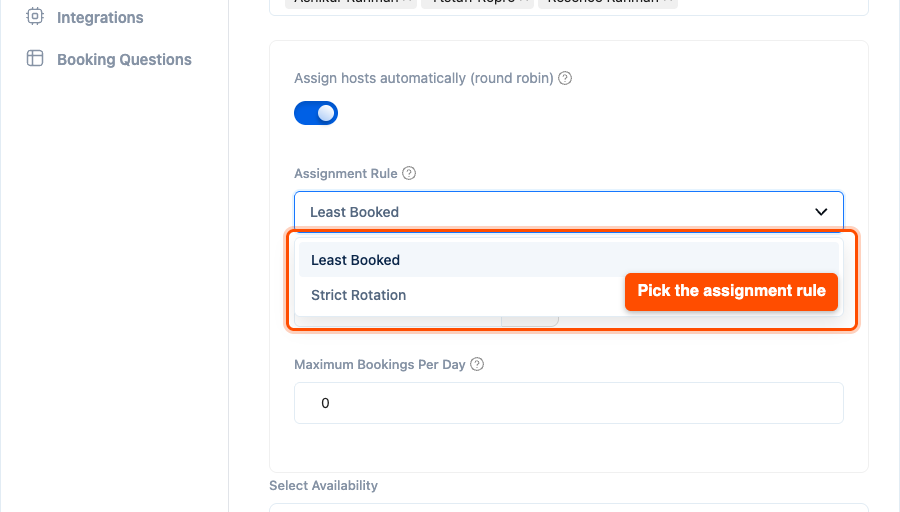
The Assignment Rule decides which free host gets the next booking.
| Rule | How it picks |
| Least Booked | Gives the booking to the free host with the fewest bookings. If two hosts are tied, it goes to the next one in turn. |
| Strict Rotation | Goes down the host list in order: host A, then B, then C, then back to A. A host who is busy at that time is skipped. |
For example, your three hosts have 9, 5 and 3 bookings. With Least Booked, the next booking goes to the host with 3. With Strict Rotation, it goes to whoever is next in line, no matter how many bookings they already have.
Least Booked is the default and fits most teams. Pick Strict Rotation when you want a fixed order that is easy to predict.
Step 5: Set the Workload Window and Daily Limit
- In Compare Workload Over, enter how many days to look at when counting bookings. The default is 15 days. Timetics counts bookings this many days before and after the date being booked. This field only shows for Least Booked.
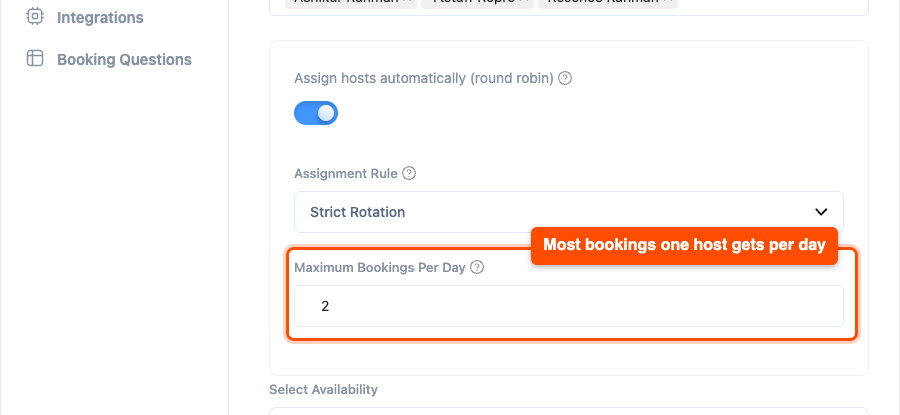
- In Maximum Bookings Per Day, enter the most bookings one host can get in a day. A host who reaches this number is skipped for the rest of that day. Enter 0 for no limit.
- Click Update Meeting (or Create Meeting for a new meeting).
The counts include every booking a host has, from all meetings, that is approved, pending or completed. Cancelled and failed bookings are not counted.
| Tip: If every host has hit the daily limit, that day shows as unavailable on the booking page, so customers can only pick another day. |
Step 6: See It on the Booking Page
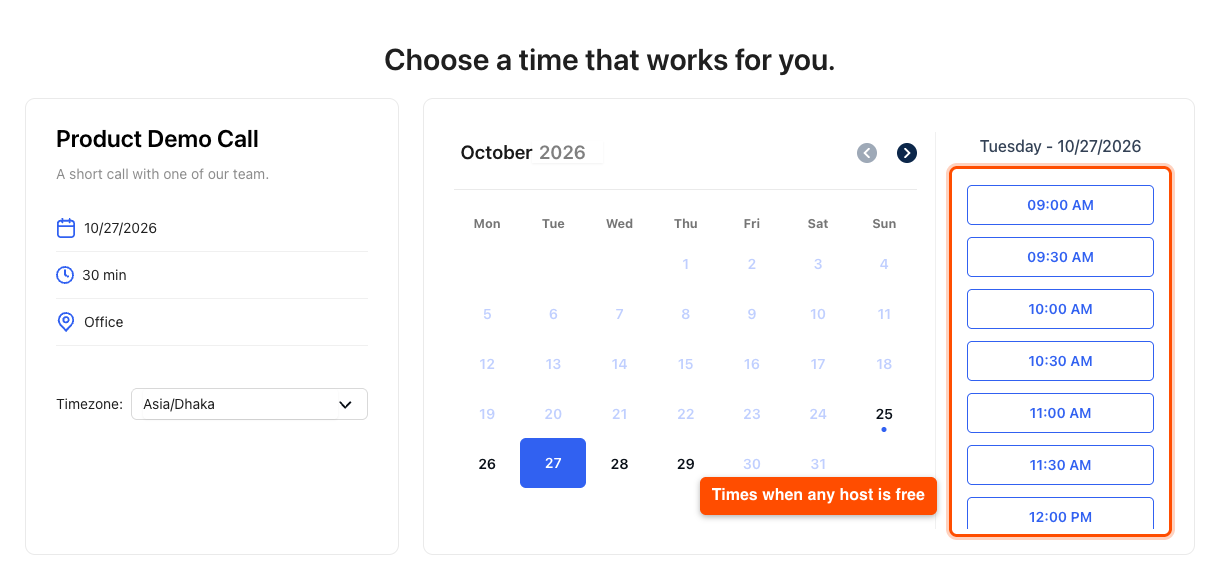
Open the meeting’s booking page as a customer would. The Select Your Organizer field is gone, because Timetics picks the host. A time shows as open when at least one host is free then.
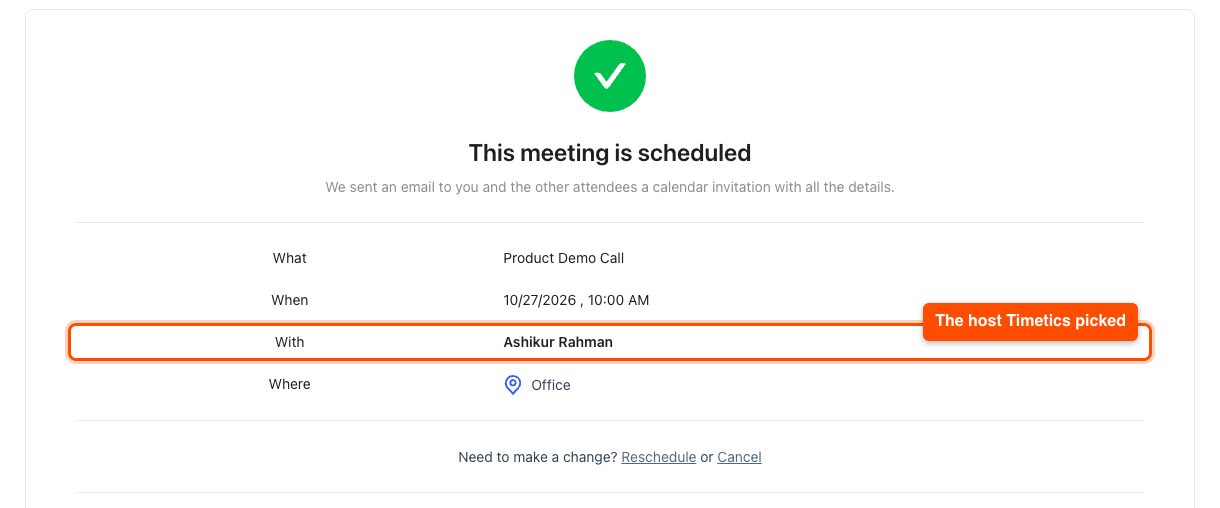
After the booking, the thank-you screen shows the assigned host next to With. The host also gets the booking in their own Timetics dashboard and calendar, the same as any other booking.
Frequently Asked Questions (FAQ)
| Q: Can a customer still choose their host on a round robin meeting? No. On a round robin meeting the host picker is hidden, and Timetics ignores any host sent with the booking. If you want customers to choose, turn round robin off for that meeting. The meeting then shows Select Your Organizer again, and the customer picks from your hosts. |
| Q: What happens to the host when a customer reschedules? The booking keeps the same host. Timetics does not run round robin again on a reschedule, so the customer stays with the person they first booked. If you need to move the booking to another host, open it from Timetics > Calendar in your dashboard and change the host there. |
| Q: Why did a customer see “No host is free at this time”? Every host was busy or had reached the daily limit at that time. This usually happens when two customers book the last free slot at the same moment. Timetics gives the slot to one of them and asks the other to pick a different time, so no host is ever double booked. |
Conclusion
Round robin in Timetics spreads bookings across your team by itself, so every host gets a fair share and customers never pick a host at random. Turn it on for one busy meeting first, check the thank-you screen after a test booking, then roll it out to your other team meetings.