
Overview
Recurring bookings in Timetics Pro let a customer book a whole series of sessions in one go, such as a weekly coaching call or a monthly checkup. You set how often the meeting repeats and how many sessions one booking can hold. The customer picks the first date and time, and Timetics books the rest.
Before booking, the customer sees every session in the series. Timetics checks each one against your schedule, so a session on a holiday or at a time that is already taken is never booked by mistake. The customer pays for the sessions they actually get, and each session works like a normal booking with its own reminder and its own cancel link.
Requirements
- Timetics and Timetics Pro, latest versions
- A One-to-One or One-to-Many meeting (not one with a seat arrangement)
Step 1: Turn On Recurring Bookings for a Meeting
Recurring is set per meeting, so only the meetings you choose can be booked as a series.
- Go to Timetics → Meetings.
- Create a new meeting or click Edit on an existing one.
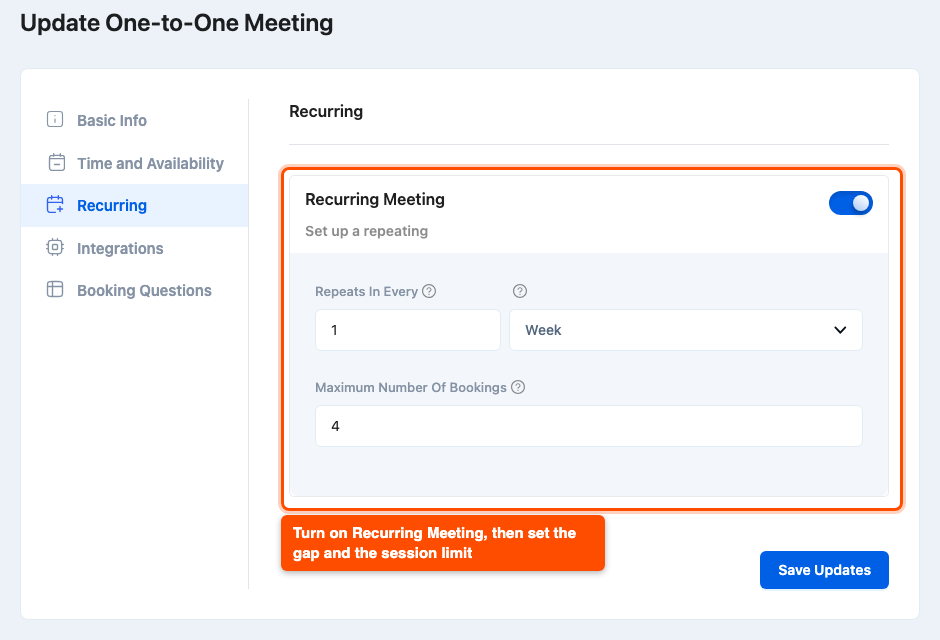
- Open the Recurring tab.
- Turn on the Recurring Meeting switch.
- In Repeats In Every, enter the gap between sessions and pick Day, Week, Month or Year. For example,
2and Week means every other week. - In Maximum Number Of Bookings, enter the most sessions one customer can book in a series, the first one included.
- Click Save Updates.
For example, with Repeats In Every set to 1 Week and Maximum Number Of Bookings set to 8, a customer can book up to 8 weekly sessions at once.
| Note: A monthly series keeps the day of the first session. If that day does not exist in a month, the session moves to the last day of that month. For example, a series that starts on January 31 continues on February 28 and then March 31. |
Step 2: How Customers Book a Recurring Series
Customers book a recurring meeting from the same booking page as any other meeting.
- The customer picks a date and a time slot. This becomes the first session.
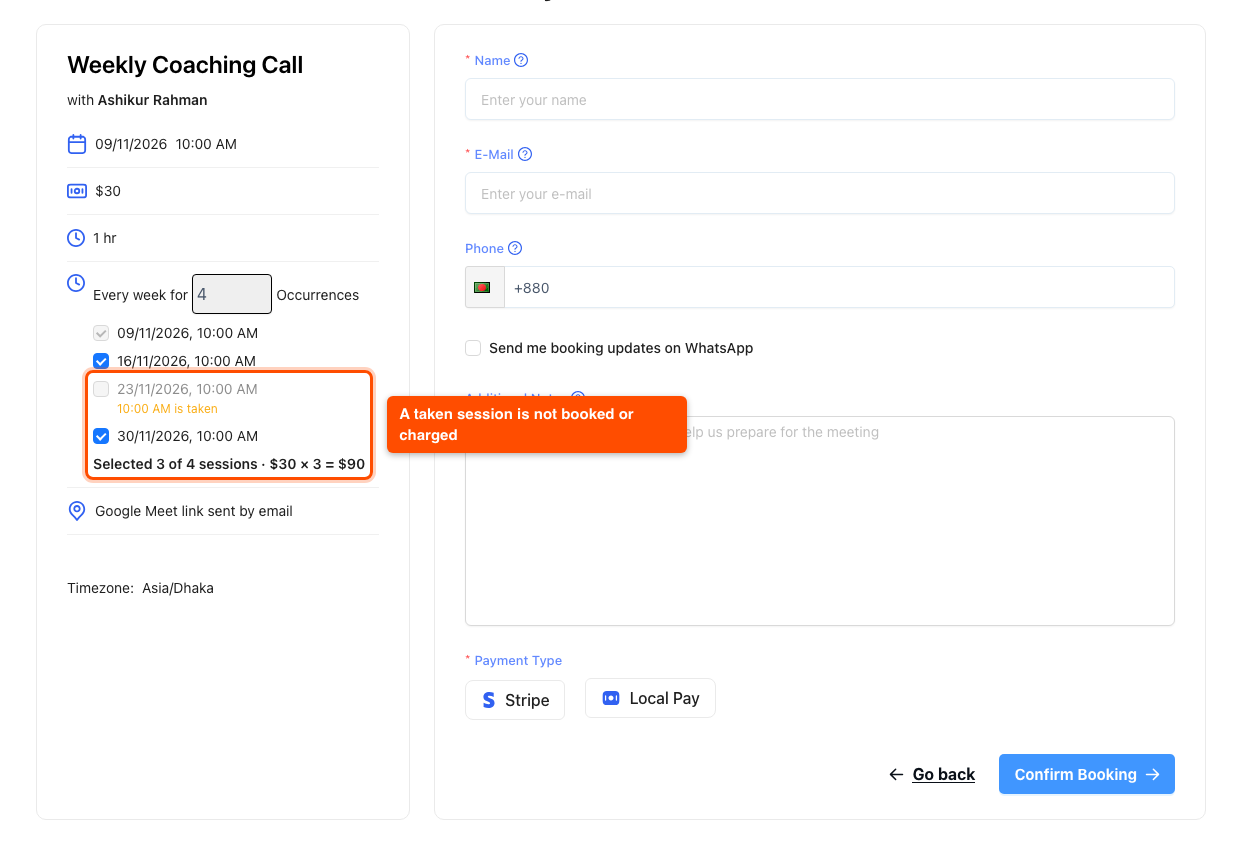
- In the sidebar, the customer sets how many sessions they want in the Every week for … Occurrences box. It starts at your Maximum Number Of Bookings and cannot go above it.
- The sidebar lists every session of the series with its date and time. Timetics checks each one against the host’s schedule.
- The customer can untick any session they do not want, except the first one.
- The total at the bottom updates as sessions are ticked or unticked, for example Selected 3 of 4 sessions · $30 × 3 = $90.
Some sessions in the list may not be bookable:
- “10:00 AM is taken” means the host is busy at that time on that day. The session stays unticked and is not booked.
- “Closed on this day” means the host does not work that day, the day is a holiday, it is outside the meeting’s available dates, or it is too soon for your minimum notice time. The session is not booked.
A long series shows the first 4 sessions and a Show all 12 sessions link. A session that is taken or closed always stays in view, so the customer never misses it.
| Tip: For a daily series, “every day” means every calendar day. If the host does not work on Sunday, the Sunday session shows as closed and is skipped, and the series does not move to Monday. |
Step 3: How Payment Works for a Series
The customer pays for the whole series once, at checkout. The price is the meeting price times the number of sessions that are booked. If a meeting costs $30 and the customer books 3 of 4 sessions, they pay $90.
This works with every payment method Timetics supports. If the customer leaves an online payment unfinished and the booking expires, Timetics cancels every session of the series and frees those time slots for other customers.
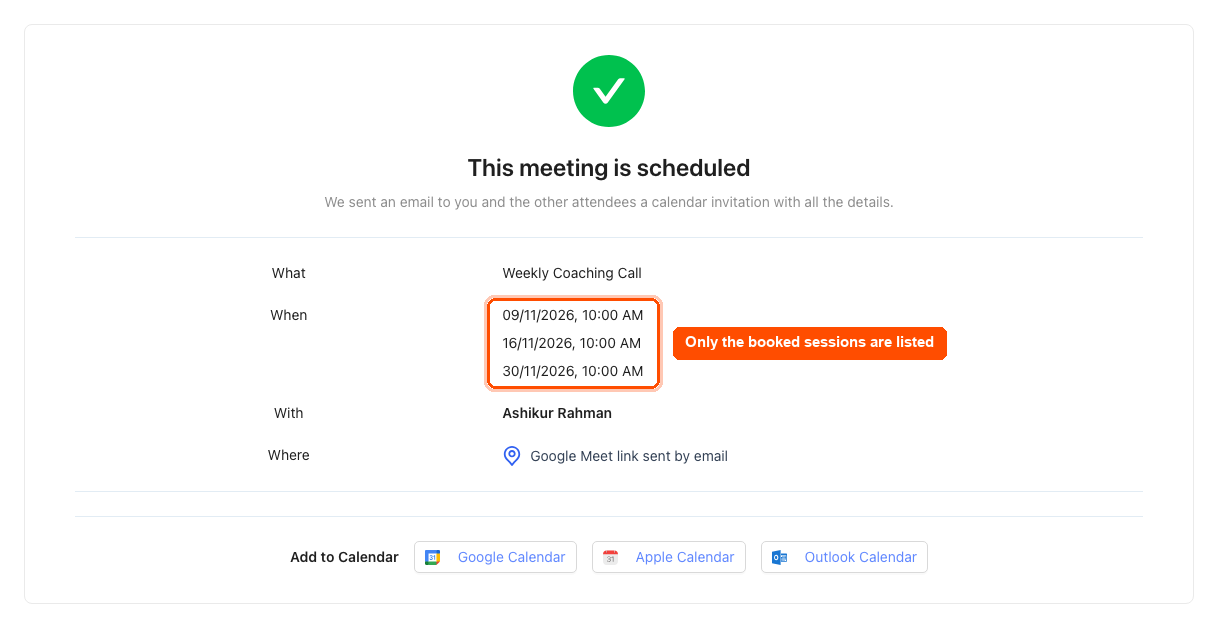
After booking, the confirmation page lists every booked session.
Step 4: Turn On Reminders for Each Session
The customer and the host get one confirmation email that lists every session of the series.
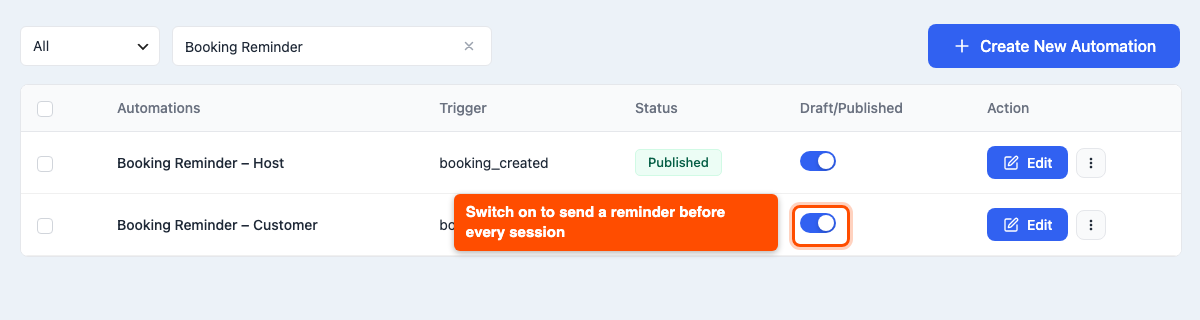
Timetics also comes with ready-made reminder emails, saved as drafts. To send them, go to Timetics → Automation and turn on the Draft/Published switch next to Booking Reminder – Customer (and Booking Reminder – Host if the host should get one too). In a weekly, monthly or yearly series, every session then gets its own reminder 24 hours before it starts. A daily series gets one reminder, for the first session.
Step 5: Manage a Series From the Dashboard
Every session of a series is a normal booking in your dashboard, with its own date, status and meeting link.
- Go to Timetics → Calendar.
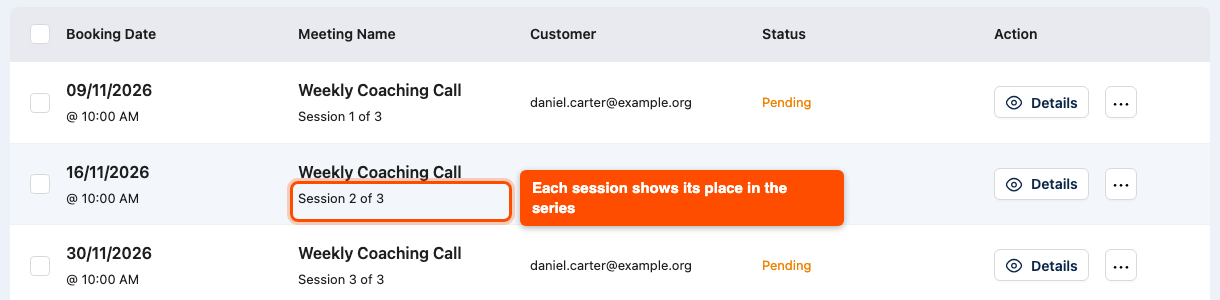
- Switch to List View. Each session shows a tag such as Session 2 of 3.
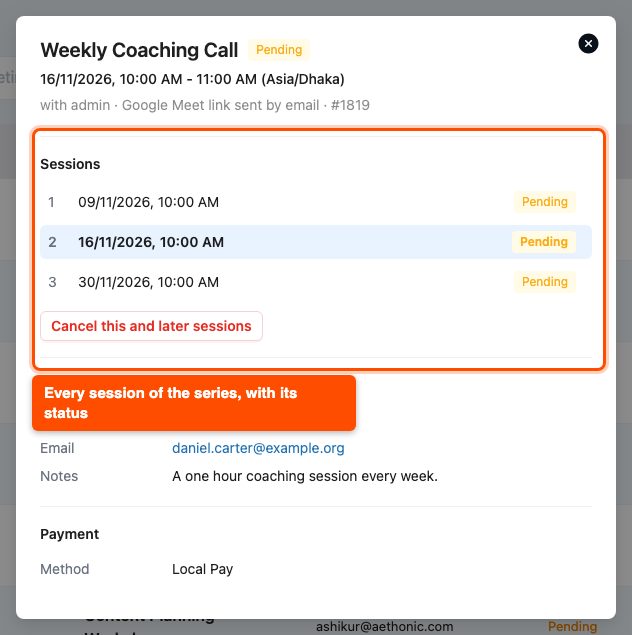
- Click Details on any session. The Sessions section lists every session of the series with its status.
- To cancel this session and every session after it, click Cancel this and later sessions. Sessions that already happened are not touched.
| Note: Deleting the first booking of a series deletes all of its sessions too. Timetics warns you about this before you delete it. |
Frequently Asked Questions (FAQ)
| Q1: Why does a session show “is taken” and not get booked? The host already has a booking or is unavailable at that time on that day. Timetics never double books a host, so it skips that session and leaves it unticked. The rest of the series is still booked, and the customer only pays for the sessions they get. They can book the missed date separately. |
| Q2: Does a round robin meeting give the same host for every session? Yes. A round robin meeting books the whole series with one host. Timetics picks a host who is free at the time the customer chose and who can take the most sessions. The session list on the booking page shows what that host can take. |
| Q3: Can a customer cancel just one session and keep the rest? Yes. The customer opens the cancel link in that session’s reminder email and picks Only this session. Only that session is cancelled, and its time slot opens up again. The other sessions stay booked, and their reminders still go out as planned. |
Conclusion
Recurring bookings in Timetics let your customers book a full series in one step, with each session checked, priced and reminded on its own. Turn on the Recurring tab for one of your meetings and book a test series to see it from your customer’s side.