
Overview
The Timetics AI booking assistant is a chat window on your website that helps visitors find a meeting, see real free times in their own timezone and start a booking in a few taps. It runs on the Aisentic plugin and reads your Timetics meetings, prices, staff, locations, and schedules directly.
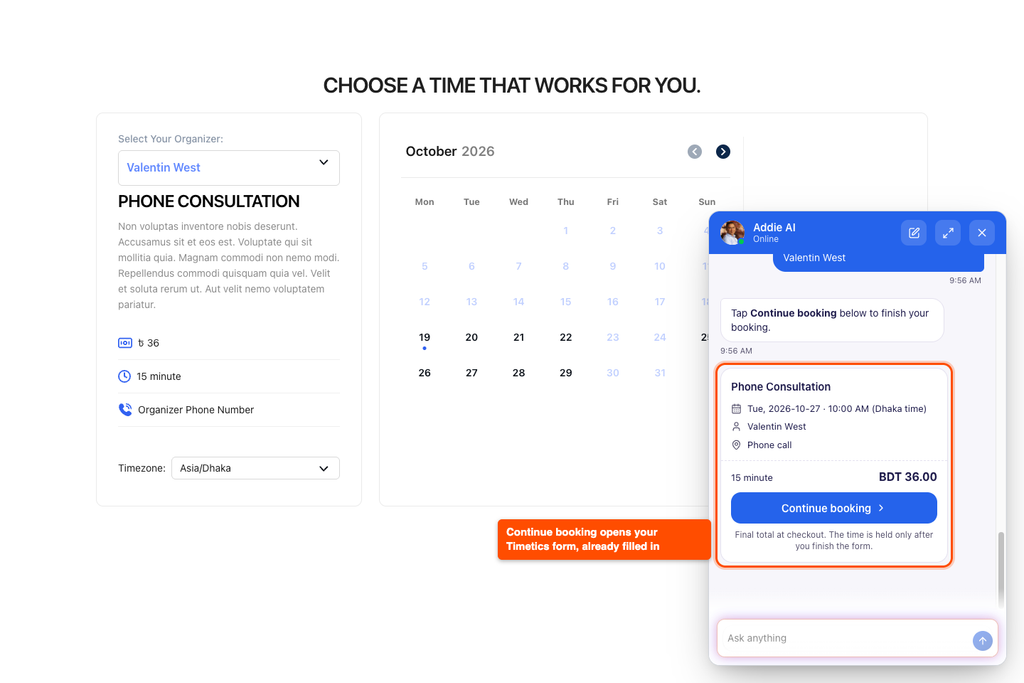
Without it, a visitor who wants a 30 minute consultation next Tuesday has to open the meeting, pick a staff member and click through the calendar. With the assistant, they type “Any consultation slot next Tuesday afternoon?” and see the free times right in the chat. One tap on a time gives them a button that opens your booking form with the meeting, staff, date and time already filled in.
Requirements
- Timetics 1.0.65 or later
- Aisentic 1.1.6 or later, registered to Aisentic AI (free, with 200 credits)
- At least one published Timetics meeting with a staff member and a schedule
Step 1: Check Your Aisentic AI Account
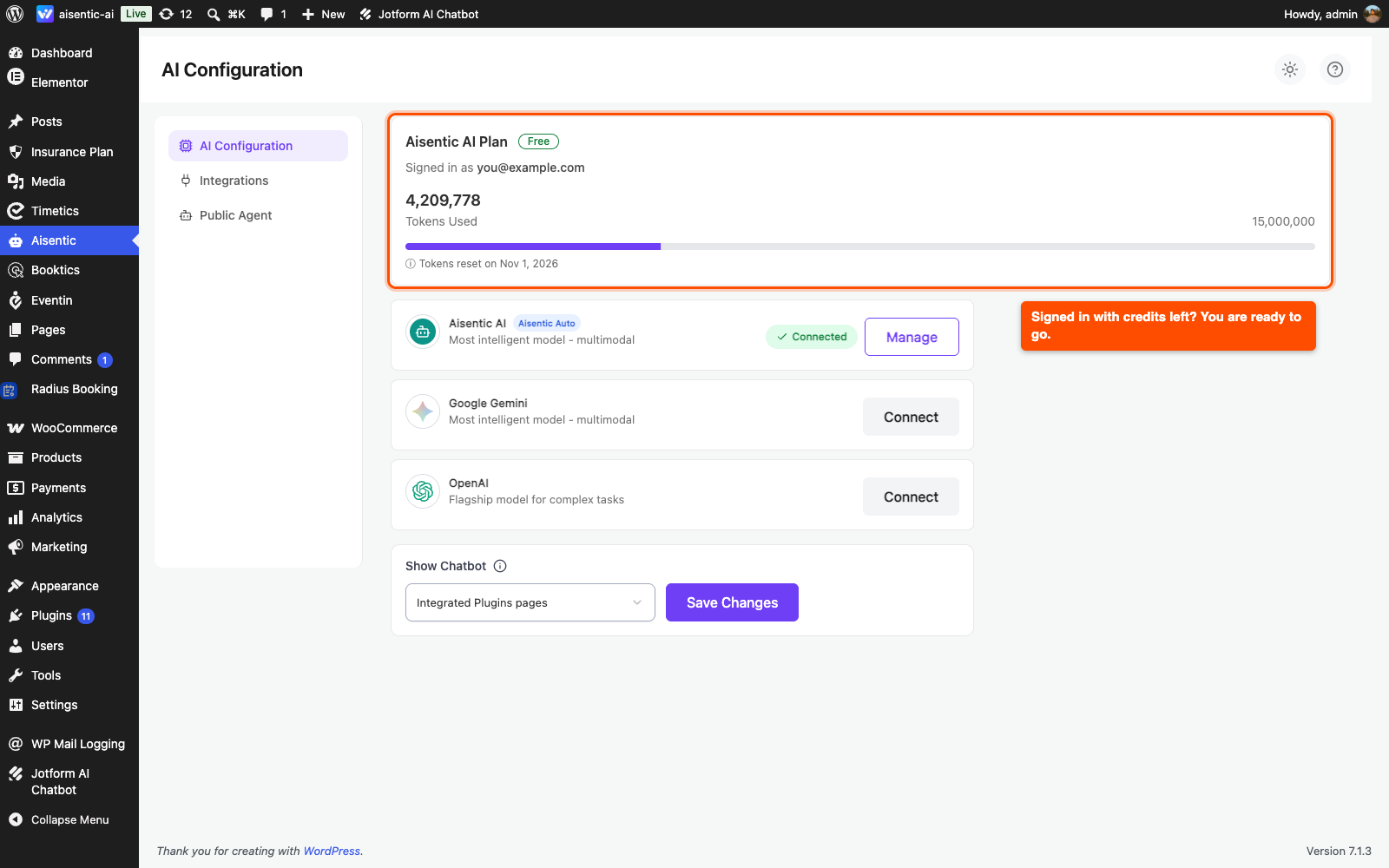
When you register to Aisentic, Aisentic AI connects on its own and your account gets 200 free credits. The booking assistant runs on those credits, so you do not need an API key to start.
- Go to Aisentic > Settings > AI Configuration.
- On the Aisentic AI Plan card, check that Signed in as shows your email and that the usage bar still has credits left.
If you would rather use your own key, find OpenAI or Google Gemini on the same page, click Connect, paste your OpenAI API key or Google Gemini API key and click Save Configuration.
Step 2: Turn On the Timetics Assistant
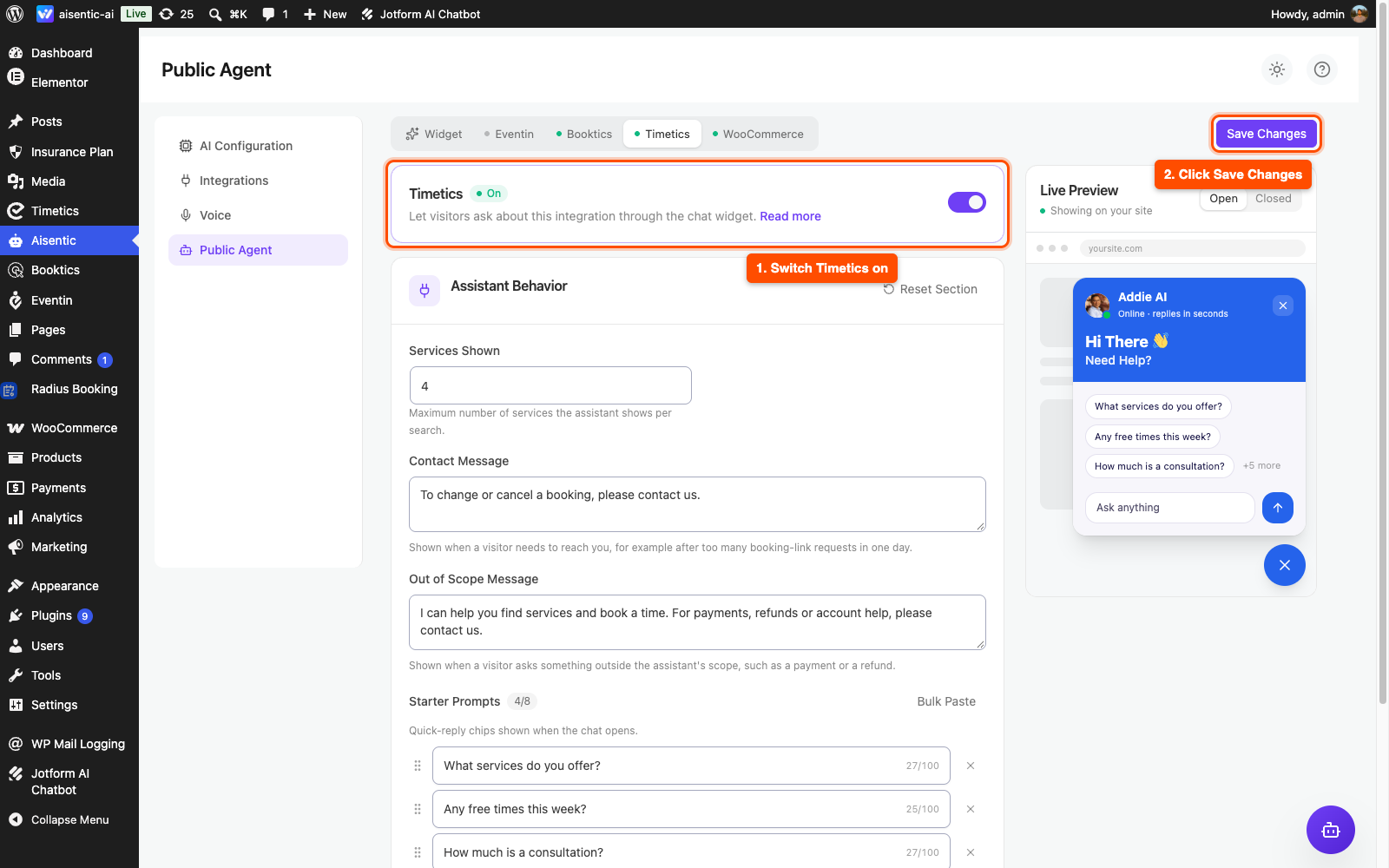
- Go to Aisentic > Settings > Public Agent.
- Open the Timetics tab. You only see this tab while Timetics is active.
- Switch the toggle on. The badge next to the title changes from Off to On.
- Click Save Changes.
The chat launcher now appears on every page of your site for visitors.
Step 3: Set How the Assistant Behaves
On the same Timetics tab, the Assistant Behavior section controls what the assistant shows and says. Every field has a sensible default, so you can leave them as they are and change them later.
- Services Shown: how many meetings the assistant shows in one search, from 1 to 12. The default is 4.
- Contact Message: shown when a visitor needs to reach you, for example after they ask for their booking links too many times in one day.
- Out of Scope Message: shown when a visitor asks about something the assistant does not handle, like a refund or a payment problem.
- Starter Prompts: the tap-to-ask chips a visitor sees when the chat opens, for example “Any free times this week?”. You can add up to 8, each up to 100 characters.
Click Save Changes when you are done. To go back to the defaults, click Reset Section.
Step 4: Match the Chat Widget to Your Brand
Your site has one chat widget, shared by every plugin the assistant works with. If you already set it up for Booktics or another plugin, you can skip this step.
- Go to Aisentic > Settings > Public Agent and open the Widget tab.
- Set the Assistant Avatar, Assistant Name, Greeting, Brand Color and Widget Position. The Live Preview on the right updates as you type.
- Click Save Changes.
For what each field does, see Step 4 of the Booktics AI booking assistant guide. The fields are the same.
Step 5: Let Customers Change or Cancel Bookings by Email
The assistant can also help a customer who wants to move or cancel a booking. It never shows booking details in the chat. Instead, it asks for the customer’s email and Timetics sends them a private email with Reschedule and Cancel buttons for each upcoming booking.
There is nothing to turn on. Timetics creates the email for you the first time you open the admin after updating. To change its wording, go to Timetics > Settings > Notifications and edit Booking Links – Customer (the trigger is Booking Links Requested). See the Timetics email notification guide for how notification emails work.
Step 6: See How Visitors Book a Meeting
Open your site in a private browser window, so you see it the way a visitor does, and click the chat launcher. On a meeting page, or any page with a Timetics shortcode, the chat leads with a Book a meeting topic.
Here is what a booking looks like from the visitor’s side:
- The visitor asks, for example, “Can I book a consultation?”. The assistant shows matching meetings as cards with the price.
- The assistant asks only what that meeting needs, one question at a time, with answers to tap: the staff member (or Anyone) if more than one person runs it, the location (in person, Google Meet, phone, and so on) if there is more than one, and the day.
- The assistant shows the free times for that day in the visitor’s own timezone, with the timezone written next to each time.
- The visitor taps a time. The assistant checks once more that the time is still free, then shows a booking card with the meeting, staff, date, time and price, and a Continue booking button.
- Continue booking opens your Timetics booking form already filled in, on the details step. For a meeting with seats, it opens the seat map first, so the visitor picks a seat there. The visitor adds their details and pays on the form, the same as any other booking.
| Note: Nothing is booked until the visitor finishes the Timetics form, and the time is not held while they fill it in. If someone else books that time first, the visitor picks another one. |
Frequently Asked Questions (FAQ)
| Q1: Which timezone does the assistant show times in? The visitor’s own timezone, the same way your Timetics booking form shows them. A visitor in London and a visitor in New York see the same free slot at different clock times, each with their timezone written next to it. “Tomorrow” also counts from the visitor’s own date, not your site’s. |
| Q2: Can customers reschedule or cancel a booking through the chat? Yes, through email. The customer types the email they booked with and taps Send link. Timetics then emails them the Reschedule and Cancel buttons for their upcoming bookings. The chat gives the same reply for every email, so nobody can use it to check whether an email has bookings. |
| Q3: I use both Timetics and Booktics. Do I need two chat widgets? No. Your site has one chat widget, and each plugin adds its own topic to it. Turn on the Timetics and Booktics tabs separately under Aisentic > Settings > Public Agent. The Widget tab settings, like the name, avatar, and brand color, apply to both. |
Conclusion
The Timetics AI booking assistant turns “Do you have anything free next Tuesday?” into a filled-in booking form in a few taps, in the visitor’s own timezone. Turn it on under Aisentic > Settings > Public Agent, then open your site in a private window and book a test meeting yourself.