
Overview
WhatsApp notifications in Timetics send booking updates to your customers, hosts, and site admin on WhatsApp. They use the official Meta WhatsApp Cloud API and approved message templates. Timetics Pro sends a message when a booking is confirmed, canceled, or rescheduled, and can send a reminder 24 hours before the meeting.
Many people miss an email but read a WhatsApp message within minutes. With Timetics WhatsApp notifications, the customer gets the meeting details on their phone, and the host knows about a new or changed booking right away.
Requirements
- Timetics and Timetics Pro with an active license
- A Meta for Developers app with the Connect on WhatsApp use case
- At least one approved message template in WhatsApp Manager
- A phone number on each host’s profile (optional, only if hosts should get messages)
Step 1: Get Your Details From Meta
Timetics needs three values from your Meta app: an access token, a phone number ID, and a WhatsApp Business Account ID.
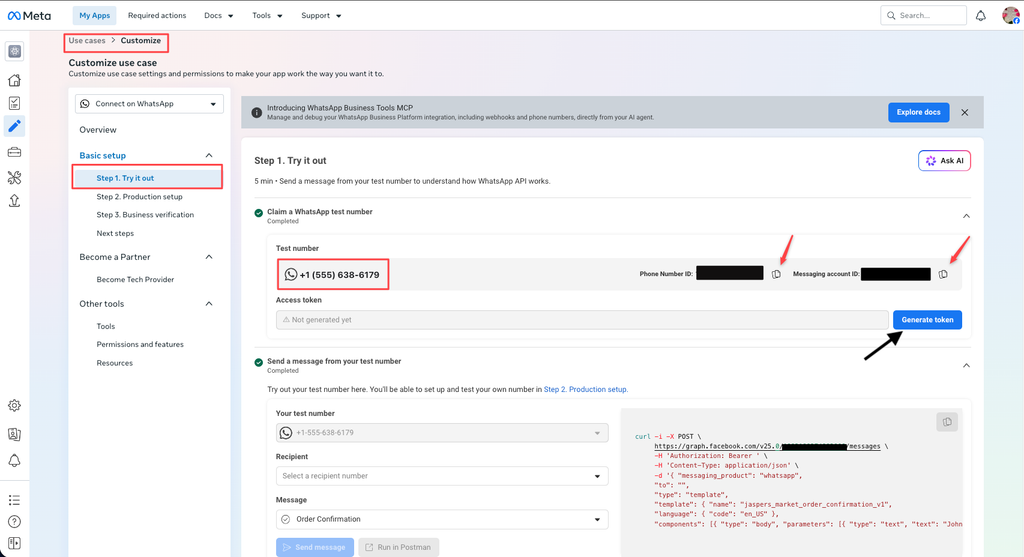
- Go to Meta for Developers and open your app from My Apps.
- Open Use cases and click Customize on Connect on WhatsApp.
- Go to Basic setup and open Step 1. Try it out.
- Copy the Phone number ID and the Messaging account ID with the copy icons. The Messaging account ID is the WhatsApp Business Account ID in Timetics.
- Click Generate token under Access token and copy the token.
Note: The token from Generate token is temporary and expires soon, so use it only for testing. For a live site, create a permanent token from a system user with the whatsapp_business_messaging and whatsapp_business_management permissions. |
| Tip: A Meta test number only sends to the recipient numbers you add on the same page (up to 5). Add your own WhatsApp number there while you test. |
Step 2: Connect Timetics to WhatsApp
- Go to Timetics > Settings > Integrations.
- Find the WhatsApp Notification card and click Configure. The settings open below the card.
- Paste the Meta access token, Phone number ID, and WhatsApp Business Account ID.
- Enter the Admin WhatsApp number with the country code, for example
+1 (555) 123-4567. This number gets the admin messages. - Click Verify and save.
Timetics checks the details with Meta before it saves them. If something is wrong, it shows Meta’s reason and keeps your old settings.
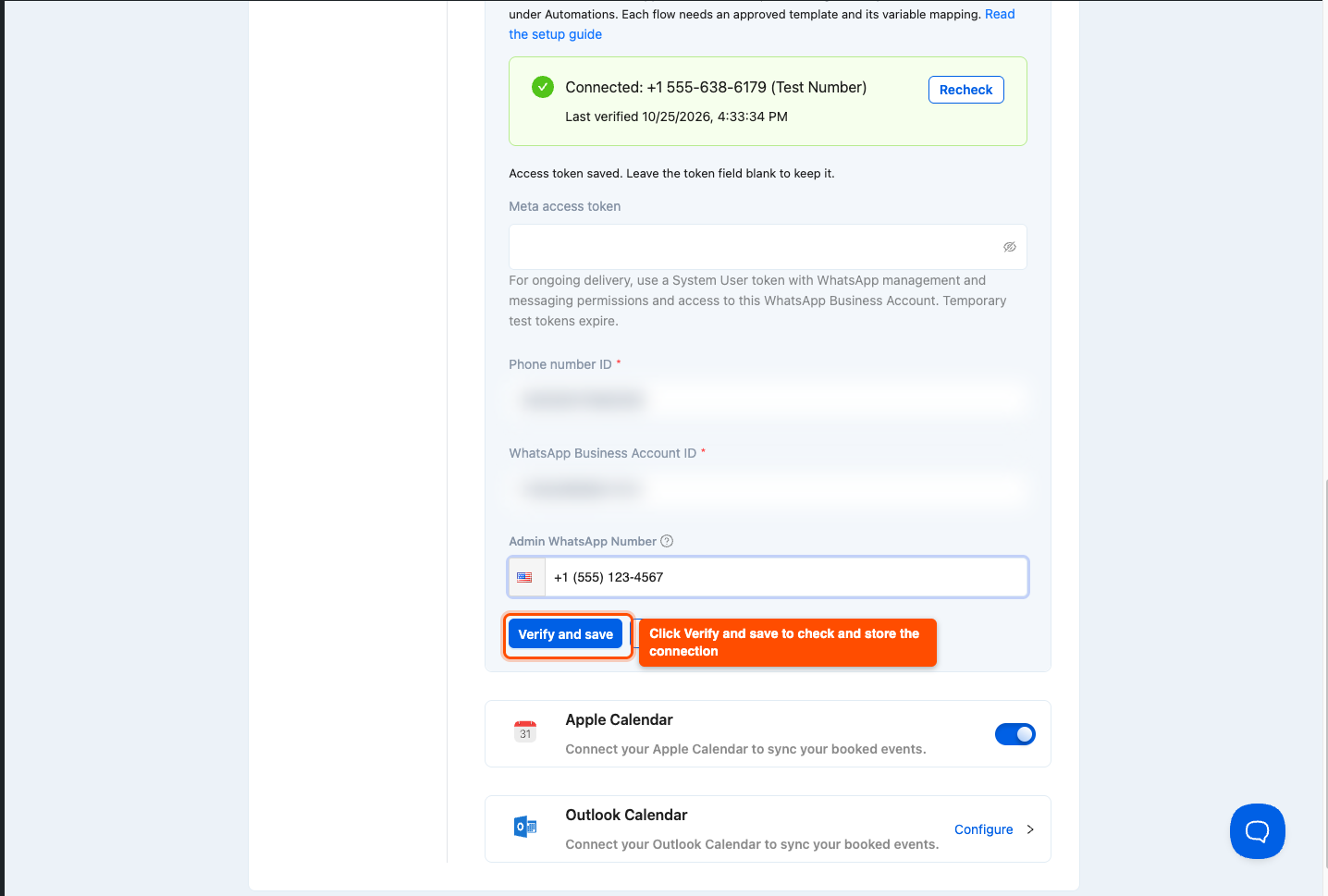
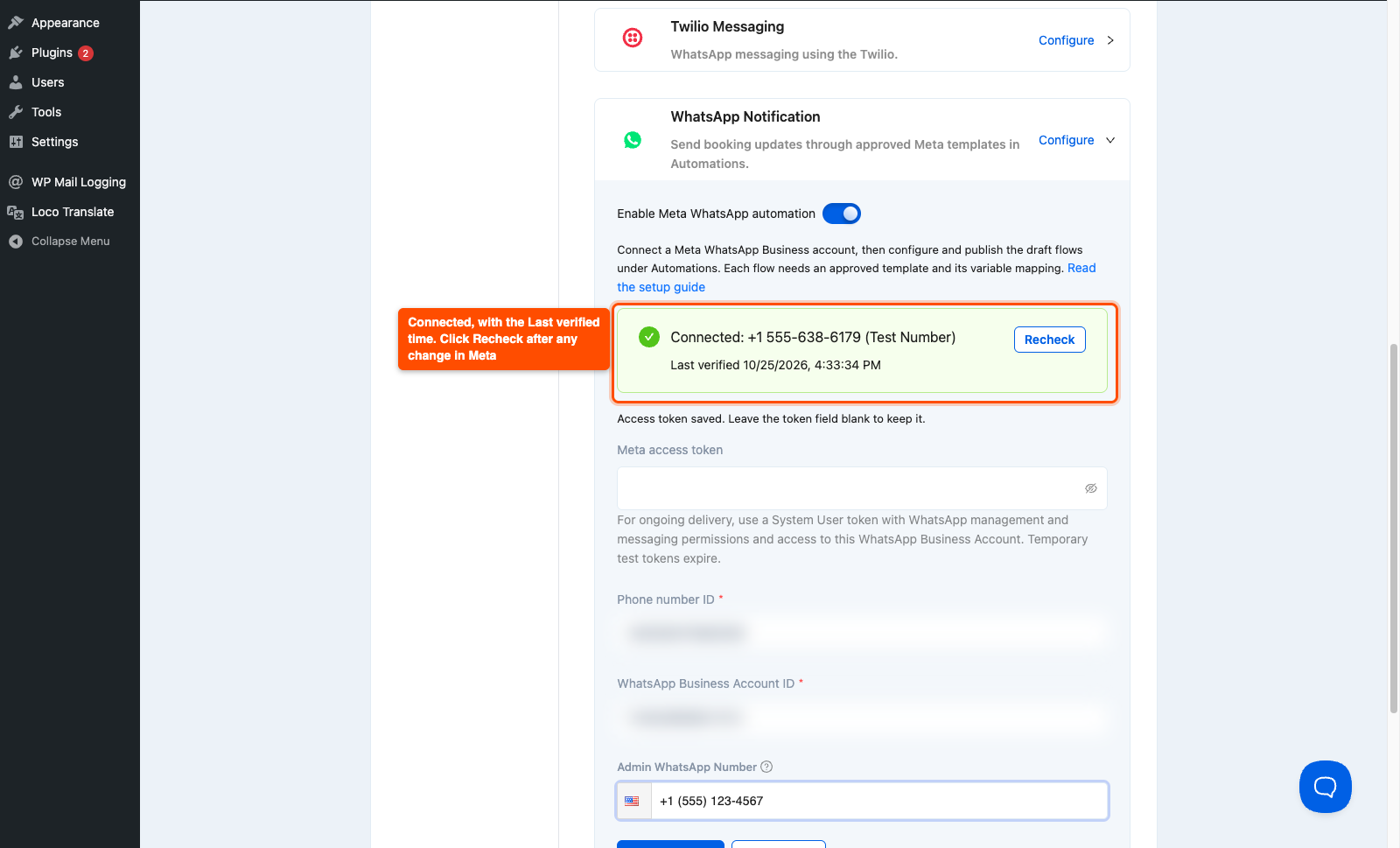
When the connection works, the panel shows Connected with the phone number and a Last verified time. Click Recheck any time you change something in Meta. To change the other fields later, leave the token field blank and Timetics keeps the saved token.
Step 3: Turn On WhatsApp Automation
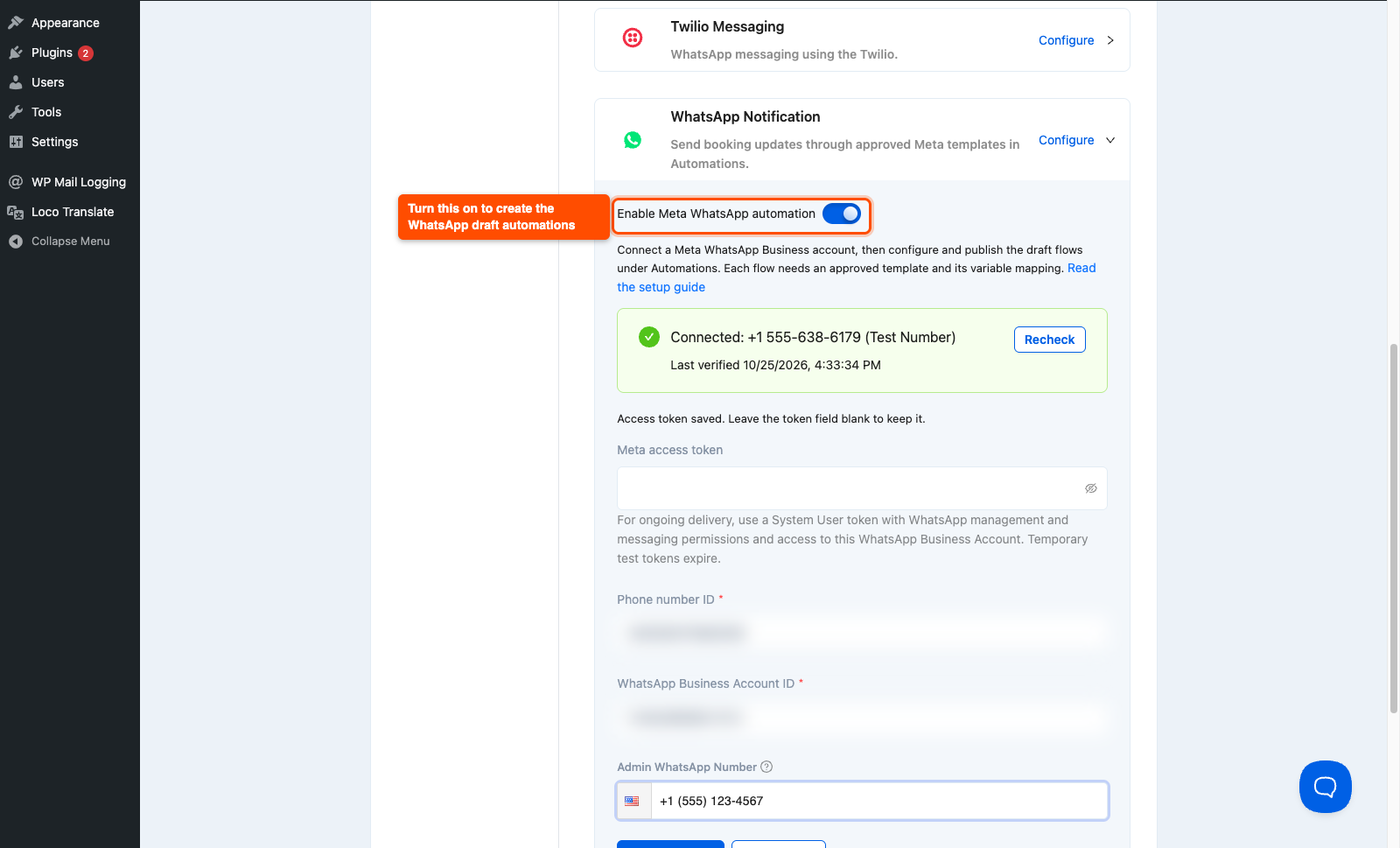
- In the same panel, switch on Enable Meta WhatsApp automation.
- Timetics shows “WhatsApp automation enabled. Draft flows are ready.”
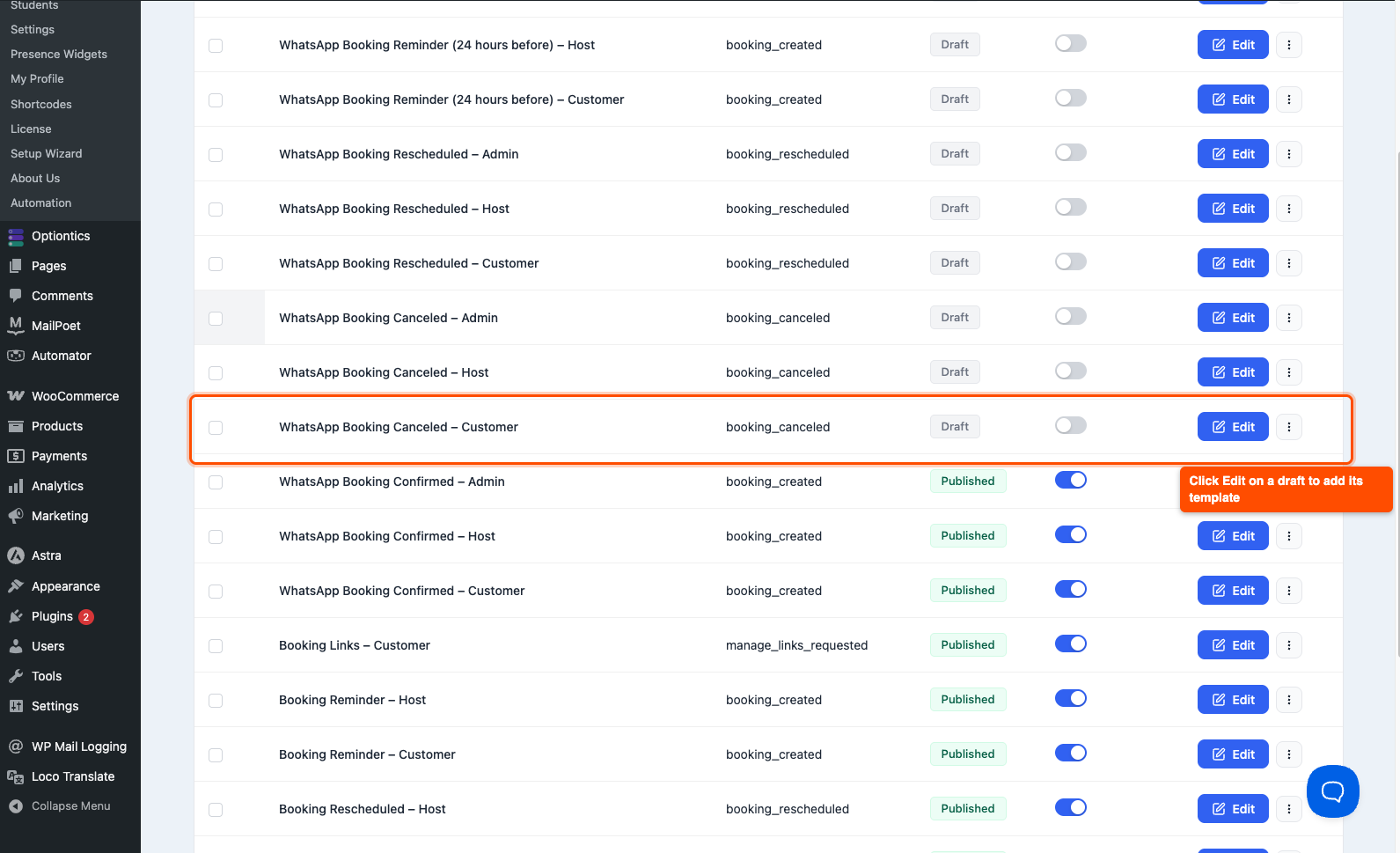
The first time you turn it on, Timetics creates 12 draft automations, one for each event and receiver:
- Events: Booking Confirmed, Booking Canceled, Booking Rescheduled, and Booking Reminder (24 hours before)
- Receivers: Customer, Host, and Admin
The drafts stay off until you pick a template for them in Step 6. If you delete a draft you do not need, Timetics does not create it again.
Step 4: Set Up Phone Numbers
WhatsApp needs a full international number, so check these settings before you go live.
- Go to Timetics > Settings > General and set the default phone country. The booking form uses it as the starting country code.
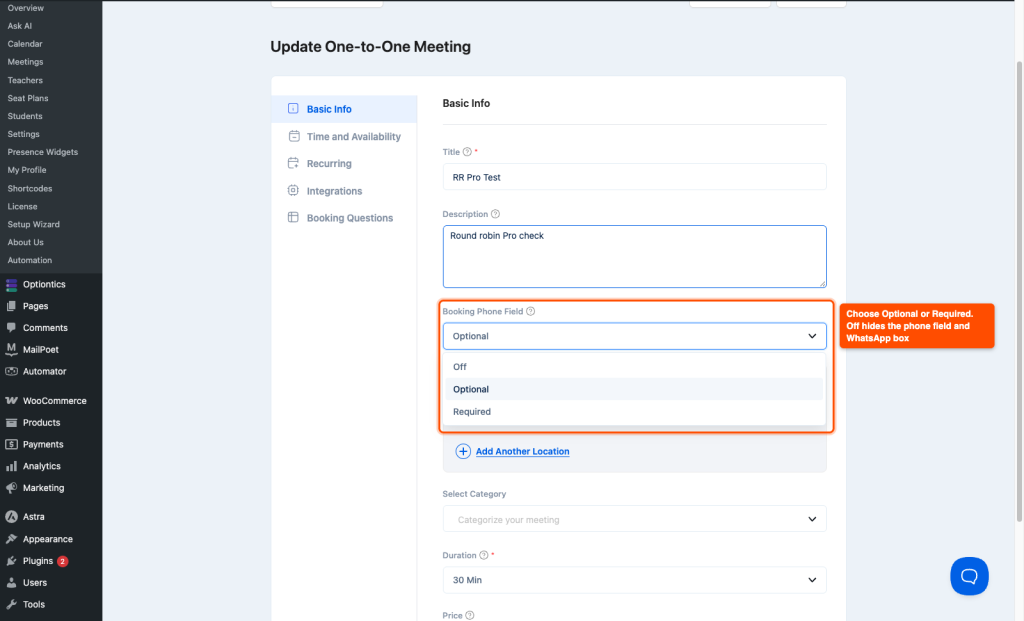
- Open each meeting under Timetics > Meetings. In Basic Info, set the Booking phone field to Optional or Required. Choose Off for meetings that should never send WhatsApp messages.
- To send messages to hosts, open each host under Timetics > Teachers (or your staff menu) and add their Phone with the country code.
Step 5: Create a Message Template in Meta
WhatsApp only lets businesses start a conversation with an approved template, so every Timetics WhatsApp message uses one.
- Open WhatsApp Manager and go to Message templates.
- Click Create template, choose the Utility category, and pick a language.
- Write the message body. Use
{{1}},{{2}}, and so on for the parts that change. For example:
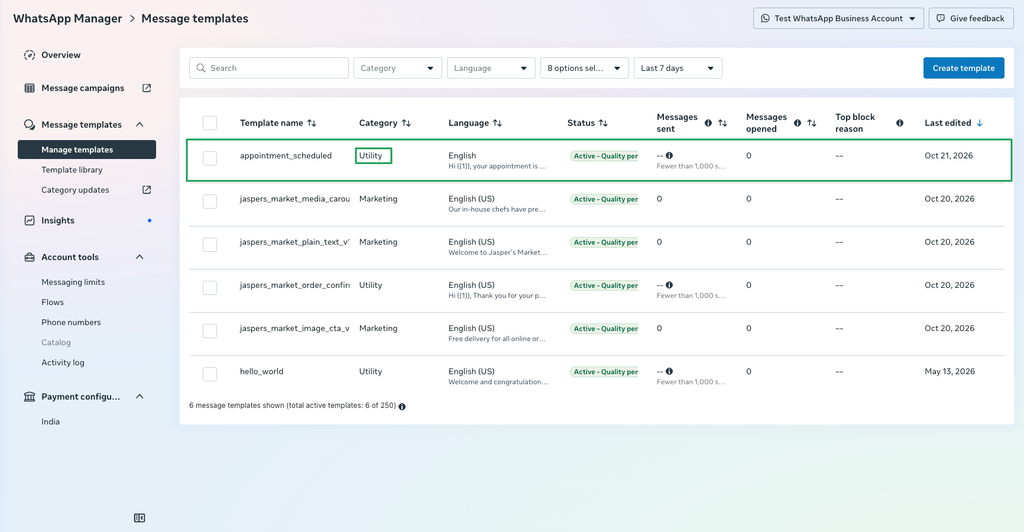
Hi {{1}}, your appointment is scheduled.
Service: {{2}}
Date and time: {{3}}- Add a sample value for each variable and submit the template.
Only templates with the Approved status show in Timetics. Approval usually takes a few minutes and can take up to 24 hours.
Step 6: Finish and Publish the WhatsApp Automations
- Go to Timetics > Automation.
- Open a draft, for example WhatsApp Booking Confirmed – Customer.
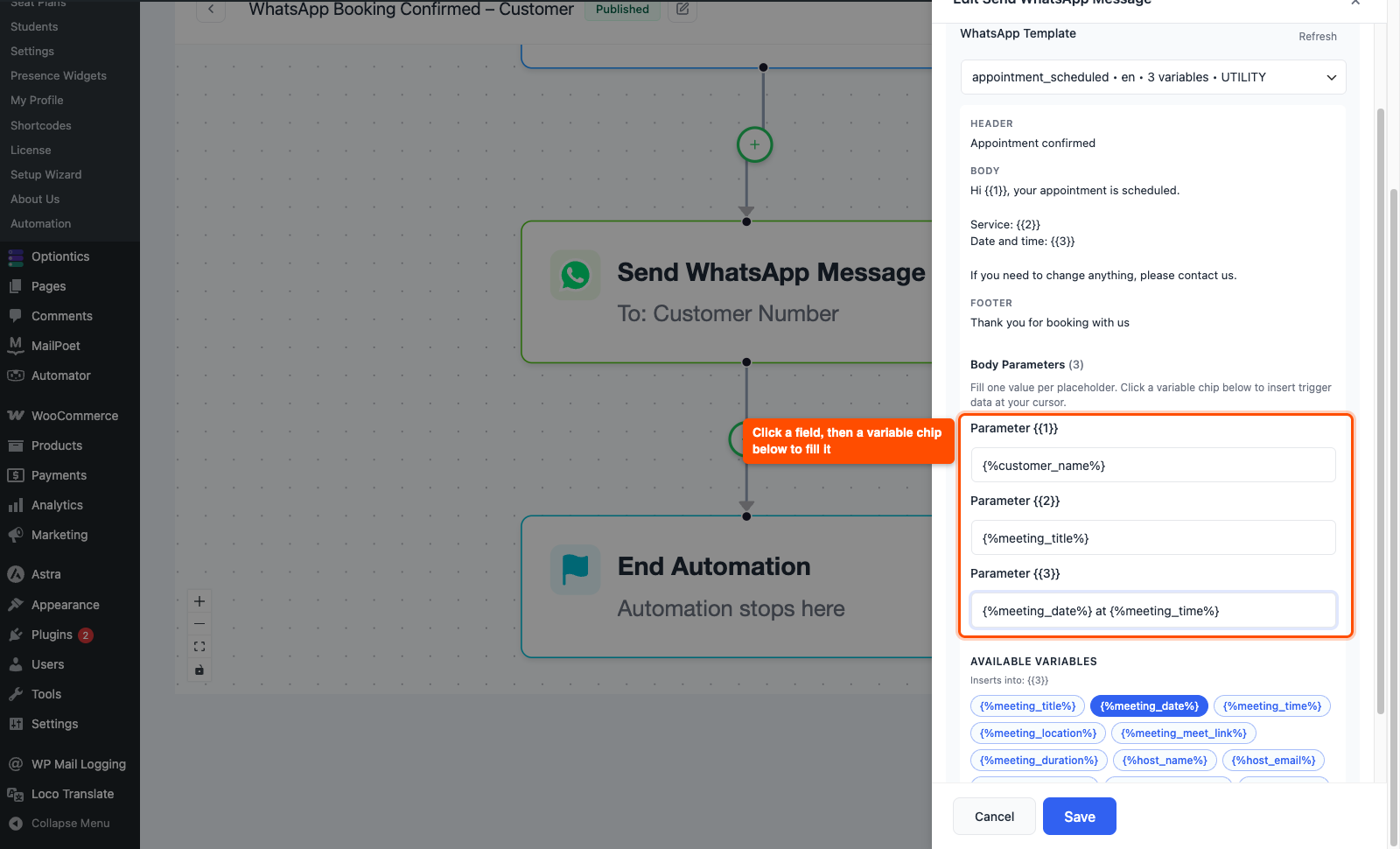
- Click the Send WhatsApp Message box. The Receiver Type is already set.
- Choose your template from the list. Click Refresh if a new template is missing.
- Fill each template parameter. Click a field, then click a chip under Available variables:
{{1}}={%customer_name%}{{2}}={%meeting_title%}{{3}}={%meeting_date%} at {%meeting_time%}
- Click Save, switch the automation to Active, and click Save Now.
Repeat this for each draft you want to use. Timetics does not let you activate a WhatsApp automation without an approved template, so an unfinished draft never sends a broken message.
The Booking Reminder drafts already include an Add Delay step that waits until 24 hours before the meeting. You can also add Send WhatsApp Message to any of your own automations on the After Booking Confirmation, After Booking Cancellation, or After Booking Rescheduled triggers.
Step 7: How Customers Opt In
Customers get WhatsApp messages only when they agree to them.
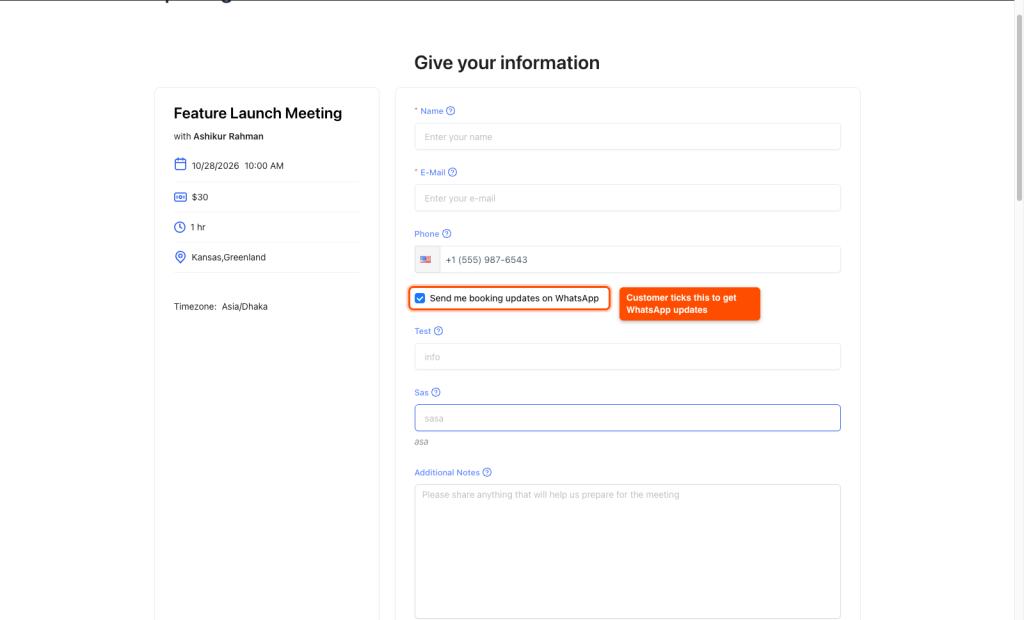
- On the booking form, the customer enters their phone number and ticks Send me booking updates on WhatsApp.
- When the box is ticked, the phone number becomes required.
- When you book for a customer from the admin, tick Customer agreed to WhatsApp updates only if the customer said yes.
Customers who do not tick the box still get their emails as usual. Host and admin numbers always get their messages.
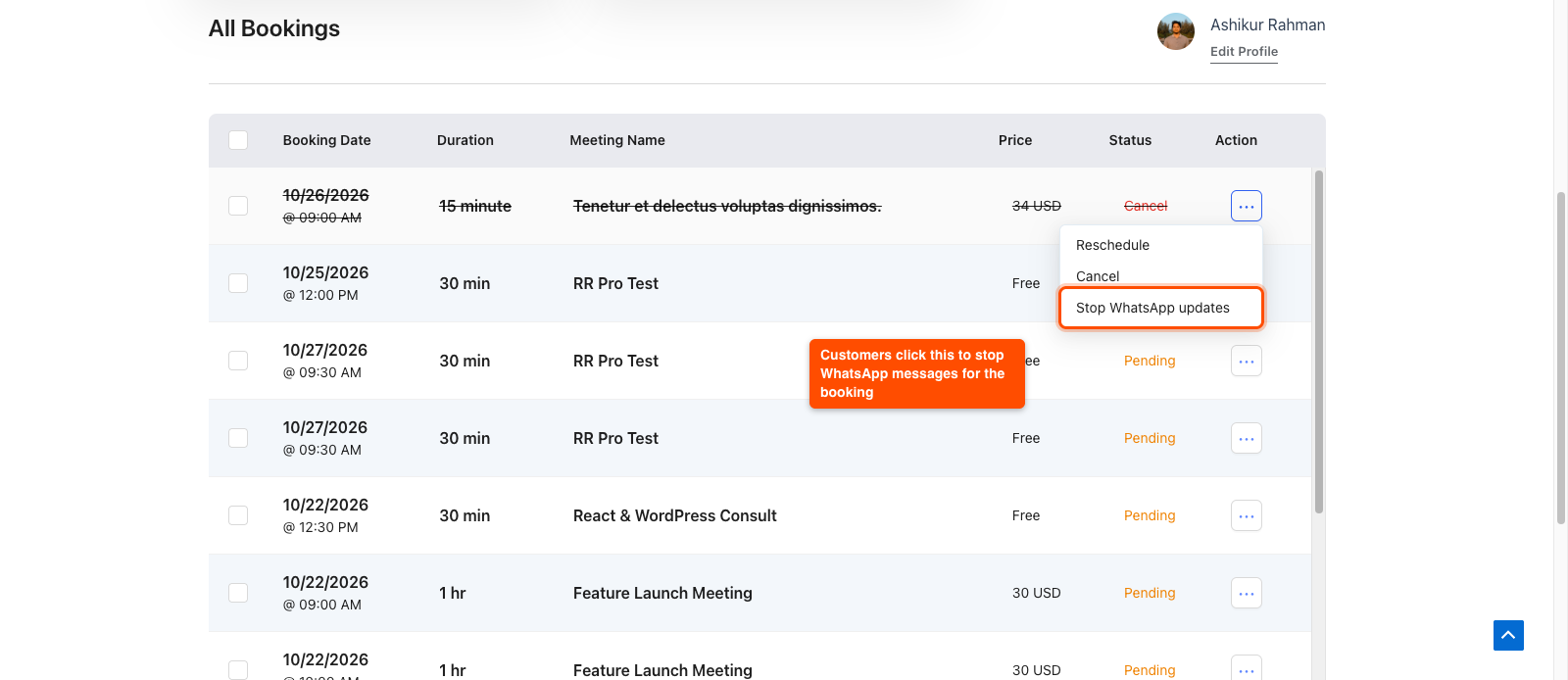
A customer can stop the messages later from their account. In the customer dashboard under bookings, they open the booking’s menu and click Stop WhatsApp updates.
Frequently Asked Questions (FAQ)
| Q: Why did my customer not get the WhatsApp message? Check four things. The customer ticked the WhatsApp box when booking, the number has the right country code, the automation is Active with an approved template, and the meeting’s Booking phone field is not Off. With a Meta test number, the customer’s number must also be on your test recipient list. |
| Q: Can I send a plain text WhatsApp message instead of a template? No. WhatsApp only allows free text inside 24 hours after the customer messages your business. Booking updates are sent by your business first, so Meta requires an approved template. Timetics shows only the template option for this reason, and you can still personalize each template with booking variables. |
| Q: The connection said Connected, but now the panel shows a connection problem. What happened? Your Meta token most likely expired or lost a permission. Temporary tokens from Generate token expire soon after you create them. Create a permanent system user token, paste it into the Meta access token field, and click Verify and save. Click Recheck to confirm the status is back to Connected. |
Conclusion
Timetics WhatsApp notifications keep customers, hosts, and your team updated on every booking change. Start by connecting your Meta account, then publish the Booking Confirmed – Customer automation and send yourself a test booking.