
Overview
The Uncanny Automator integration in Timetics turns every booking into a trigger for your automation recipes. When a booking is made, rescheduled, cancelled, paid for, or deleted, Timetics hands the full booking details to Uncanny Automator, so you can send an email, tag a contact, or update another plugin without writing code.
Booking data normally stays inside your booking plugin. That leaves you copying names and dates by hand into a CRM, a course, a Slack channel, or a mailing list. This integration passes the booking straight to Automator the moment it happens, and the follow-up runs on its own.
Requirements
- Timetics and Timetics Pro installed and active, because the Uncanny Automator integration is a Pro feature
- Uncanny Automator installed and active. The free version is enough.
- At least one meeting set up in Timetics, so you have something to test with
Step 1: Install Uncanny Automator
Timetics reads the Automator plugin’s status and shows you what to do next, so start in the Timetics settings.
- Go to Timetics → Settings in your WordPress dashboard.
- Open the Integrations tab.
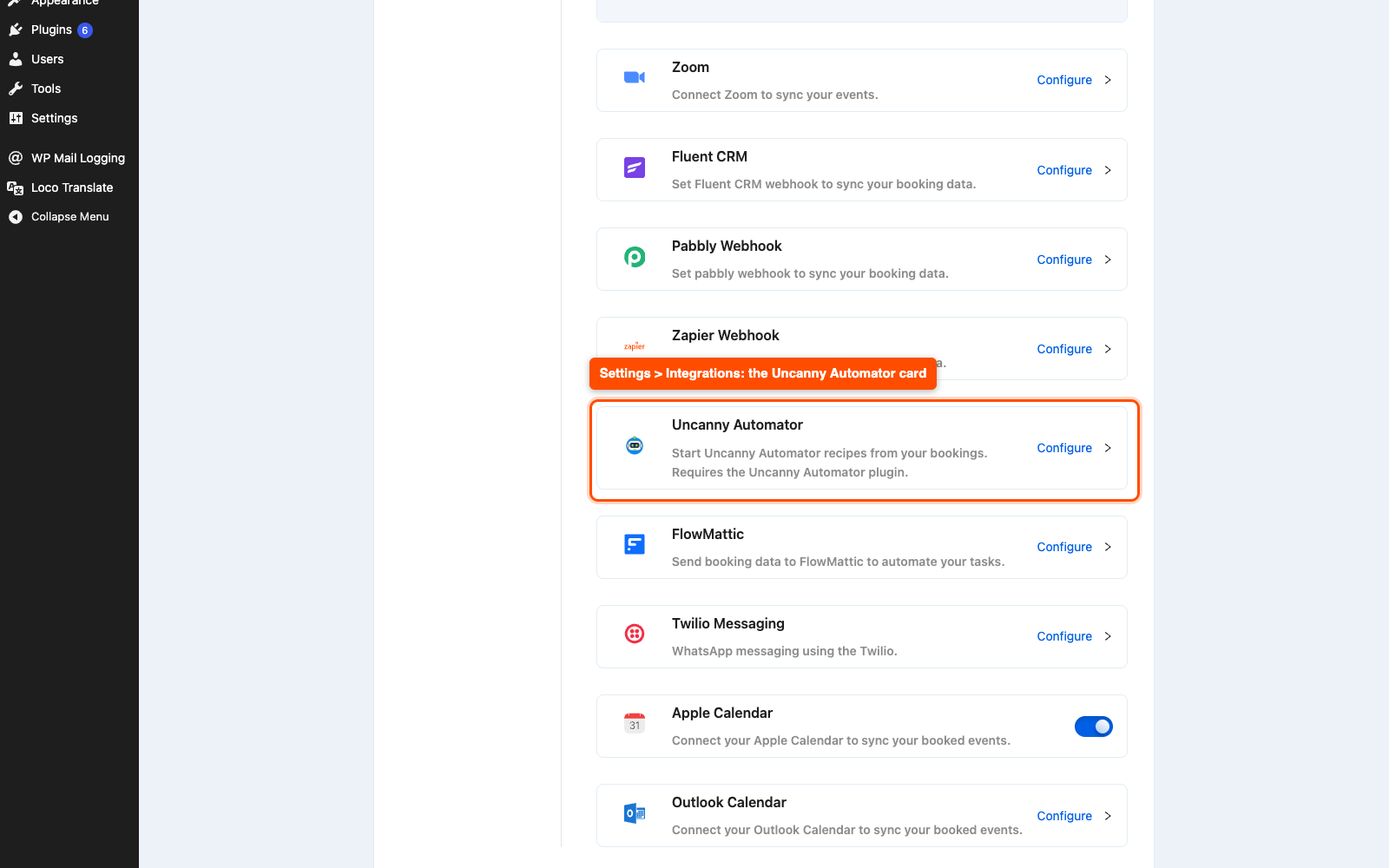
- Find the Uncanny Automator card and click Configure.
- If the panel says Uncanny Automator is not installed, click Install plugin. That takes you to the WordPress plugin installer with Uncanny Automator already searched.
- Install and activate it there, then come back to Timetics → Settings → Integrations.
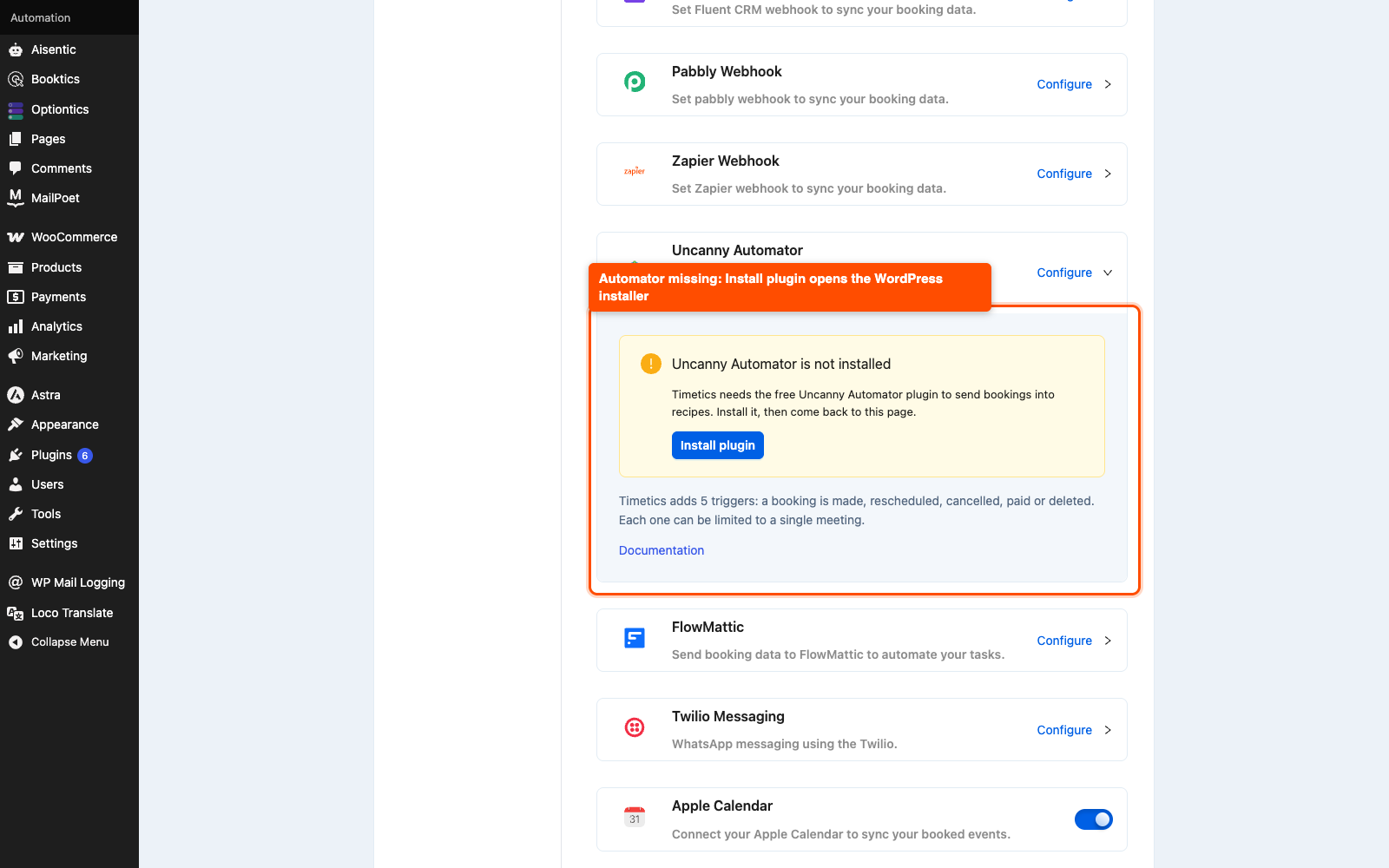
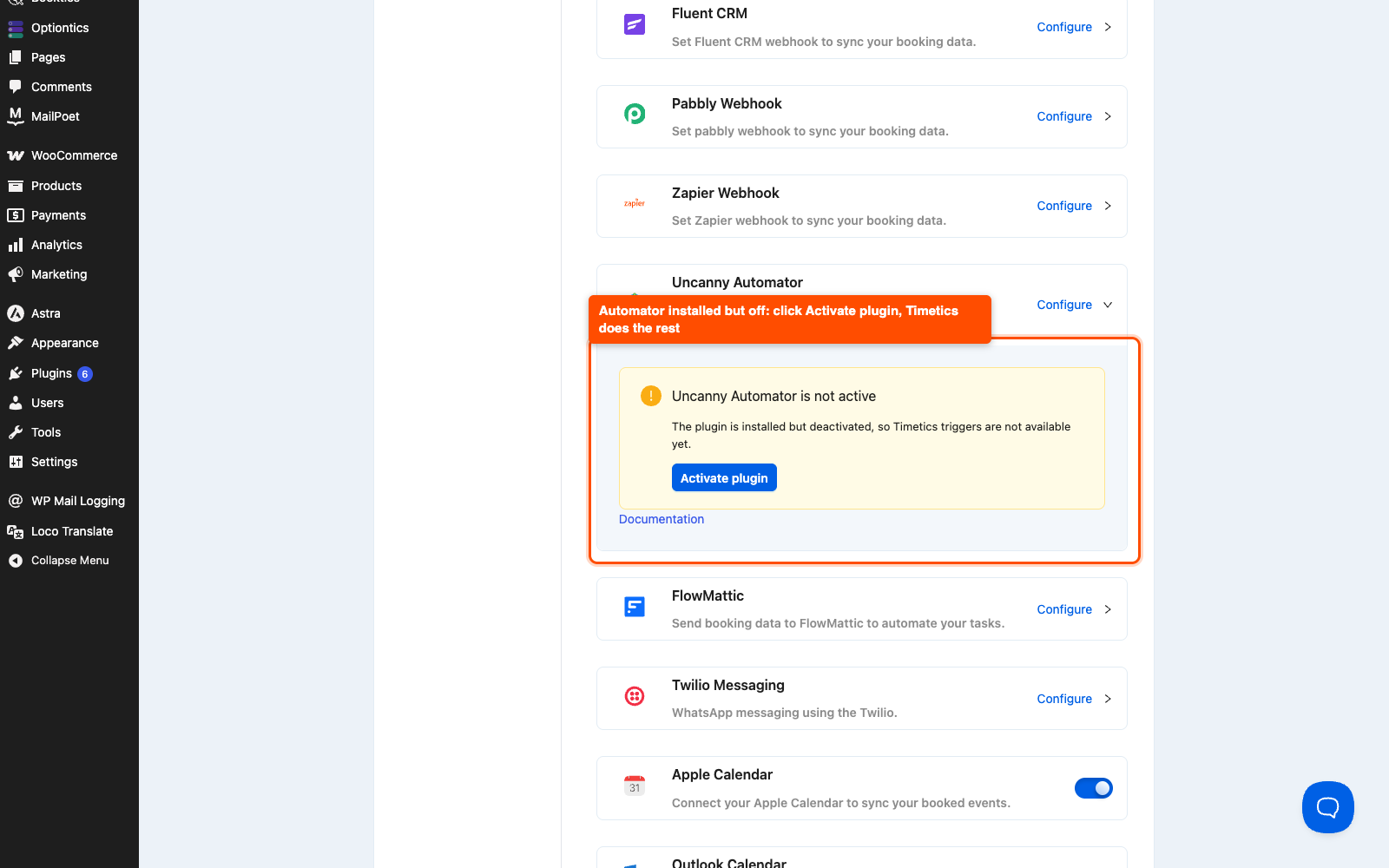
If the panel says Uncanny Automator is not active instead, the plugin is already on your site but switched off. Click Activate plugin and Timetics activates it for you, no trip to the Plugins screen needed.
Step 2: Turn the integration on
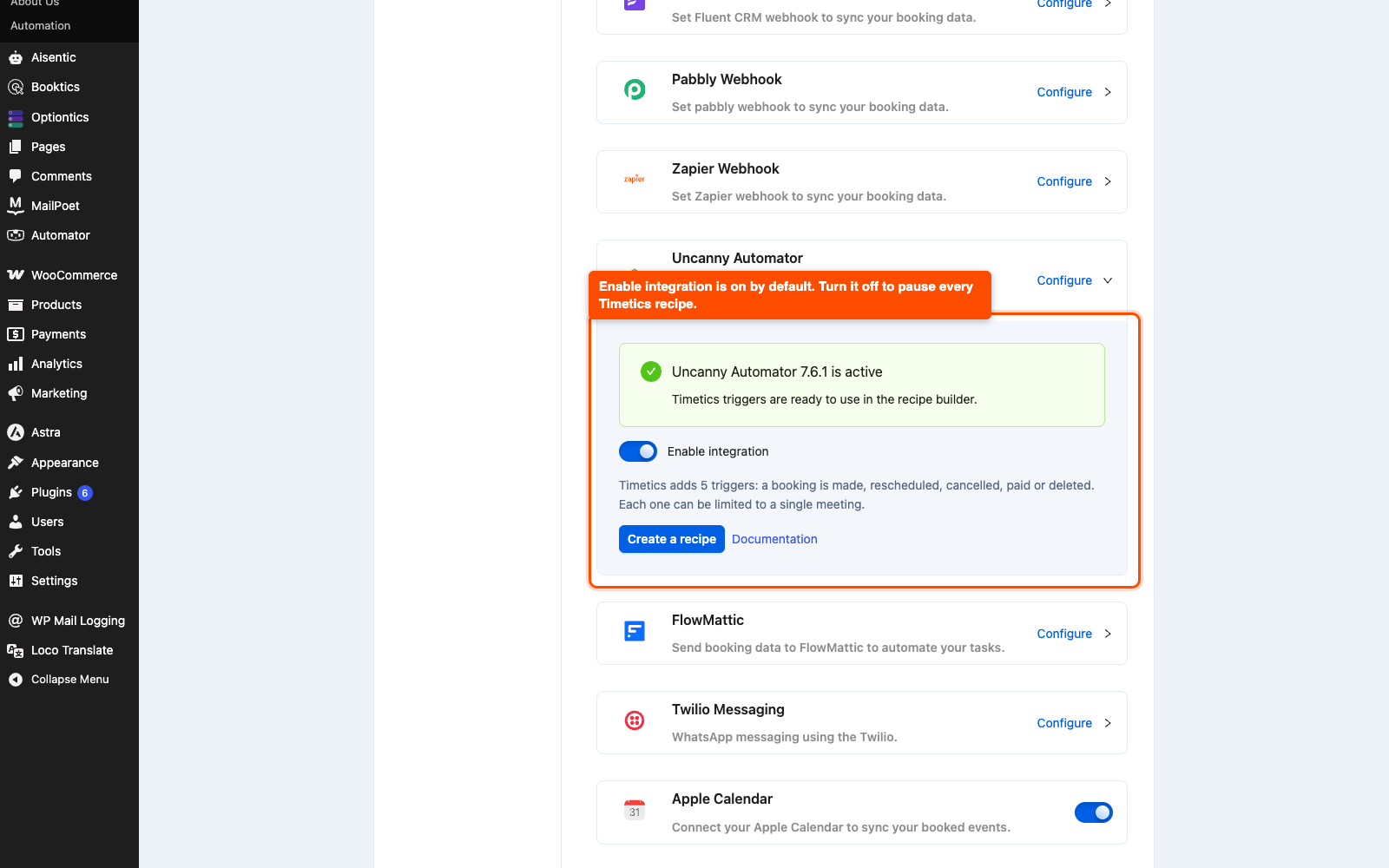
Once Automator is active, the panel shows a green notice with the Automator version and an Enable integration toggle.
- Check that Enable integration is on. It is on by default.
- If you turn it off, Timetics stops registering its triggers with Automator. Existing recipes stay saved but stop firing until you turn it back on.
Turning the toggle off is the clean way to pause every Timetics automation at once, for example while you import old bookings and do not want a hundred emails going out.
Step 3: Create a recipe
- Click Create a recipe on the Timetics card, or go to Automator → Add new in your dashboard.
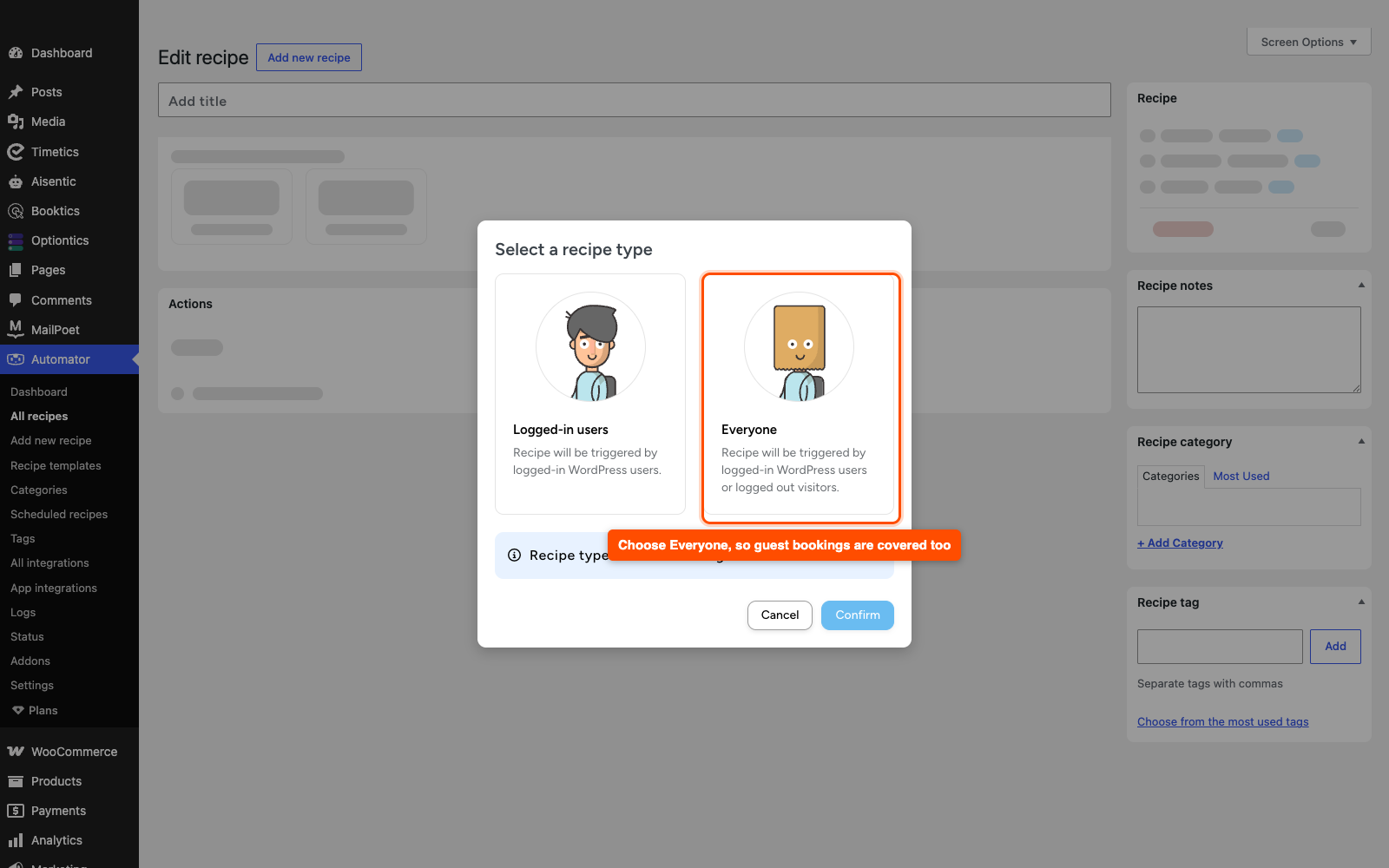
- Choose Everyone as the recipe type.
- Give the recipe a name, for example “Email me on every new booking”.
Choose Everyone, not Logged-in users. People book without an account most of the time, so a logged-in recipe would skip them. An Everyone recipe covers both guests and logged-in customers.
Step 4: Pick a Timetics trigger
- In the trigger box, click the Timetics integration.
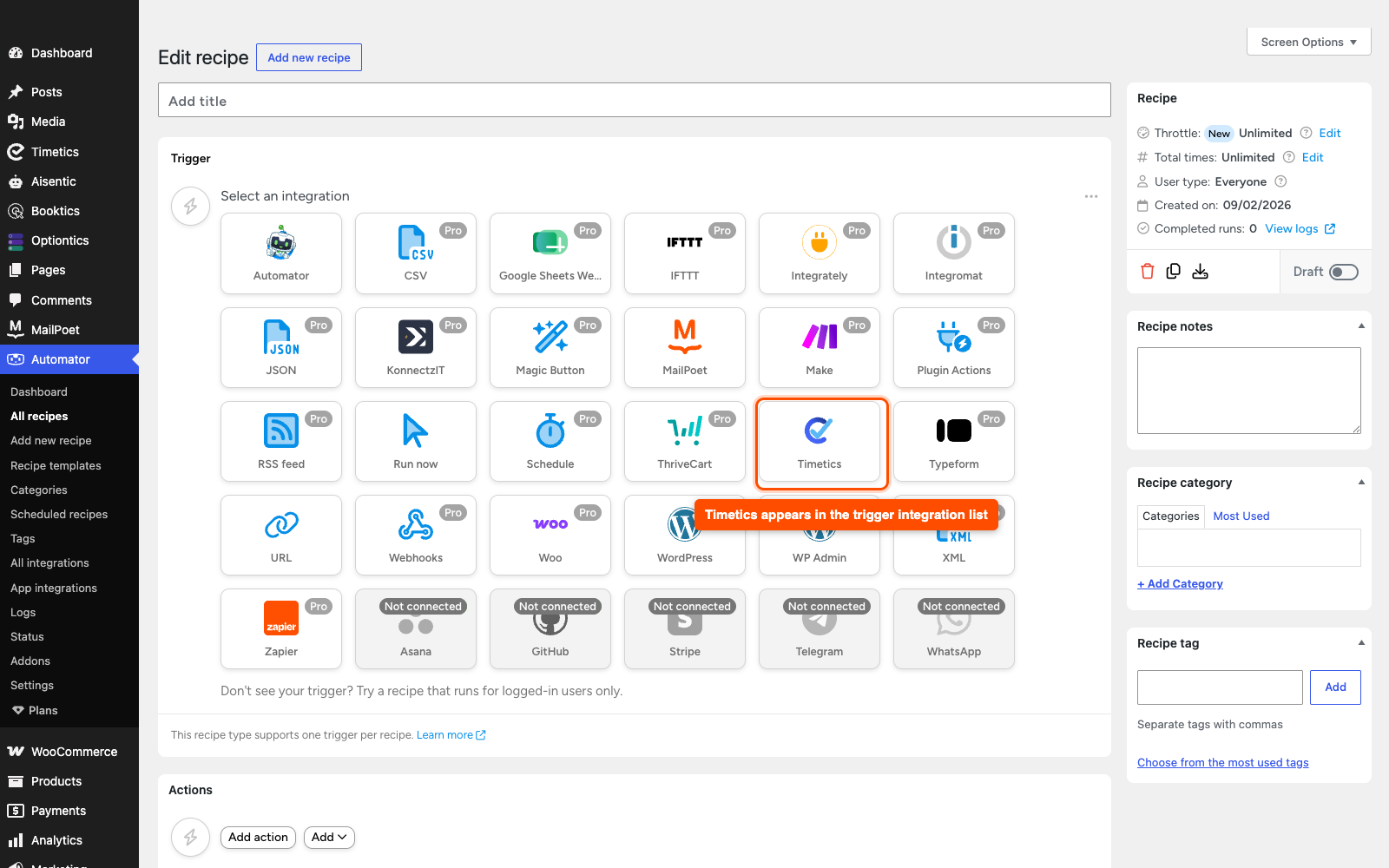
- Pick one of the five triggers.
| Trigger | When it fires |
| A booking is made for {a meeting} | A customer completes a new booking |
| A booking for {a meeting} is rescheduled | The date or time of a booking changes |
| A booking for {a meeting} is cancelled | A booking is cancelled |
| A booking for {a meeting} is paid | Payment for a booking is finalised |
| A booking for {a meeting} is deleted | A booking is removed |
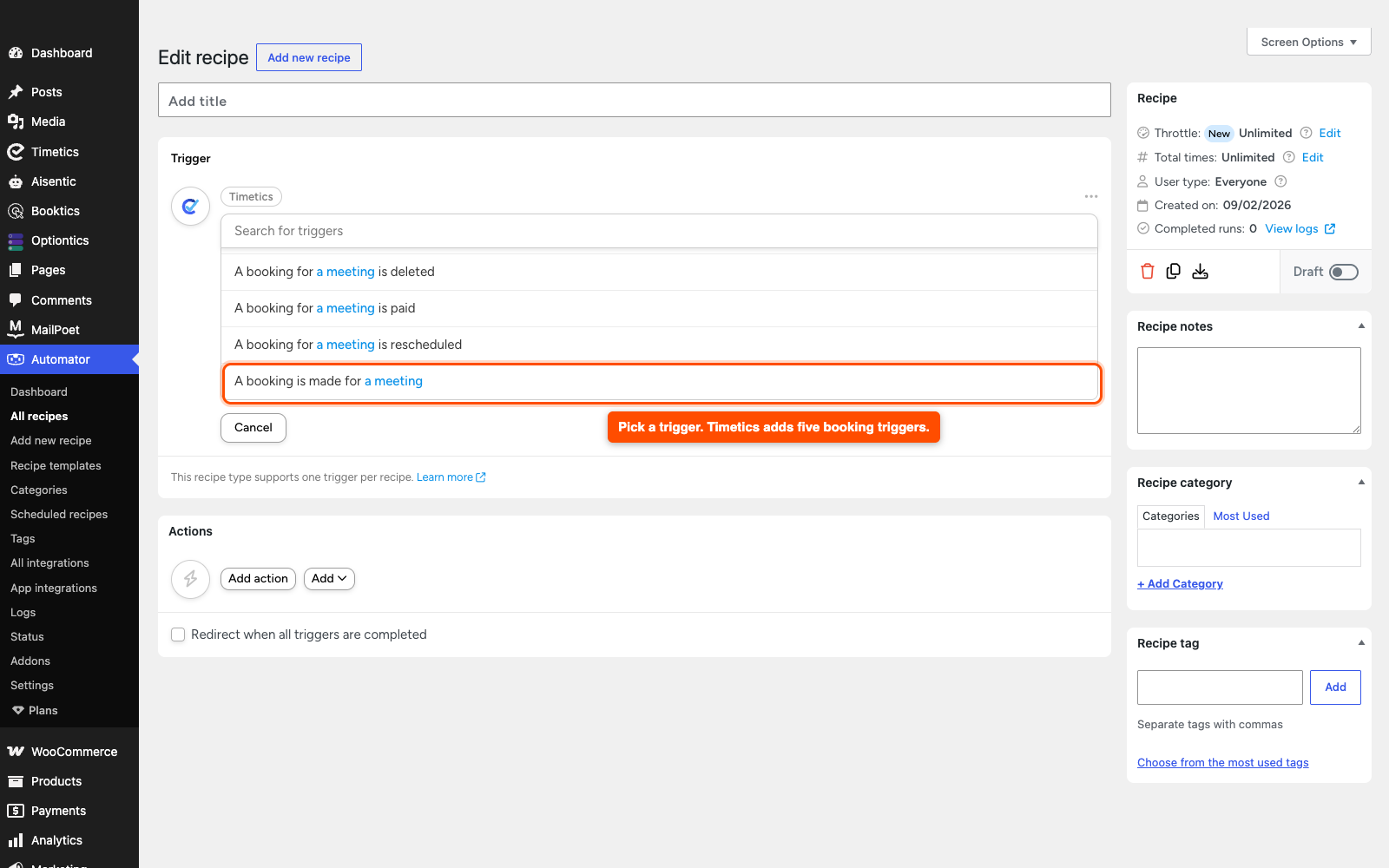
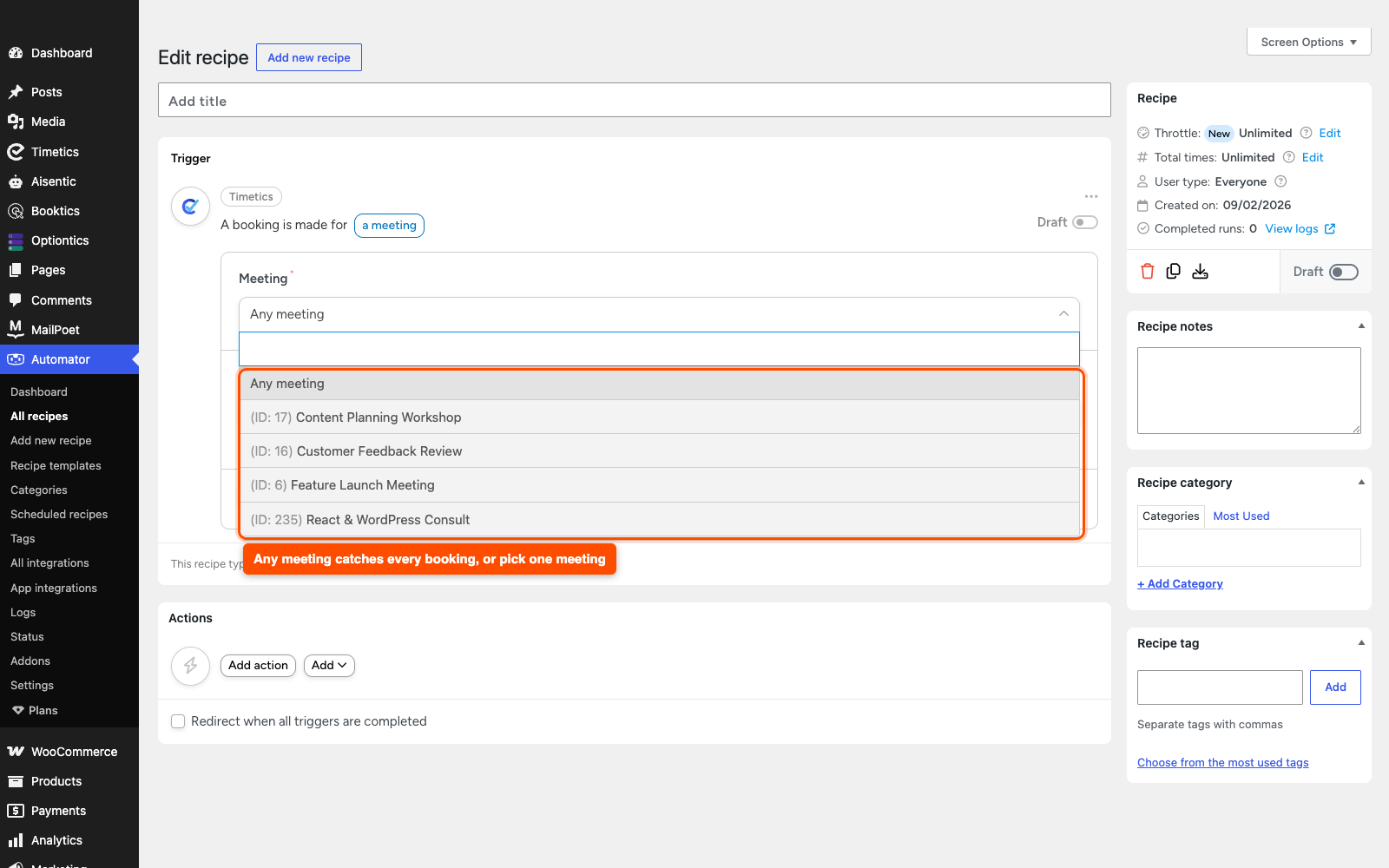
- Open the Meeting dropdown and choose the meeting this recipe should watch, or choose Any meeting to catch bookings for all of them.
- Save the trigger, then set it Live.
Step 5: Add an action and use the booking data
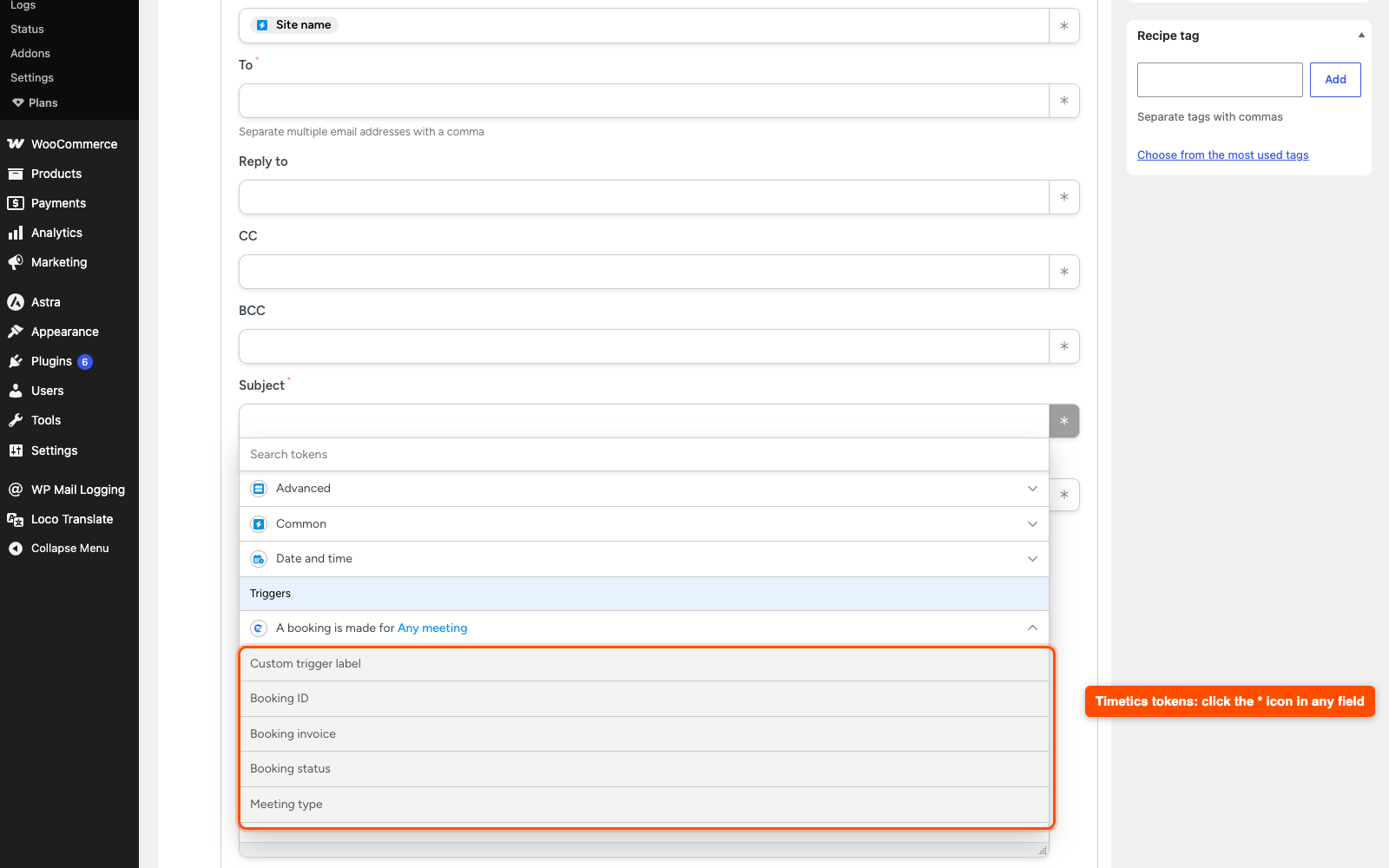
Timetics passes 46 tokens with every trigger, so your action can use real booking details instead of fixed text.
- Add an action, for example Emails → Send an email.
- Click the asterisk (
*) icon in any field to open the token picker. - Open the Timetics trigger group and pick the token you want.
The tokens are grouped by what they describe.
| Group | What you get |
| Booking | ID, invoice number, status, date, start and end time, timezone, location, meeting link, calendar link, description, total, currency, payment method, payment status, cancellation reason, guest emails, attendee count, custom field answers, admin edit URL |
| Customer | ID, first name, last name, full name, email, phone, address, city, state, post code, country |
| Meeting | ID, name, duration, price, timezone, meeting URL |
| Staff | ID, name, email |
| Tip: Some tokens come back empty on purpose. A meeting held in person has no meeting link, an unpaid booking has no payment status, and a booking form without a phone field gives no phone number. |
Step 6: Test it
- Publish the recipe, and make sure the trigger, the action, and the recipe itself all show Live.
- Open your booking page on the front end and book the meeting you picked in Step 4.
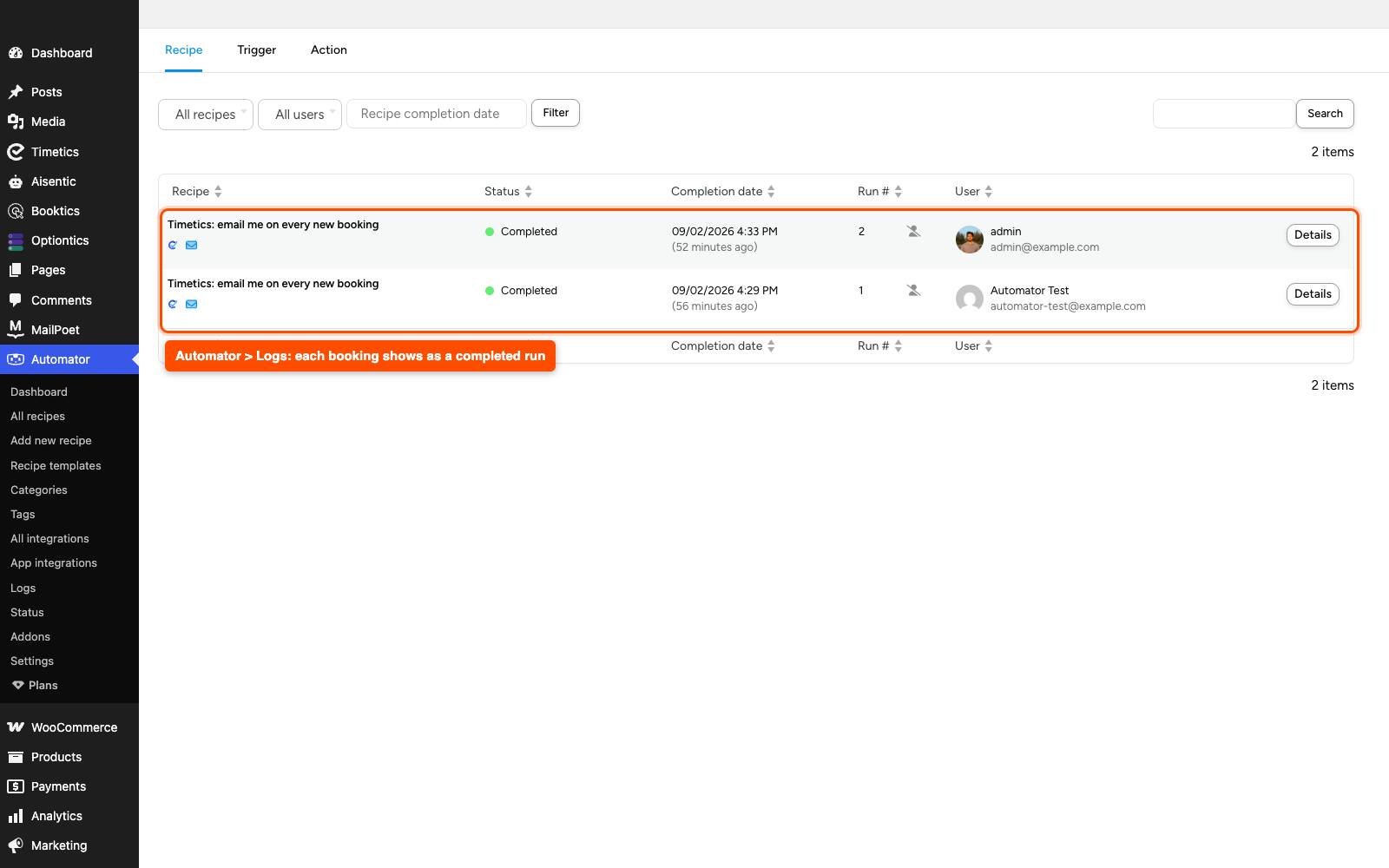
- Go to Automator → Logs in your dashboard.
- Your recipe appears with a completed run, and the customer’s name and email show in the user column.
If the run is there but the action failed, open the run to read the error. If no run appears at all, check Step 4: the recipe usually points at a different meeting than the one you booked.
| Note: Timetics sends its own booking emails as well. If your recipe emails the customer too, they get two messages. Turn off the matching notification in Timetics → Settings → Notifications and let the recipe handle it instead. |
Frequently Asked Questions (FAQ)
| Q1: Do I need Uncanny Automator Pro for this? No. The Timetics triggers work with the free version of Uncanny Automator from WordPress.org. You need Timetics Pro, because the integration ships there, but nothing on the Automator side is gated. Automator Pro only matters if the actions you want to run are Pro actions. |
| Q2: Why should the recipe type be Everyone instead of Logged-in users? Timetics lets people book without an account, and a Logged-in recipe skips every guest booking. An Everyone recipe runs for both guests and logged-in customers, and Timetics still passes the customer’s name and email as tokens either way, so you lose nothing by choosing it. |
| Q3: I turned the toggle off. What happens to my recipes? They stay saved, and they stop running. With Enable integration off, Timetics does not register its triggers with Automator, so the Timetics integration disappears from the trigger picker and existing recipes never fire. Turn the toggle back on in Timetics → Settings → Integrations and they start working again, unchanged. |
Conclusion
The Uncanny Automator integration lets each Timetics booking start a recipe, so confirmations, CRM updates, and internal alerts run without you touching them. Turn it on in Timetics → Settings → Integrations, build one recipe, and make a test booking to see it in the Automator logs.