
Overview
AI apps (MCP) in WPTimetics lets you connect an AI app such as Claude, ChatGPT or Gemini to your booking site. You and your staff can then ask it to check bookings, find free times, book, move or cancel, and change meetings, in plain words. Every change shows a preview first and saves only after you say yes.
Requirements
You need WordPress 6.9 or newer, a public HTTPS site, and an AI app that supports MCP connectors with sign-in. WPTimetics installs the MCP Adapter plugin for you, and WPTimetics Pro adds coupon tools (optional).
Step 1: Turn On AI Apps (MCP)
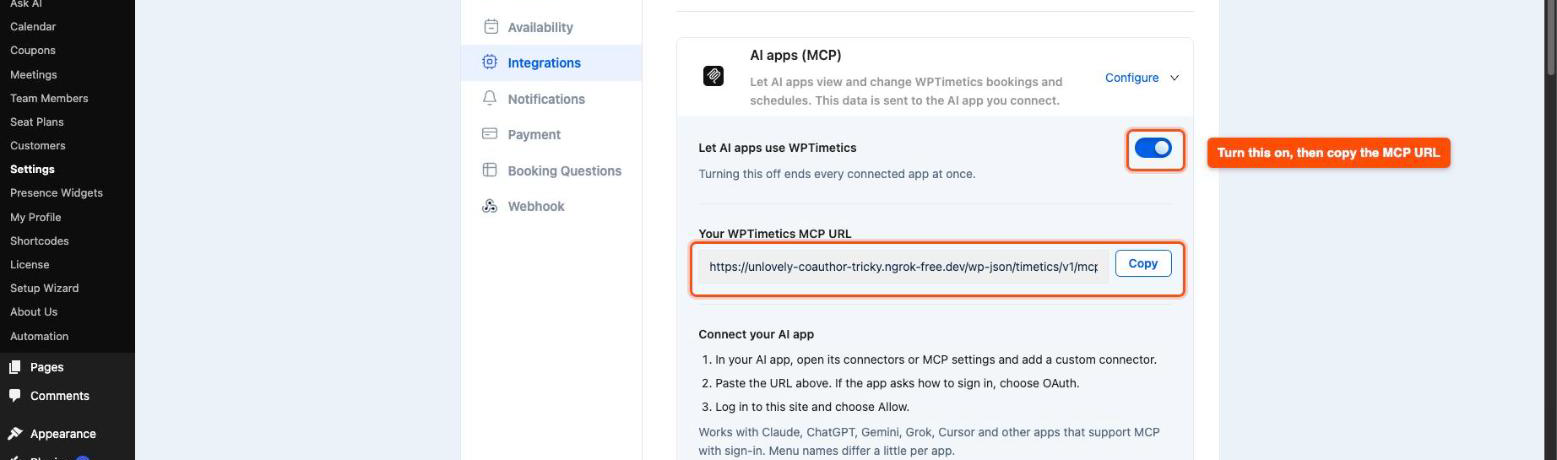
- Go to WPTimetics > Settings > Integrations, find AI apps (MCP) and click Configure.
- Turn on Let AI apps use WPTimetics.
- If the card asks for the MCP Adapter, click Install and activate.
- Under Your WPTimetics MCP URL, click Copy.
The URL looks like https://your-site.com/wp-json/timetics/v1/mcp. If the card warns about a public https address, AI apps cannot sign in to this site until it has one.
Step 2: Connect Your AI App
- In your AI app, open its connectors or MCP settings and add a custom connector. For example, in Claude go to Settings > Connectors, and in Gemini go to Settings > Connected Apps.
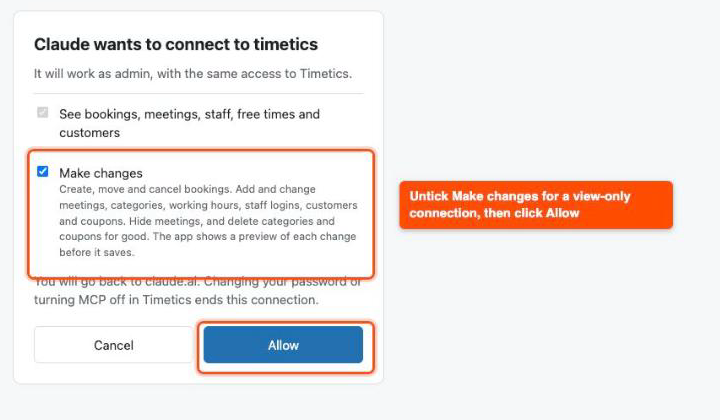
- Paste the URL. If the app asks how to sign in, choose OAuth and leave Client ID and Client secret empty.
- Log in to your site when the browser opens, and click Allow.
Untick Make changes on the Allow page if the app should only read.
Step 3: Ask in Plain Words
Go back to your AI app and ask, for example:
- “Show me tomorrow’s bookings.”
- “Book Rahim, [email protected], for Onboarding on Monday at 10am.”
- “Move booking 475 to Thursday at 2pm.”
- “Give Sara Sunday off.”
For every change the app first shows a preview, then saves only after you say yes. A booking can only move to a time your booking page offers, and a meeting with upcoming bookings cannot be hidden.
Staff can connect with their own login (share the MCP URL with them). They only see and change their own bookings.
Step 4: See and End Connections
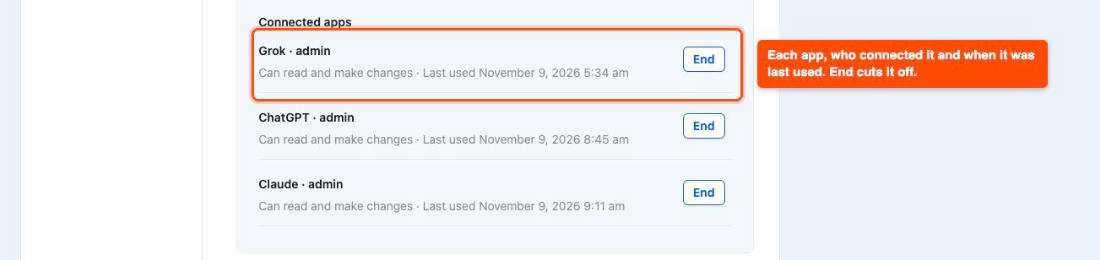
The Connected apps list on the card shows each app, who connected it, what it can do, and when it was last used. Click End to cut a connection at once. Turning off the toggle ends every connection.
Frequently Asked Questions (FAQ)
| Q1: Is this the same as the AI Booking Assistant? No. AI apps (MCP) is for you and your staff, inside your own AI app, to manage bookings and meetings. The AI Booking Assistant is a chat on your website that helps customers book. You can use both at the same time. |
| Q2: My AI app signs in but cannot load the tools. What should I check? Check that the MCP Adapter is active and your site uses public HTTPS. Some hosts remove the login header that AI apps send after sign-in. Ask your host to pass the Authorization header to PHP, then remove the connector in your AI app and add it again. |
Conclusion
AI apps (MCP) in WPTimetics lets you manage bookings from Claude, ChatGPT, Gemini and other AI apps, with a preview before every change. Turn it on in Settings > Integrations and ask your AI app for tomorrow’s bookings.