
Timetics provides seamless integration with external calendars such as Apple Calendar and Microsoft Outlook Calendar. This allows customers and event organizers to automatically sync bookings, reduce scheduling conflicts, and manage availability more efficiently from a single system.
Apple Calendar integration works via downloadable calendar invite files, while Outlook Calendar integration uses secure Microsoft OAuth authentication.
Apple Calendar
Go to:
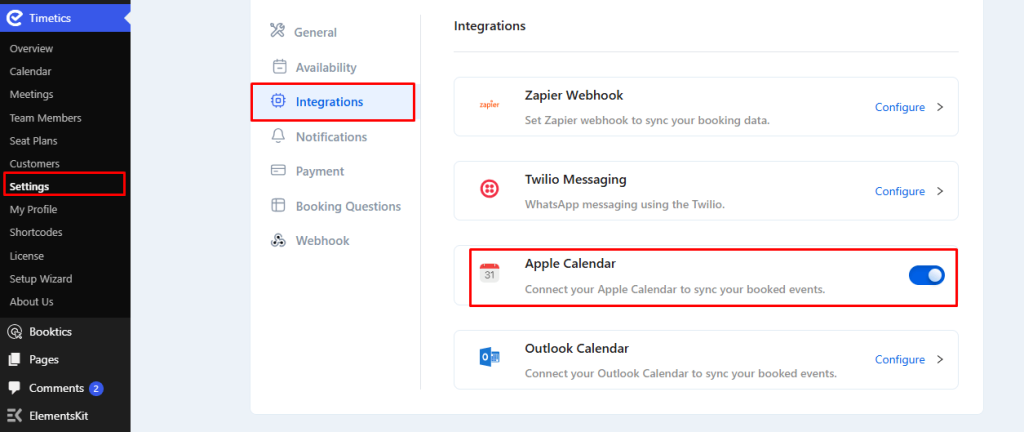
WordPress Dashboard → Timetics → Settings → Integrations → Enable Apple Calendar → Click Save.
How it works
- After a booking is completed, an Apple Calendar icon appears on the confirmation screen
- Clicking the icon downloads an .ics file
- Opening the file adds the event to Apple Calendar or any default calendar app
Outlook Calendar
Go to:
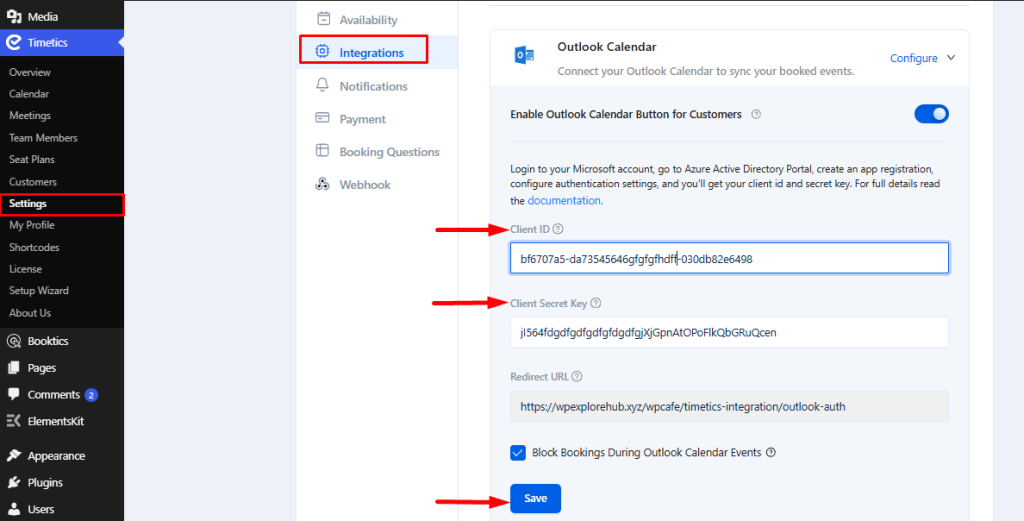
WordPress Dashboard → Timetics → Settings → Integrations → → Open Outlook Calendar → Click Configure
Required Configuration
To connect Outlook Calendar, you must configure the following:
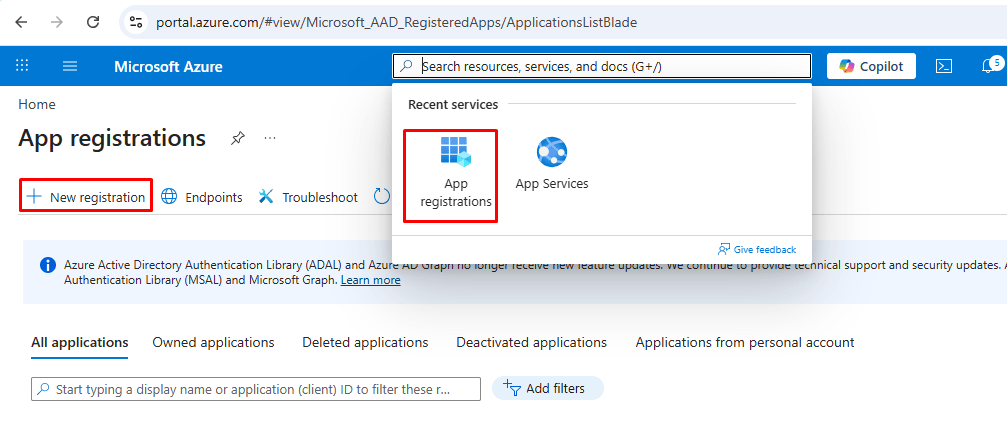
- Go to https://portal.azure.com/auth/login/ and log in
- Search and click App registrations → New registration
- Create an app and click Register
- Copy Application (client) ID → Client ID
- Go to Certificates & secrets
- Create a new client secret
- Copy Value → Client Secret
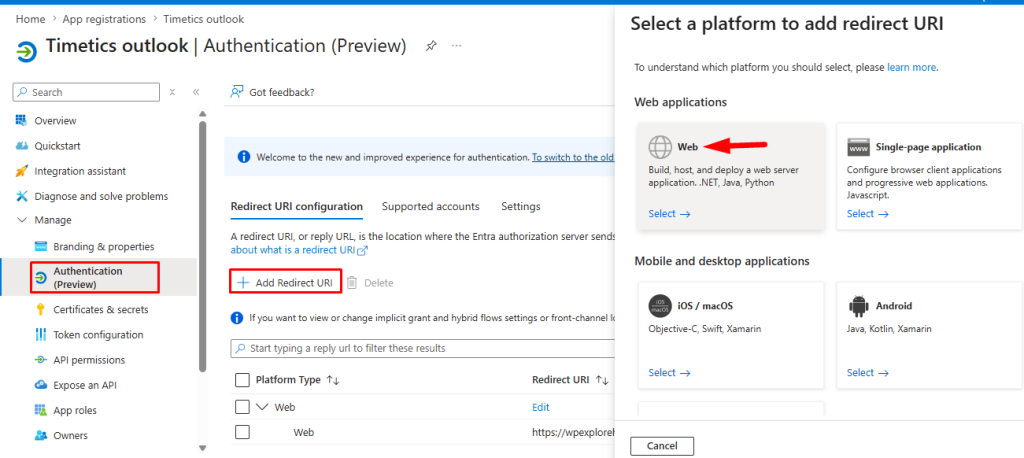
- Go to Manage →Authentication from the left sidebar
- Add Web platform and set Redirect URL copied from Timetics → Integrations → Settings → Redirect URL.
https://wpexplorehub.xyz/wpcafe/timetics-integration/outlook-auth - Click Save
- Paste Client ID + Client Secret in Timetics → Save
How it works
- After booking, the Outlook Calendar icon appears
- If the user is logged into Microsoft → connection happens automatically
- If not logged in → Microsoft login is required
- Once connected, the booking is synced to Outlook Calendar
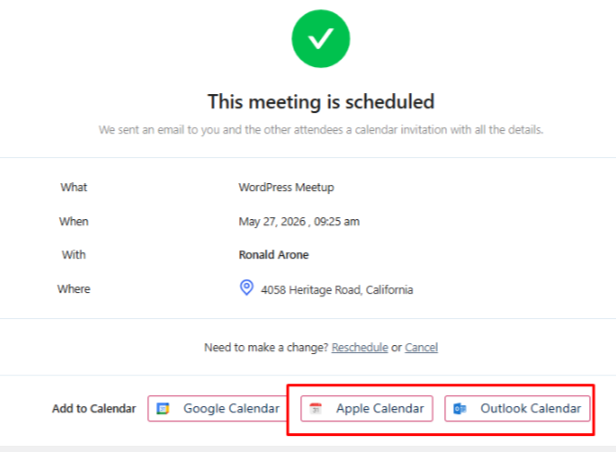
Optional Feature
Block Bookings During Outlook Calendar Events
- When enabled, Timetics checks Outlook availability
- Time slots marked as busy in Outlook will be blocked in Timetics
- This prevents double booking automatically
FAQ
Q1. Do I need API credentials for Apple Calendar?
No. Apple Calendar works using a simple .ics file download.
Q2. Why is Azure setup required for Outlook?
Because Outlook uses Microsoft OAuth authentication for a secure connection.
Q3. Will Outlook busy times block bookings automatically?
Yes, if the blocking option is enabled in settings.
Conclusion
Apple Calendar integration provides a simple file-based sync system, while Outlook Calendar offers a secure and advanced synchronization using Microsoft authentication. Both integrations help improve scheduling accuracy and prevent booking conflicts.